Block a user
When a person must not use the apps of your workspace any more, block the user. Vuframe® Cloud removes the access to all apps of this workspace at once. The user record and its history stay. Other workspaces do not change.
Workspace admins can block users. Team members who are not admins can block users when User Management is on for the workspace and they have access to it.
Open the Block User dialog
- In the sidebar, open Tools > User Management.
- Click the name of the user.
- At the bottom of the left column, click Block User.
The Block User dialog opens with the field Blocking Reason.
Type or pick the reason
A reason is necessary. Click in Blocking Reason to see the list of reasons. The list shows the standard reasons and each reason that your workspace used before, each reason one time.
- Type to search. The list shows only the reasons that contain your text. Upper case and lower case are the same.
- Pick a reason. Click it, or use the arrow keys and press Enter. To close the list, press Escape.
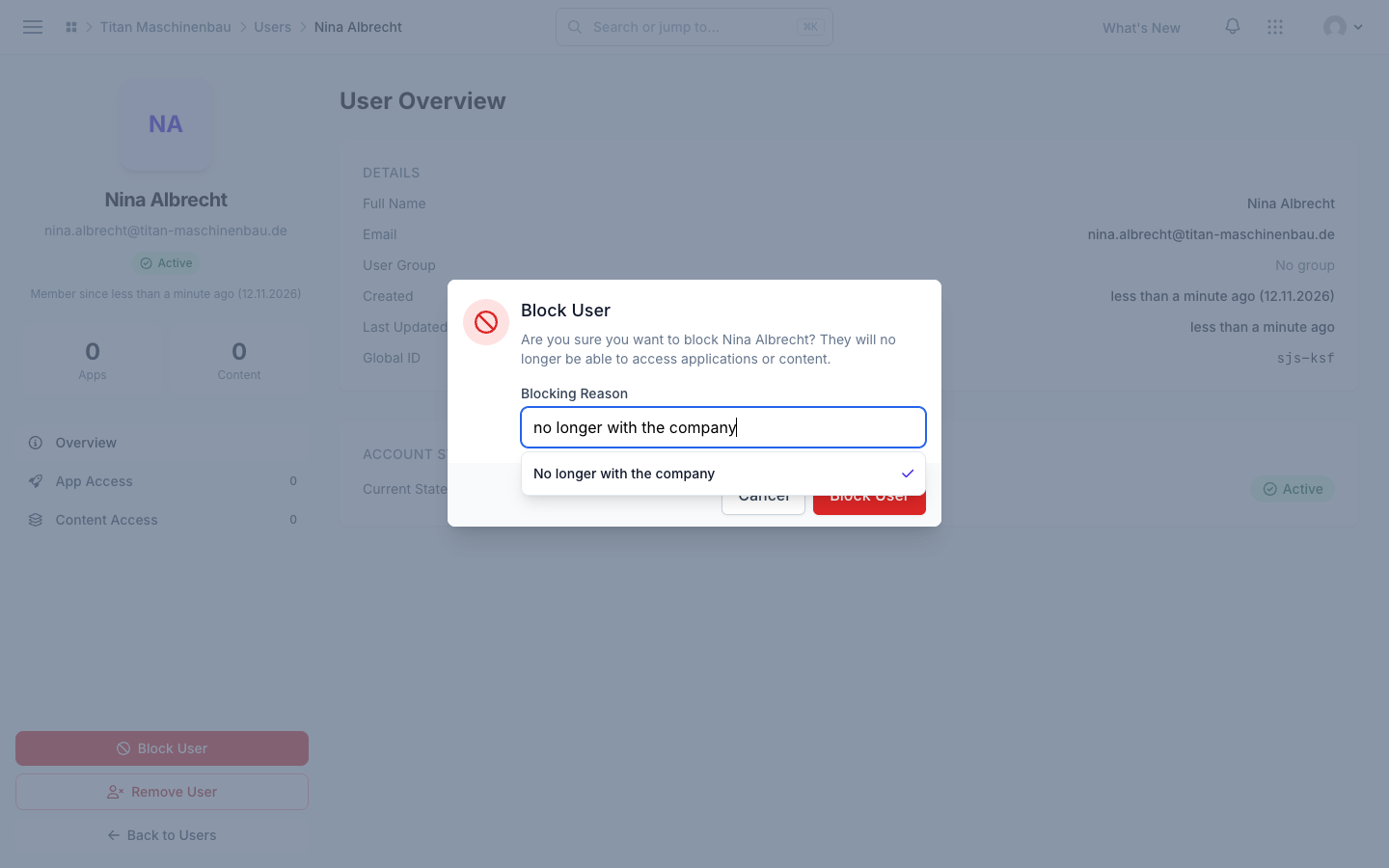
- Type a known reason. When you type a reason that the list has, in upper or lower case, for example "no longer with the company", Vuframe® Cloud selects the saved reason. A check mark shows next to it. Vuframe® Cloud saves the reason with the saved spelling, so the same reason has the same spelling for all users.
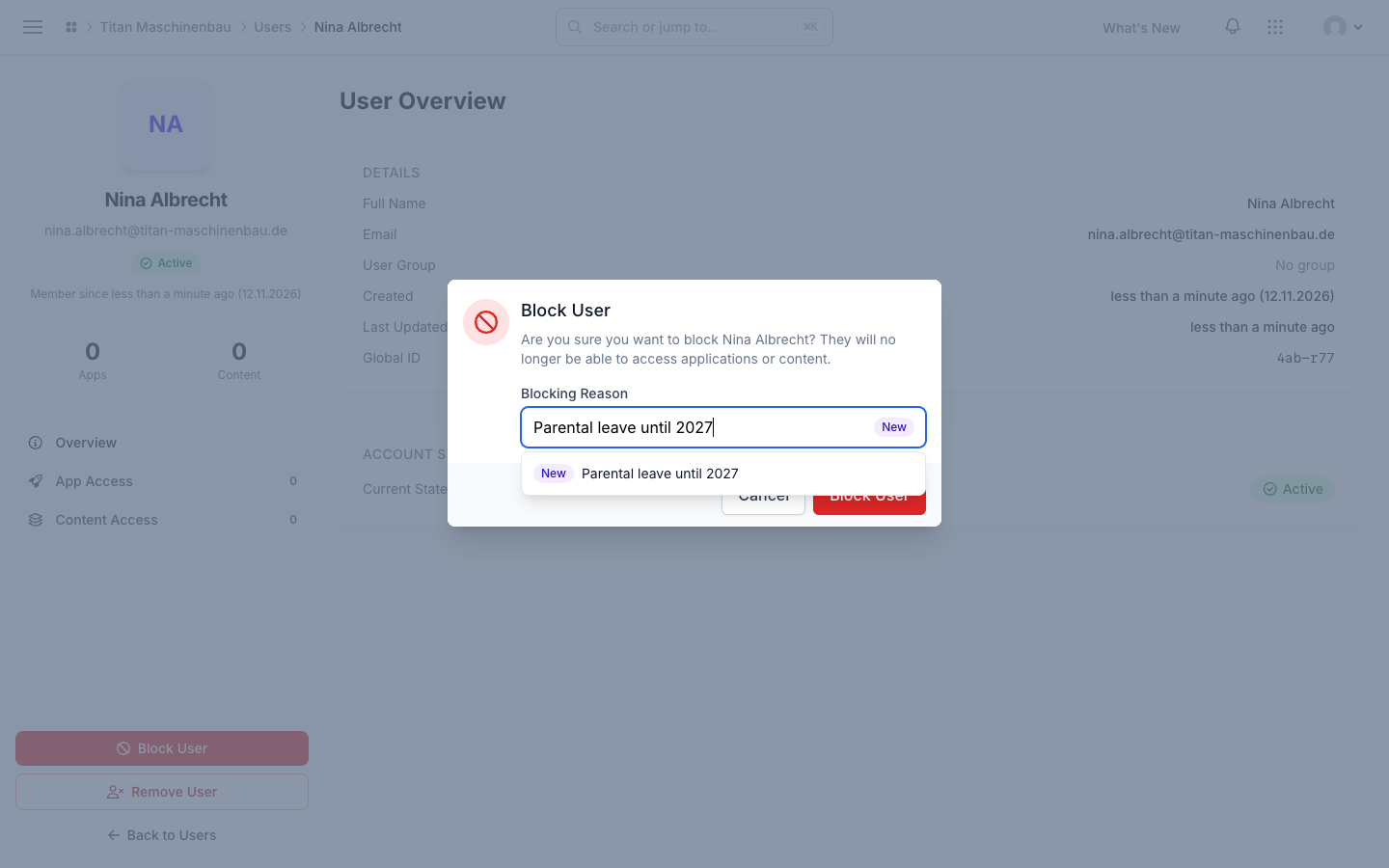
- Type a new reason. When no reason in the list agrees with your text, the field shows a New badge. The first row of the list shows your text with New in front of it. Vuframe® Cloud saves the reason as you typed it. The next time, the reason is in the list.
Block the user
In the dialog, click Block User, or press Enter in the field.
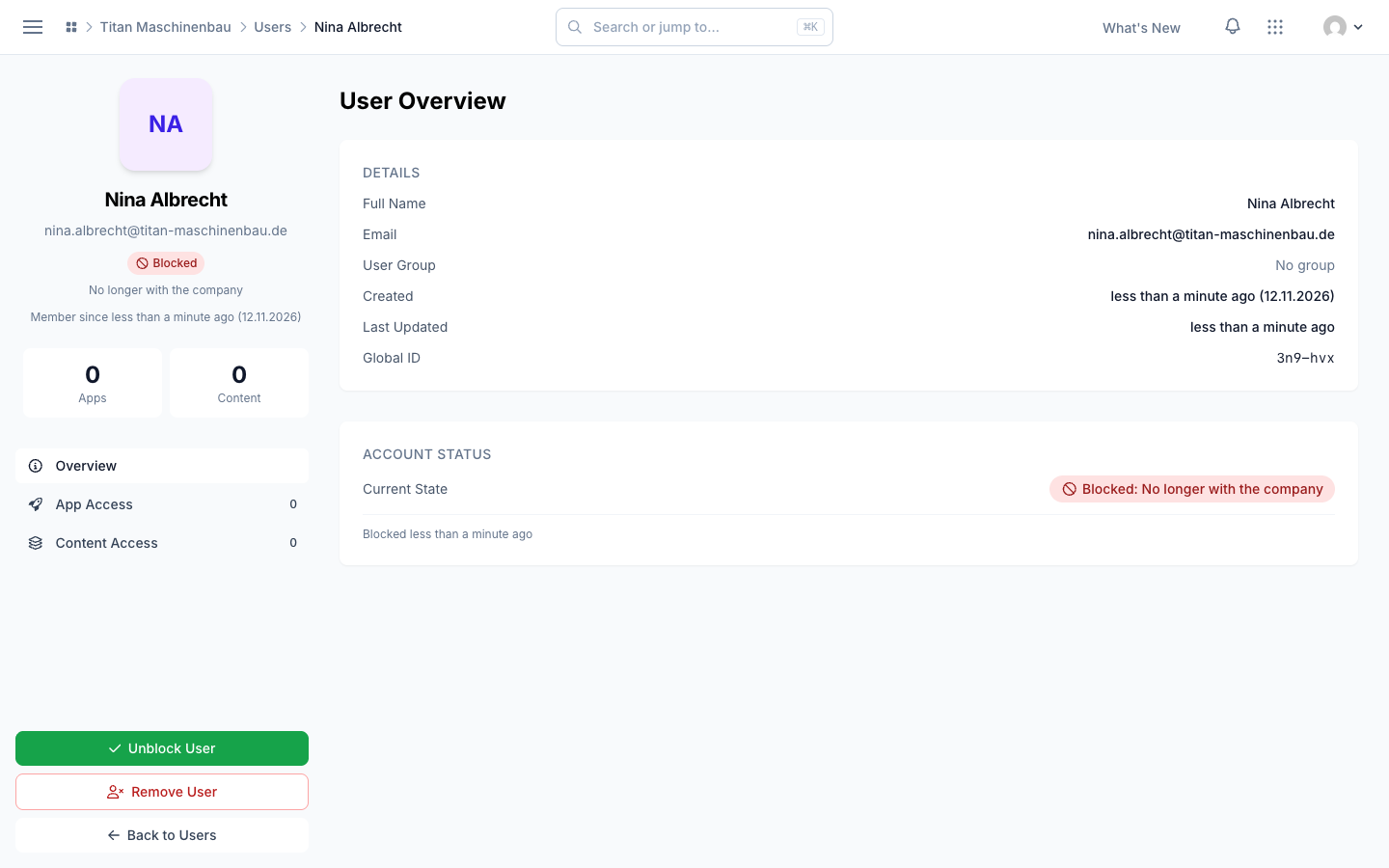
- The user is Blocked. The reason shows below the name and in Account Status as "Blocked:" followed by the reason.
- Vuframe® Cloud removes all app access of the user in this workspace. App Access keeps the history of the access.
- The user stays in the list. To see all blocked users, open Users and select Standing > Blocked.
Unblock a user
- Open the user and click Unblock User.
- Confirm. The user is Active again.
When you unblock a user, the user does not get the apps back. Under App Access, give the user access to each app again.
Troubleshooting
| You see | Cause | What to do |
|---|---|---|
| "Enter a reason to block …" | The reason was empty. | Open Block User again, then type or pick a reason. |
| The same reason with two different texts in the list | The list ignores only upper case and lower case. "No longer with the company" and "No longer in the company" are two different reasons. | Pick the reason that you want. Old reasons stay in the list while users have them. |
| The user can still use the apps of a different workspace | A block applies only to this workspace. | Block the user in each workspace. |
| There is no Block User button | You have no access to User Management. | Ask a workspace admin. |