Vuframe® Studio v6.0.2 to v6.5.13 lets you log in with a code from your email instead of a password. Each Smartvu gets its own camera mode and shadow settings, and shared links and embeds can have an end date.
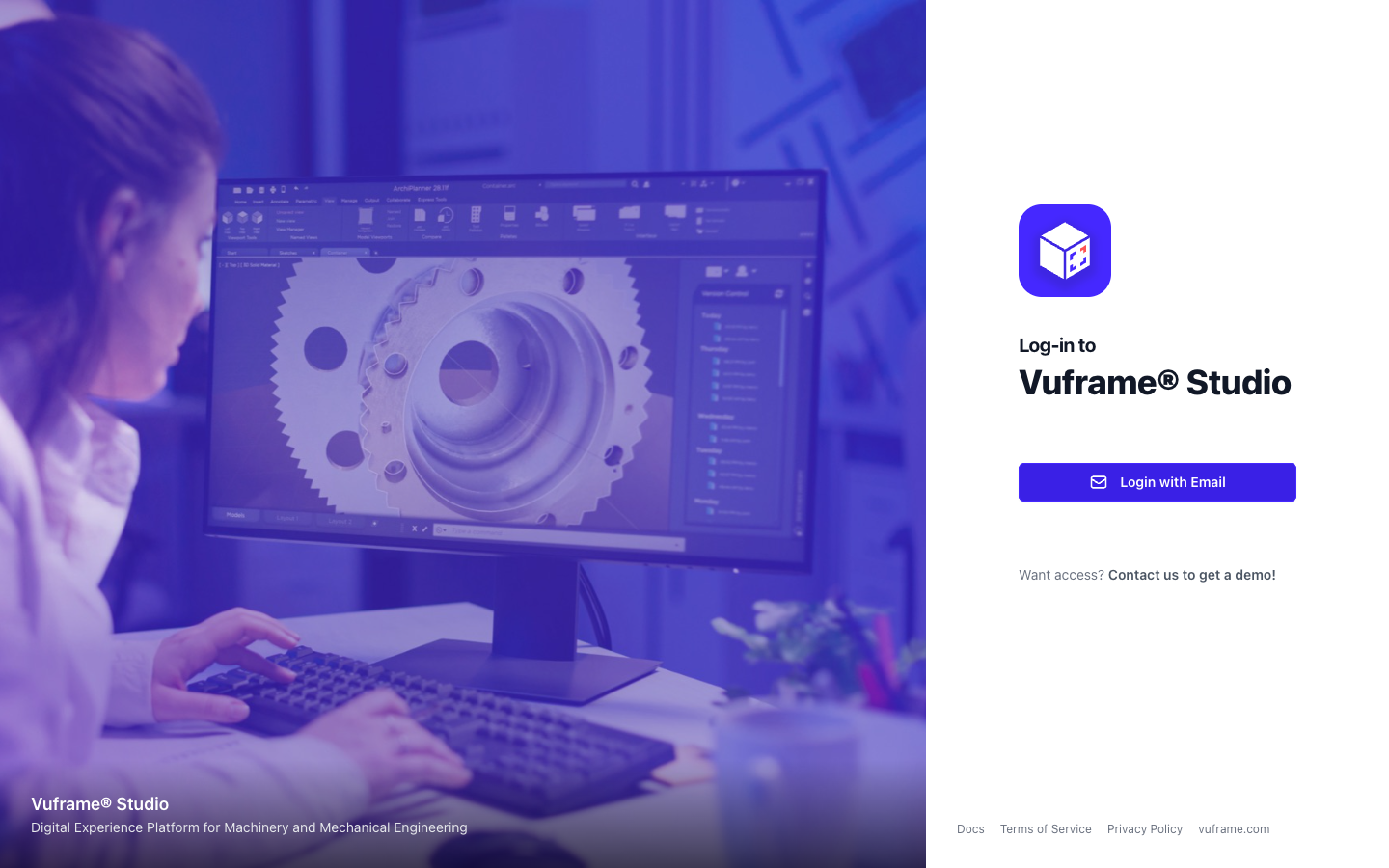
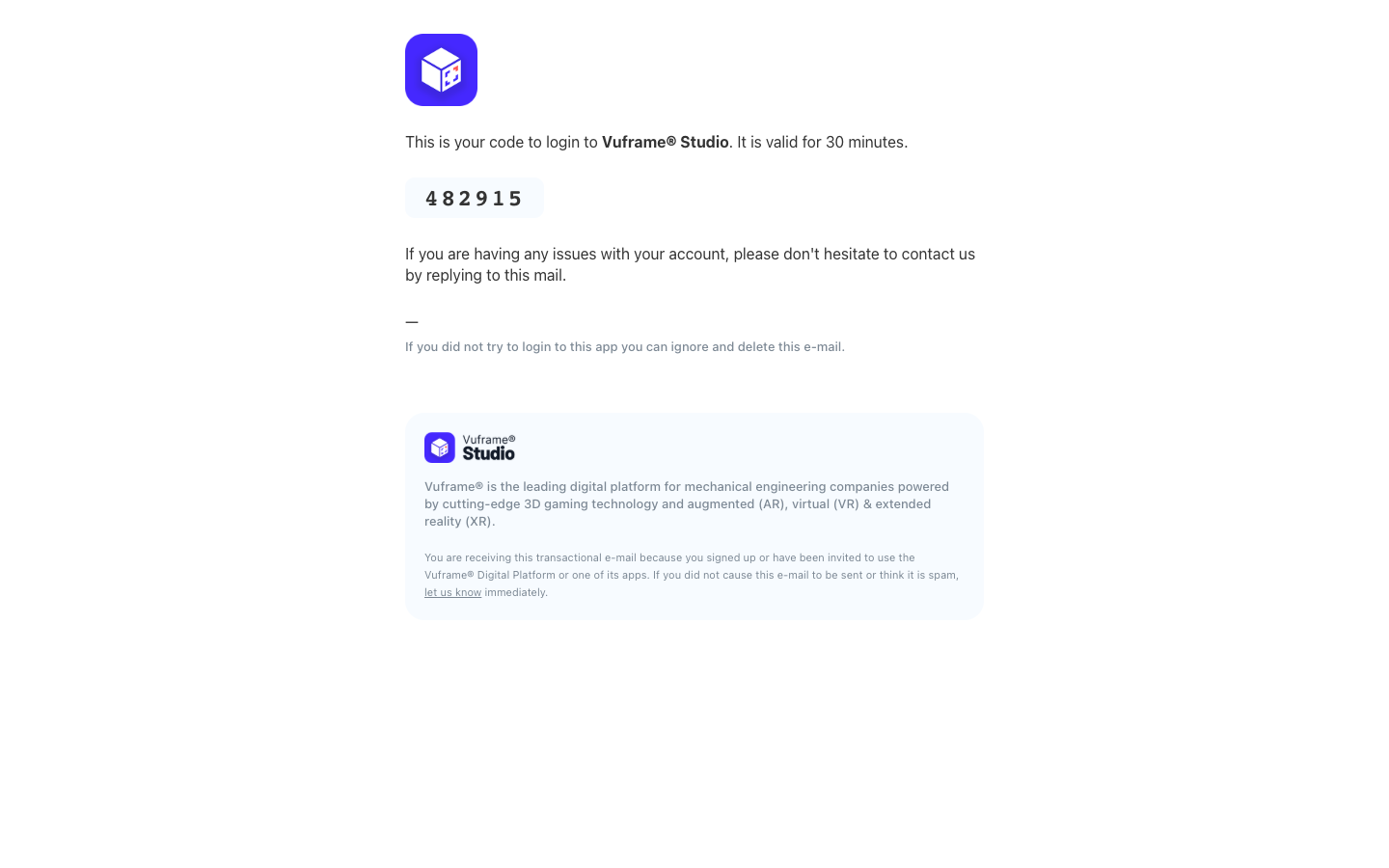
Log in with a code from your email. The new login page is at studio.vuframe.com/login. Click Login with Email, enter your email address and type the one-time code that we send you. You no longer need a password, and you cannot forget it. Old login and password links open the new page. Invitations work the same way: when you accept an invitation, you do not set a password. The password section is gone from your profile. Your account, spaces and content do not change. Log in with the same email address as before.
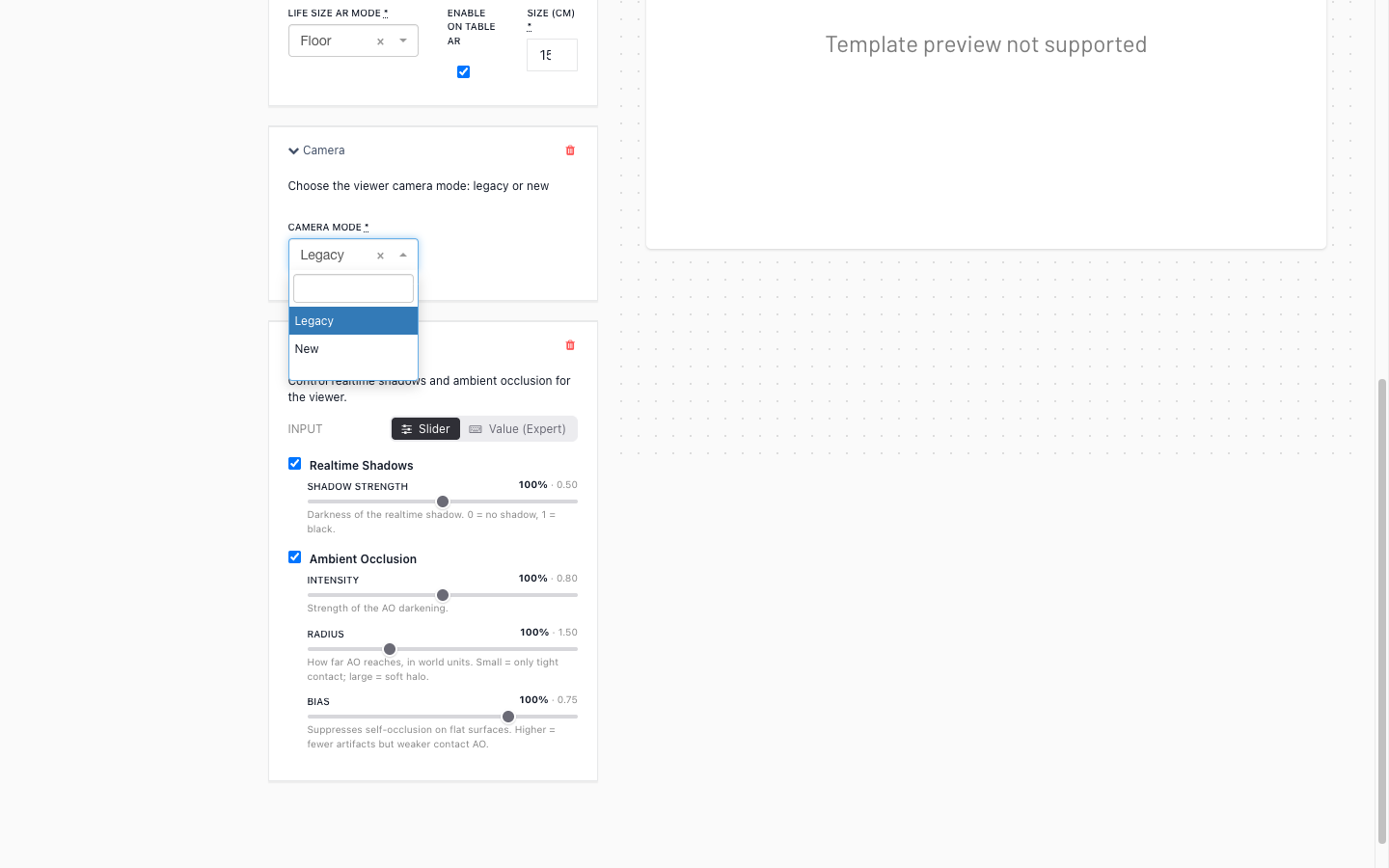
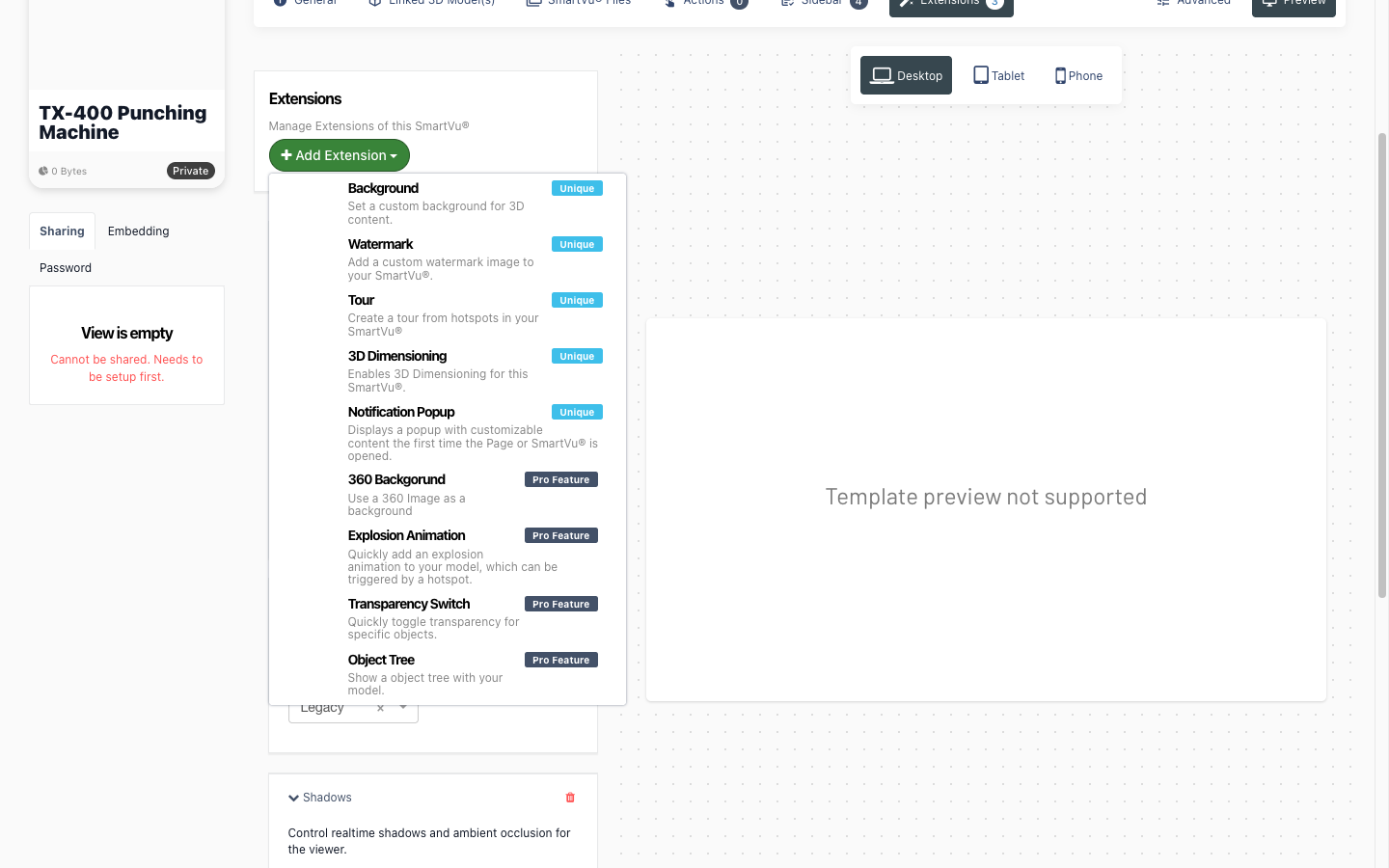
Camera mode for each Smartvu. The new Camera extension sets how visitors move the camera around your 3D content. Open a Smartvu in the editor, go to Extensions, click Add Extension and select Camera. Under Camera Mode, select Legacy (the known controls) or New (the new touch camera). Smartvus without the extension keep the legacy camera.
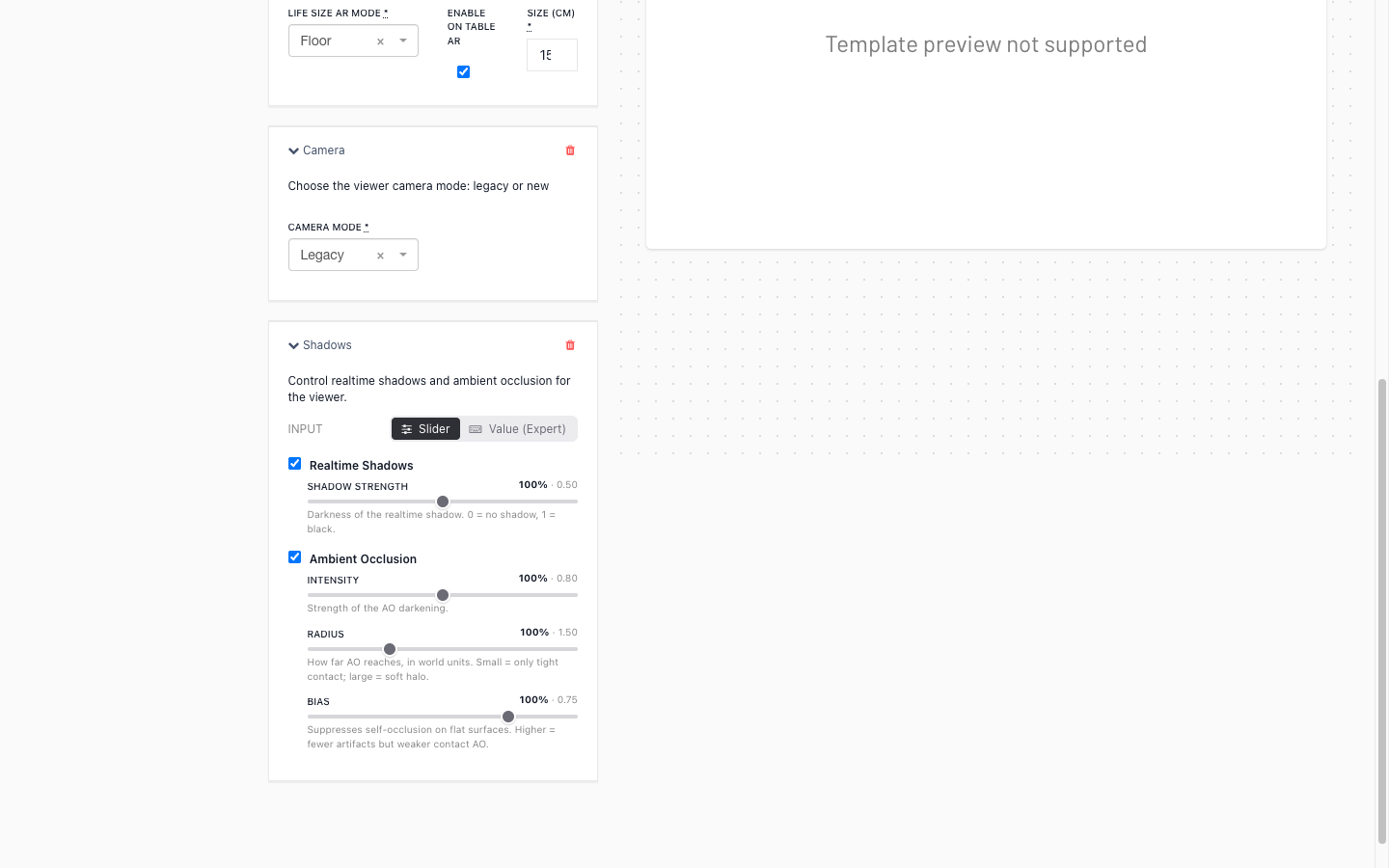
Shadows and ambient occlusion for each Smartvu. The new Shadows extension sets how the viewer lights your 3D content. Add it under Extensions > Add Extension > Shadows. Turn realtime shadows on or off and set how dark they are. Turn ambient occlusion on or off and set its intensity, radius and bias. On slow devices, the viewer can still turn realtime shadows off to keep the frame rate smooth.
Since v6.4.0, each setting is a slider that shows its share of the default (for example "100%") next to the value that the viewer uses. To type the values, change Input from Slider to Value (Expert). Realtime Shadows and Ambient Occlusion each have an on/off checkbox in the heading of their section. The viewer shows what you set. Because the old values meant something different in the viewer, v6.4.0 reset all existing Shadows extensions to the defaults. If a Smartvu had its own values, the Smartvu list shows a to review button. Check the shadow settings of each of these Smartvus, then click Mark as reviewed or save new values.
Shared links and embeds can expire. A share link or an embed of a Smartvu can have an end date. After that date, the link does not open the Smartvu. It shows that the link has expired. This applies to everyone who opens the link, also in connected apps. An embed that you make from a share link gets the end date of that link. Connected apps and integrations set the end date, so there is no Studio screen for it.
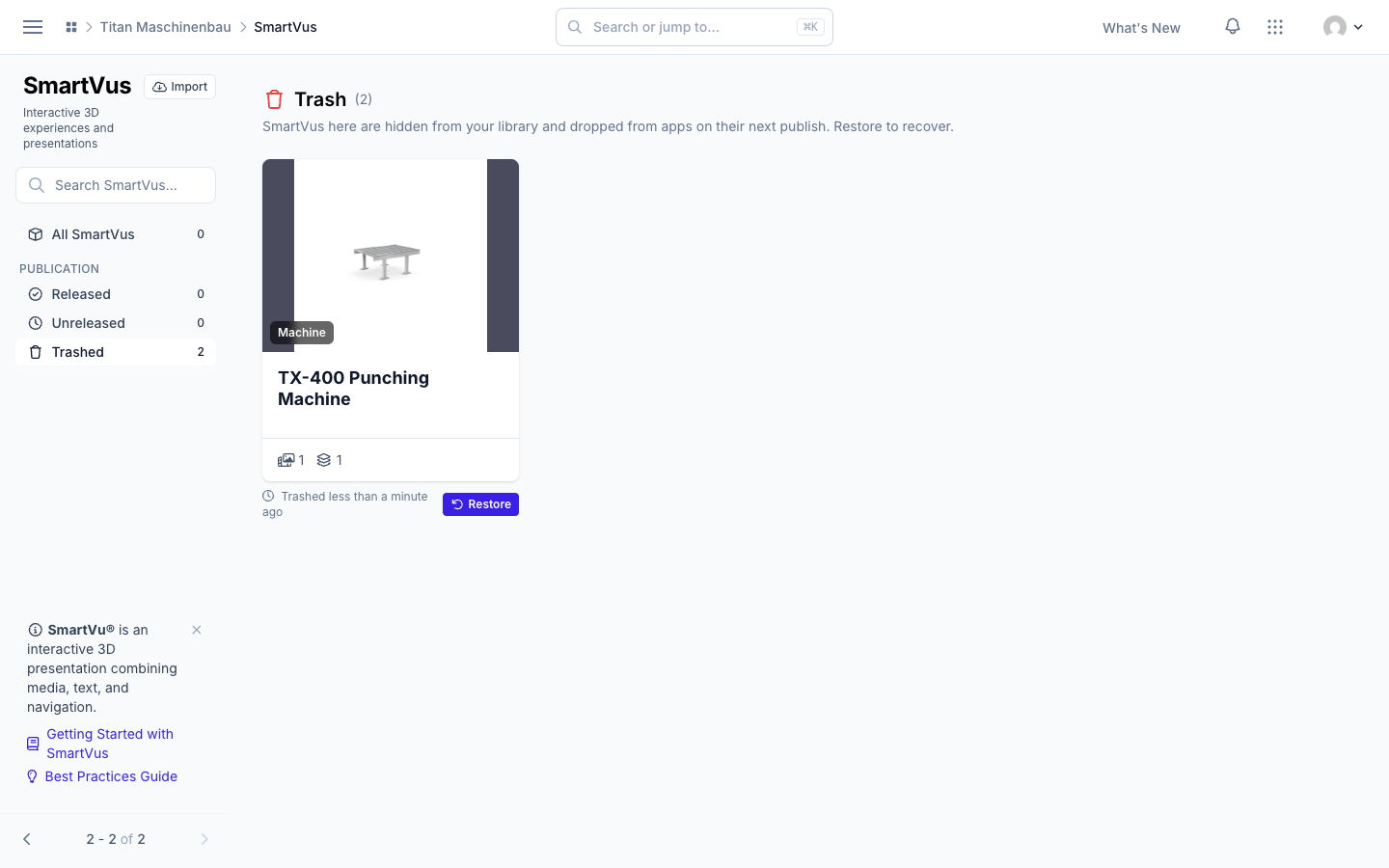
Retired elements are not offered any more.Add Extension, Add Widget and Add Action in the Smartvu editor list only the elements that the Vuframe® viewers and apps still show. Six old types are gone from these lists: Cardboard VR, Bookmark, Custom Markerset, Screenshot Overlay, and the Product States widget and extension. New Smartvus do not get Cardboard VR by default any more. A Smartvu that already uses one of these elements keeps it. The editor marks it with "Deprecated: not shown in the Vuframe viewers and apps", because it has no effect.
The login code email shows the Studio logo. The email with your Vuframe® Studio login code showed the Vuframe® Cloud logo at the bottom. It now shows the Vuframe® Studio logo, so you can see which product the code is for.
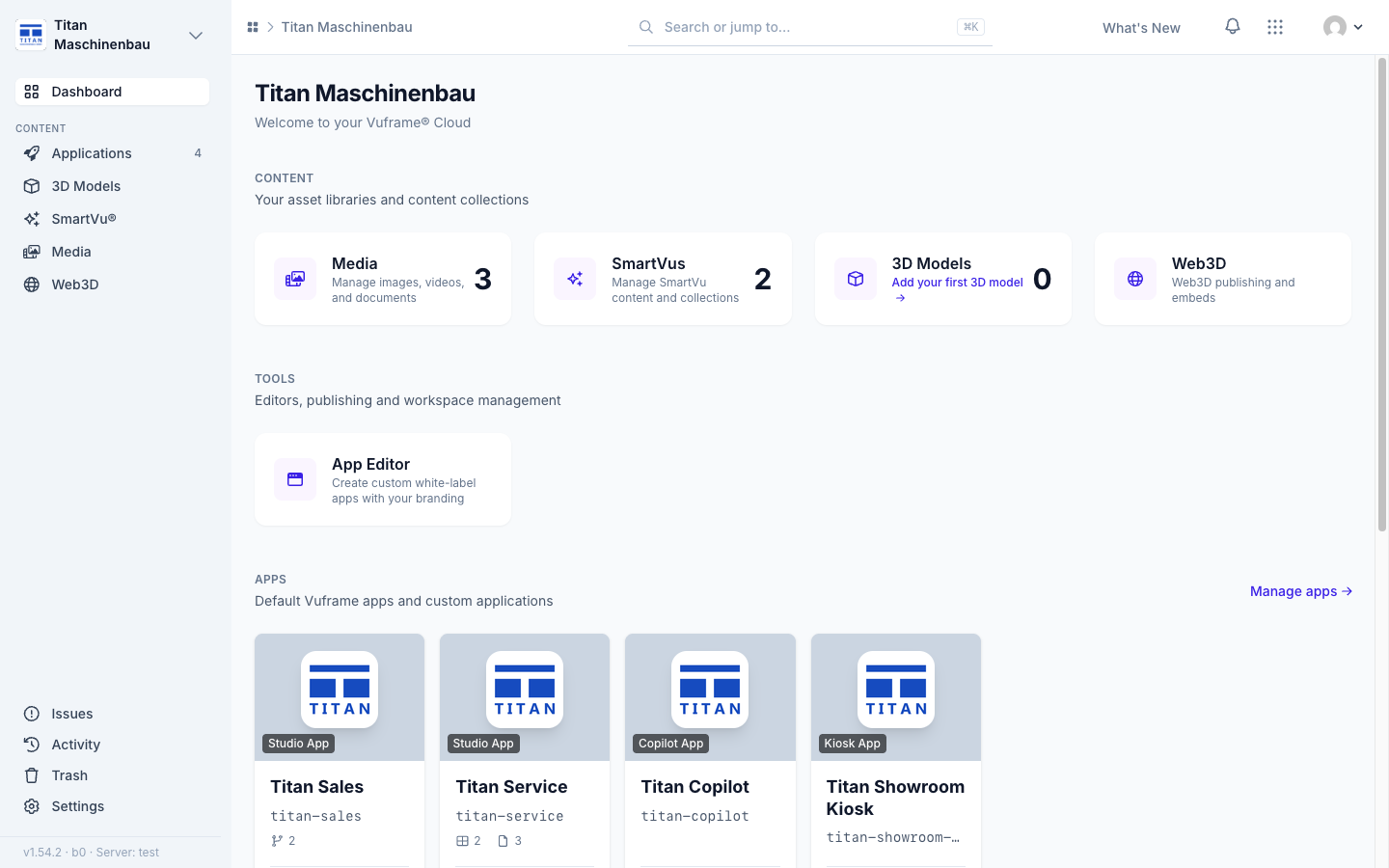
Vuframe® Cloud v1.58.0 to v1.59.5 tells you which apps still show something that was repaired since, and makes category types easy to reach from categories and from the search.
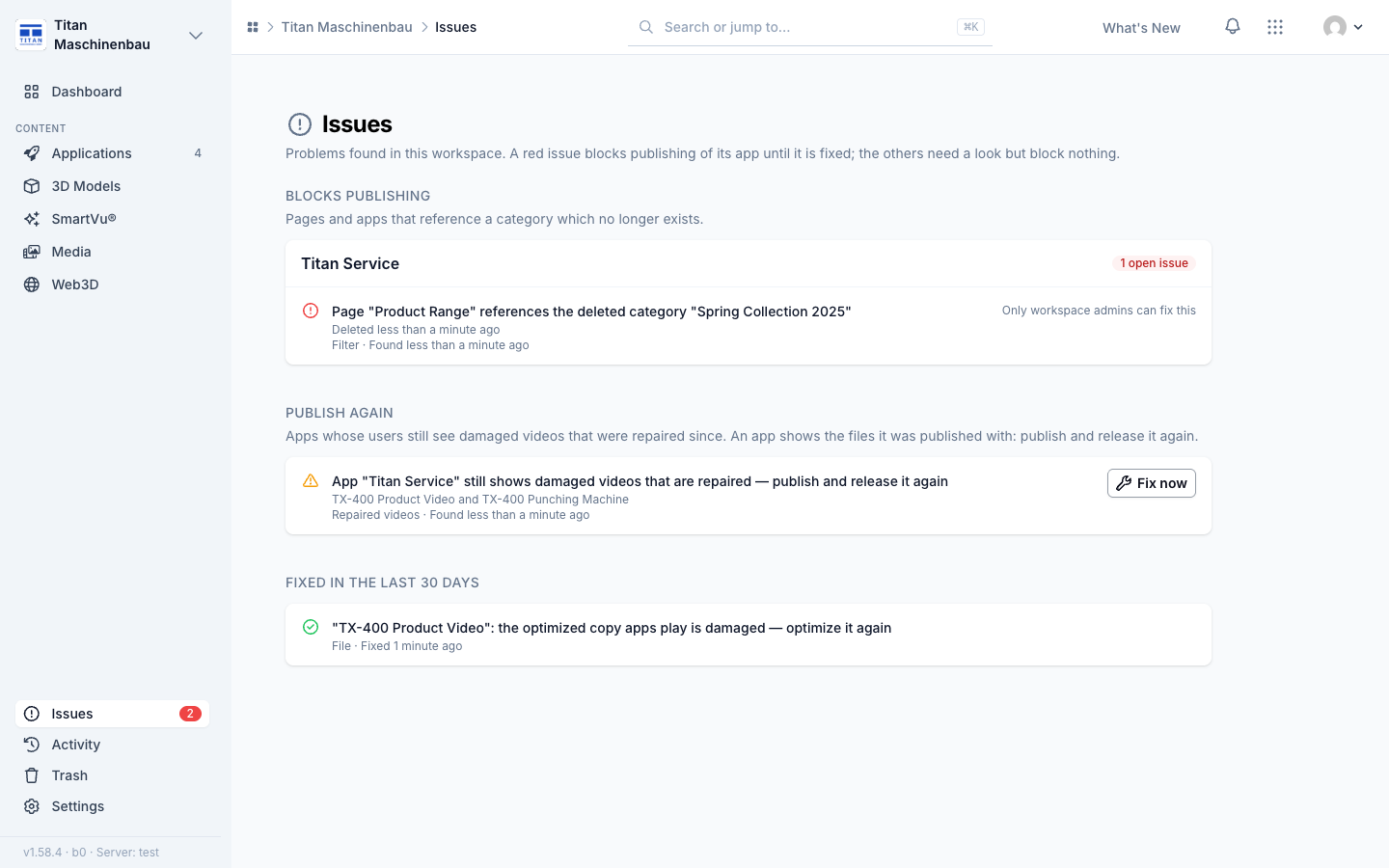
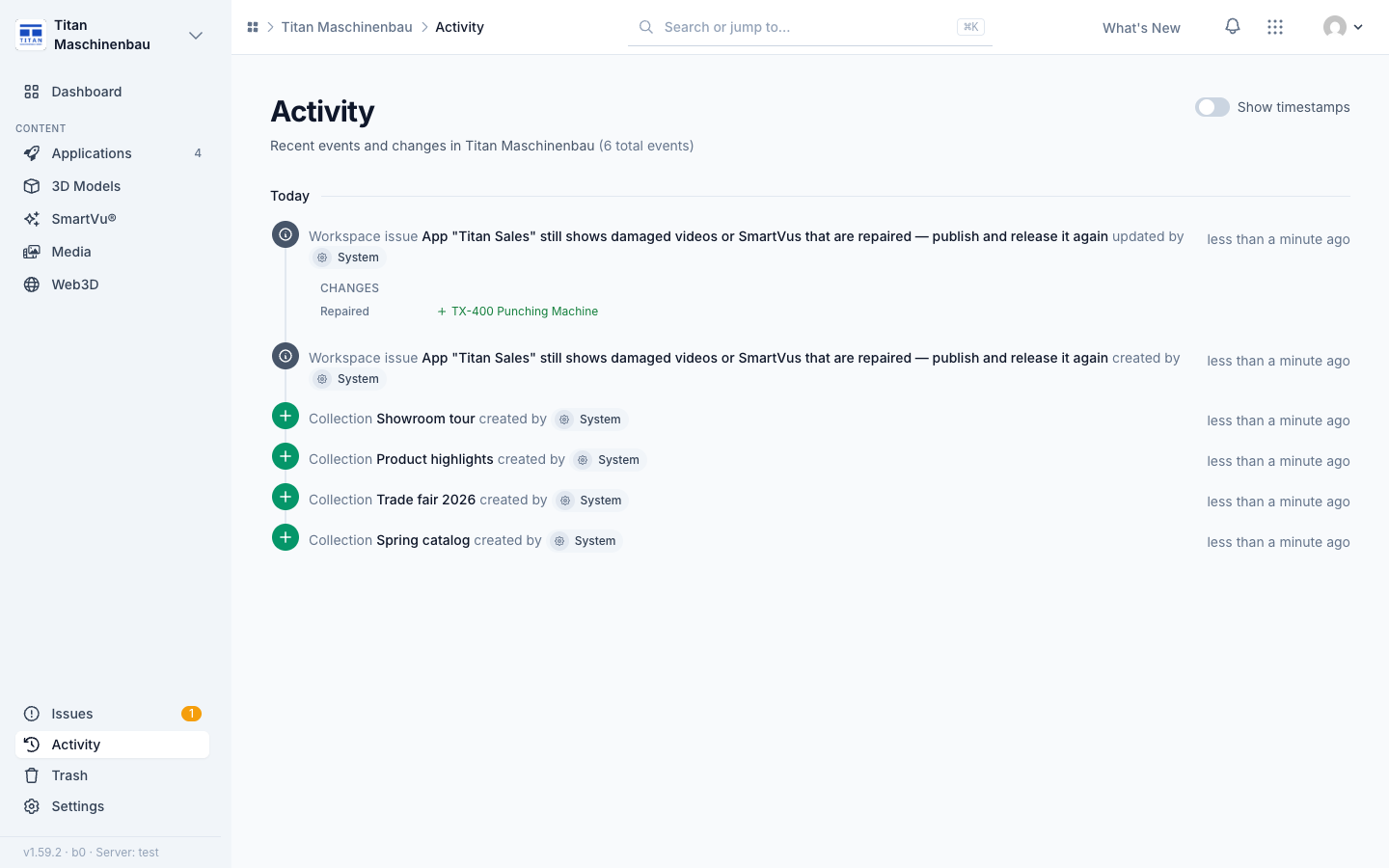
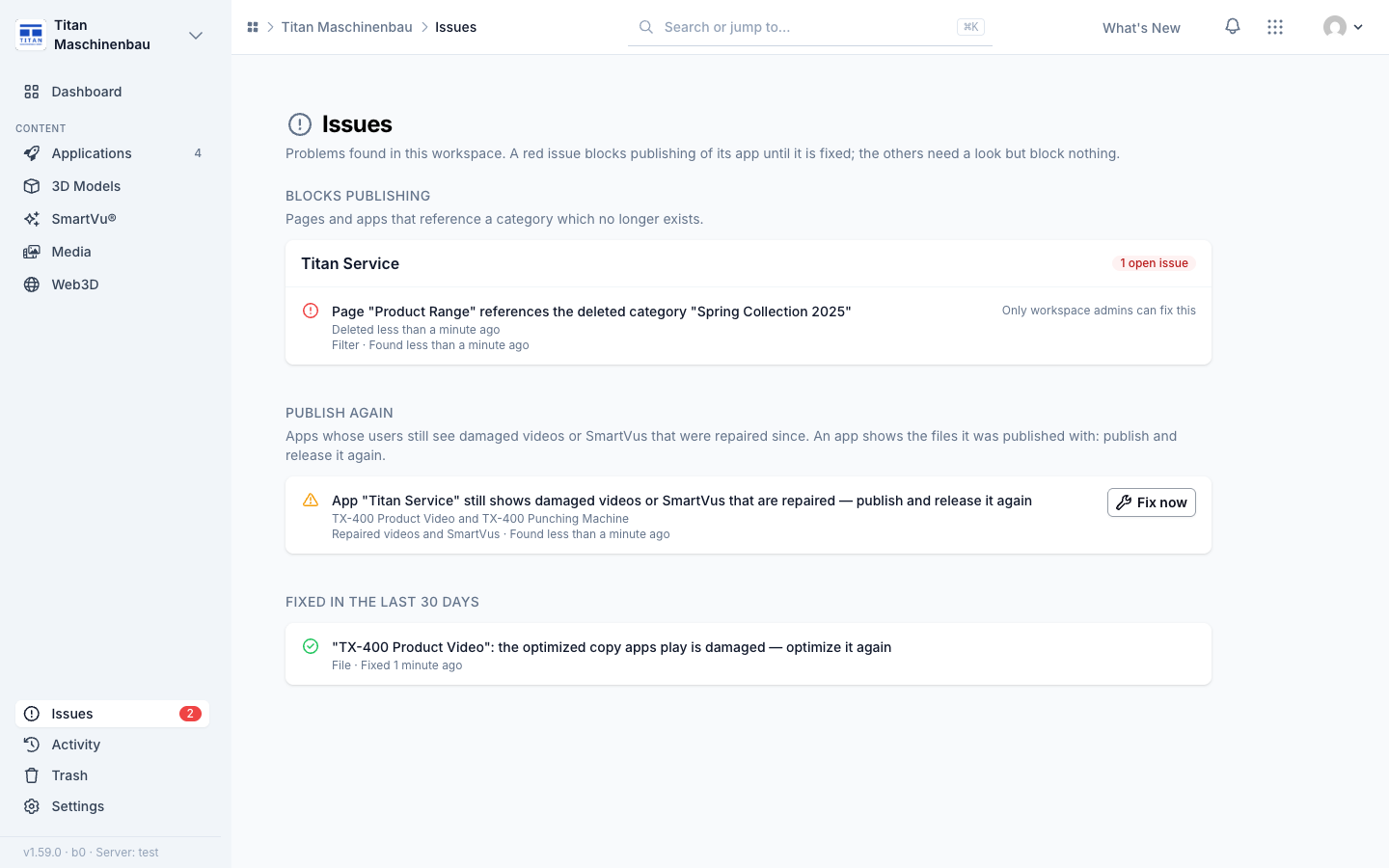
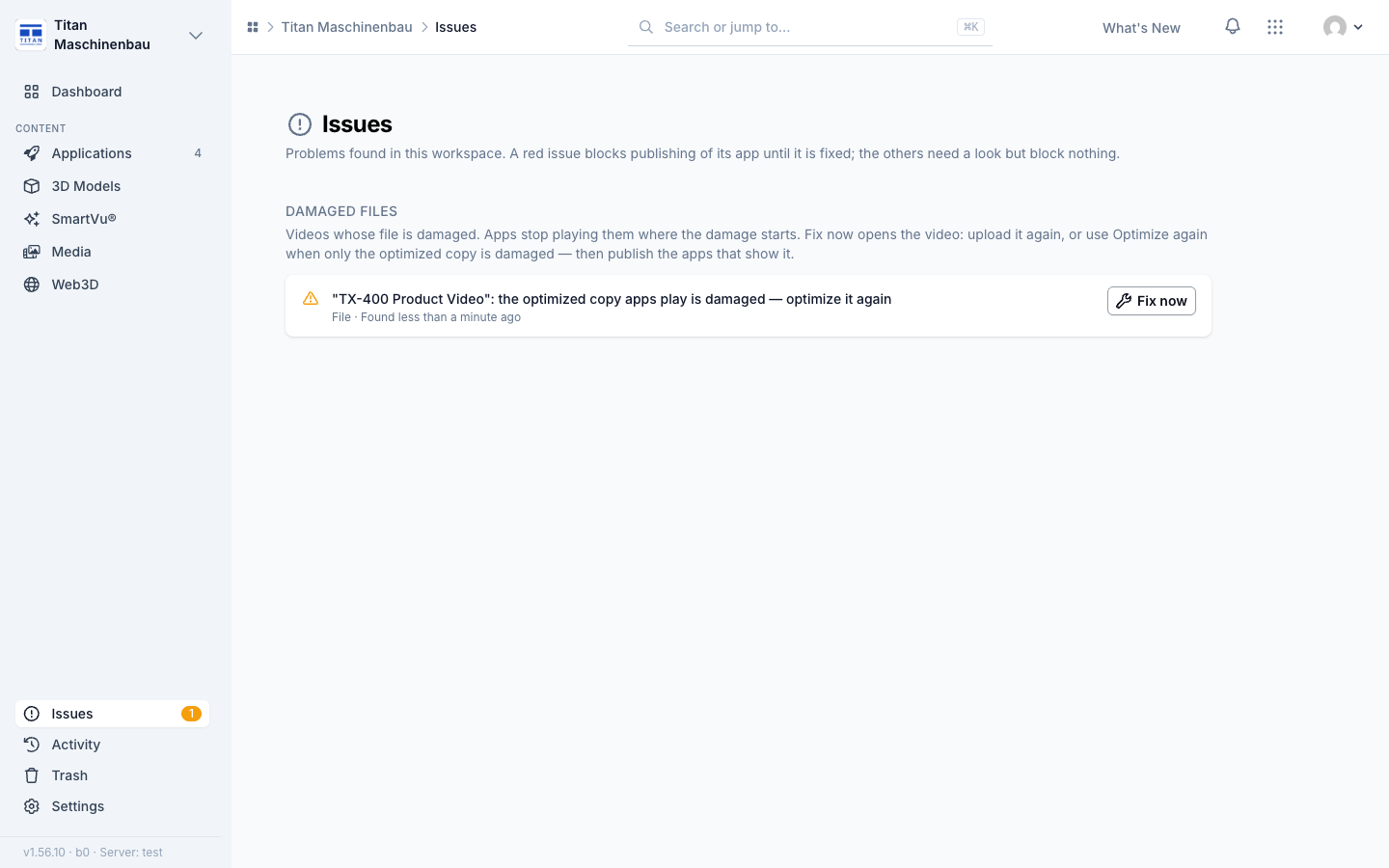
Publish again. An app keeps the files it was published with. When a damaged video or a SmartVu® is repaired, the Issues page lists each app that still shows the old copy under Publish again, with the names of what was repaired. Fix now opens the app; publish and release a new version and the issue closes by itself. It does not block publishing.
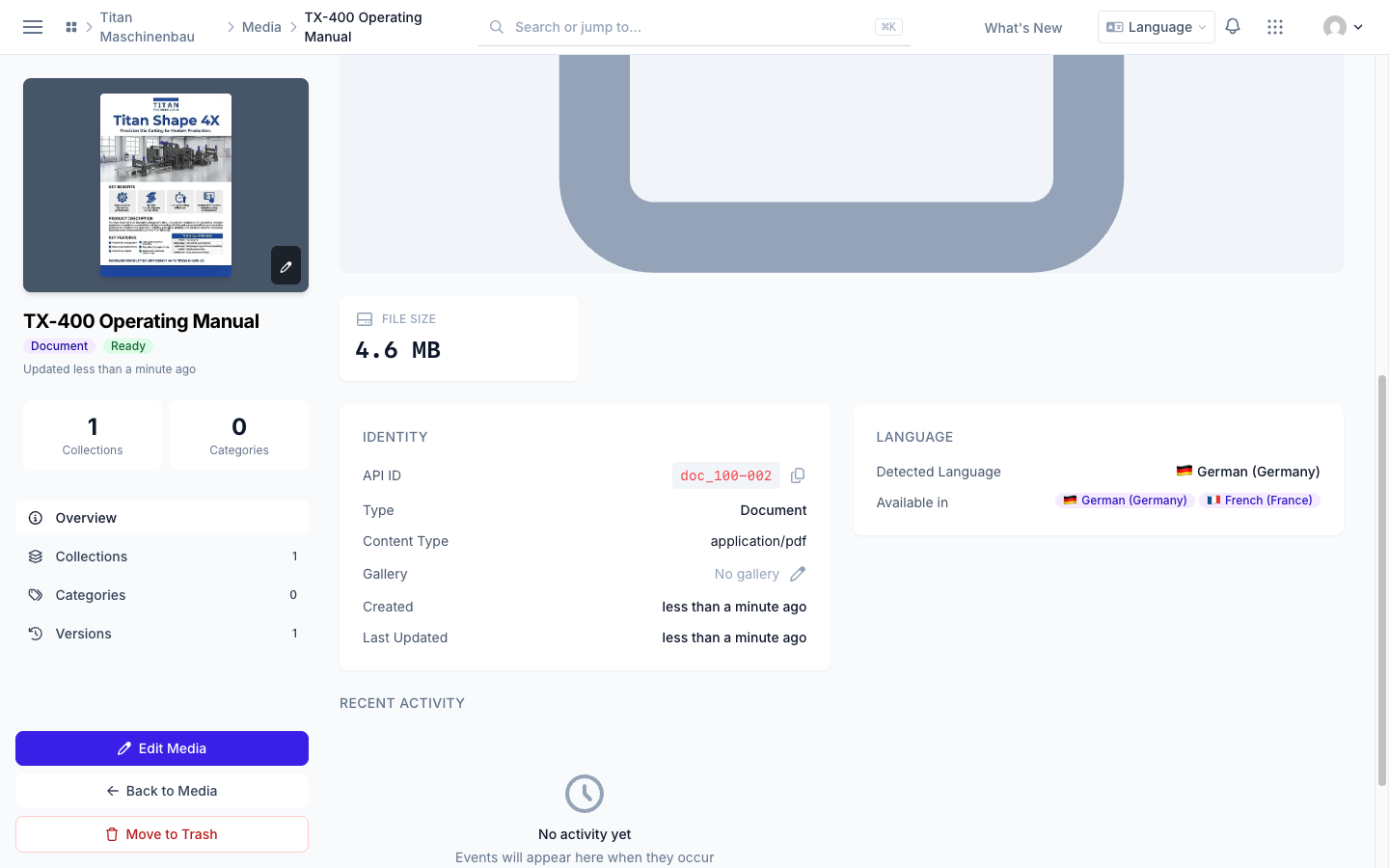
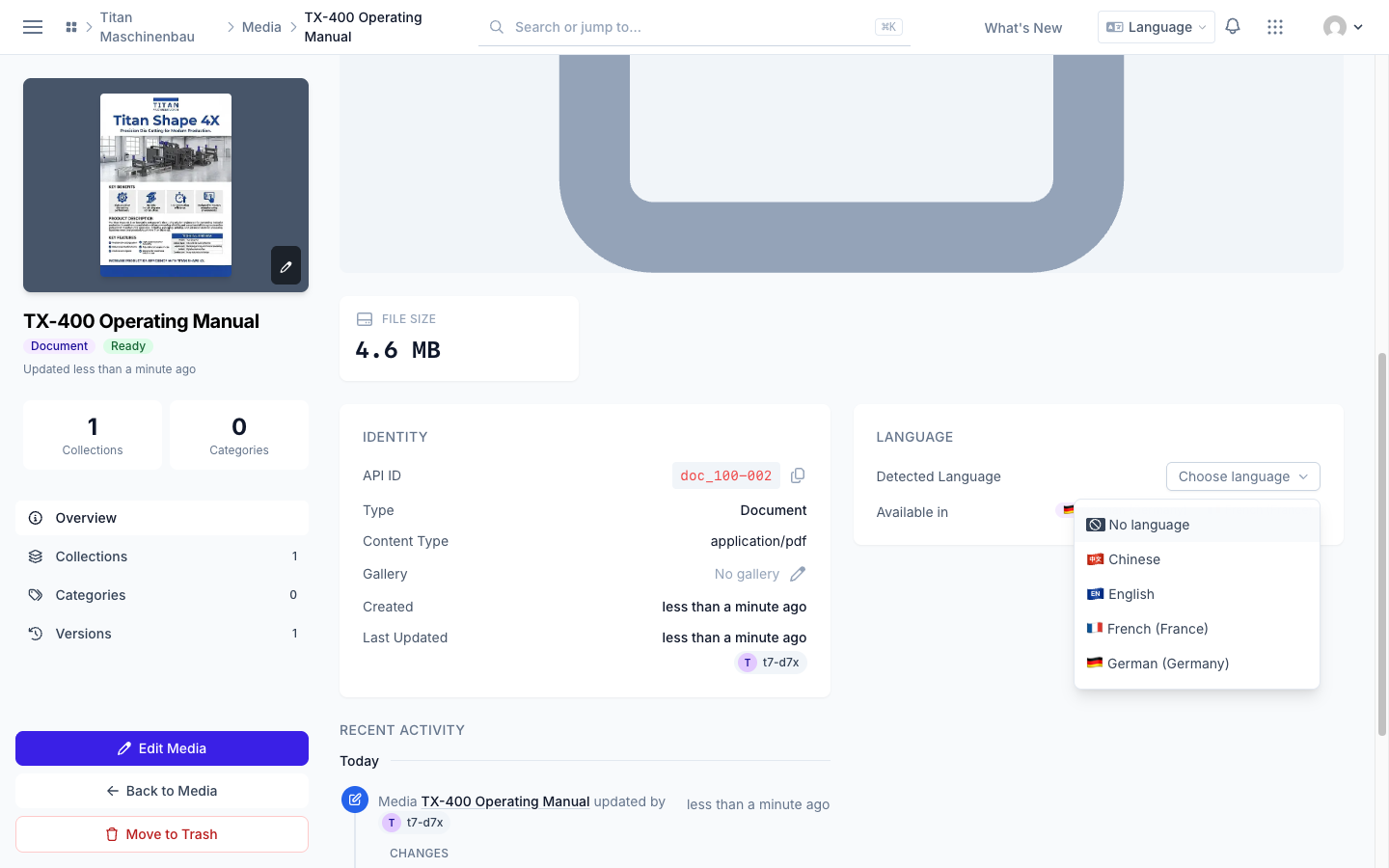
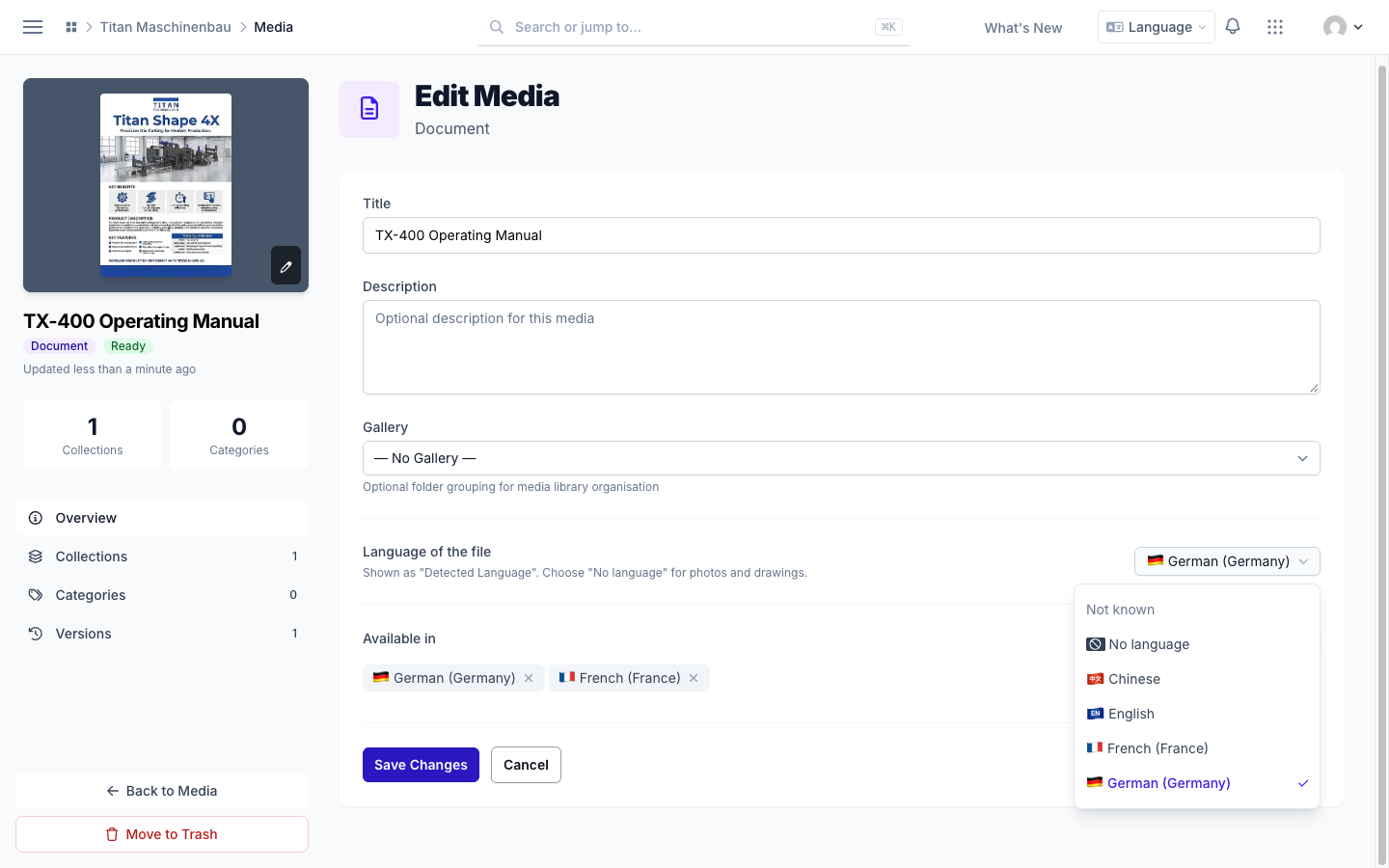
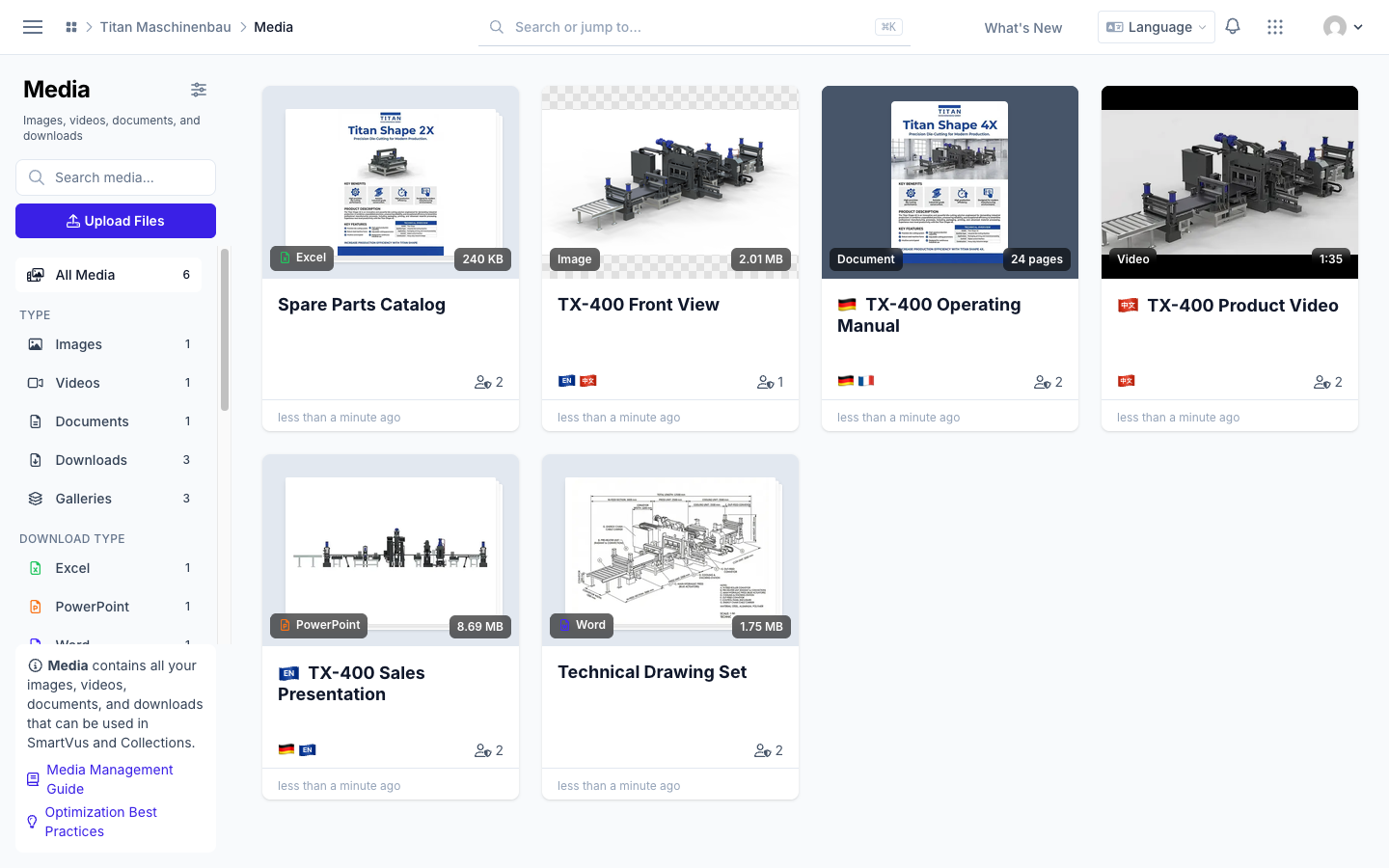
Uploaded PDFs know their language. Vuframe® Cloud reads the text of an uploaded PDF and fills in the Detected Language, also for PDFs you uploaded before. When the text does not tell (a scanned PDF, an image, a video, or text in more than one language), the Language card shows Choose language. To change the language later, use Language of the file on the Edit Media page. Select No language for photos and drawings. A language you set stays, also after the next import. Every language shows its flag on the media pages.
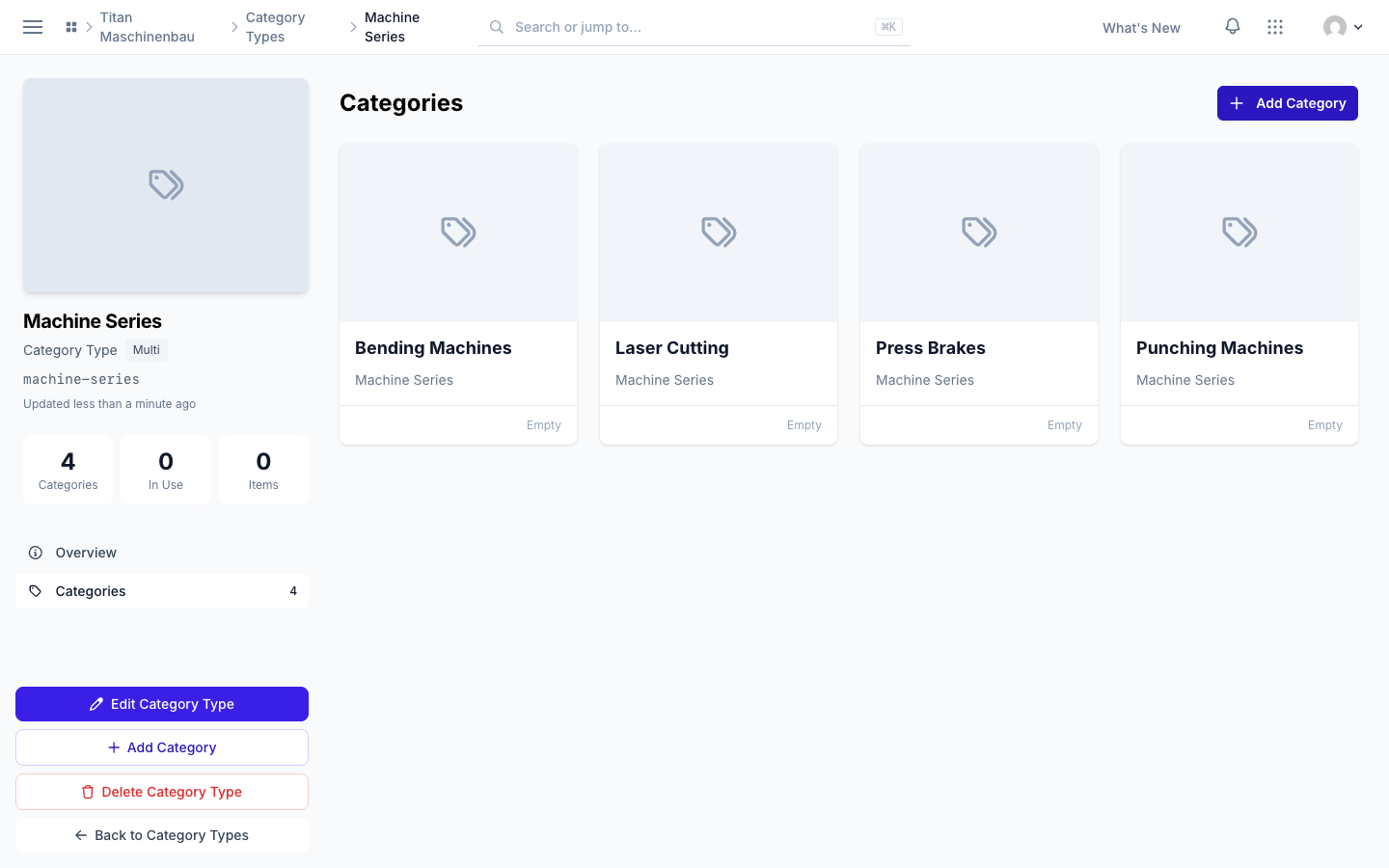
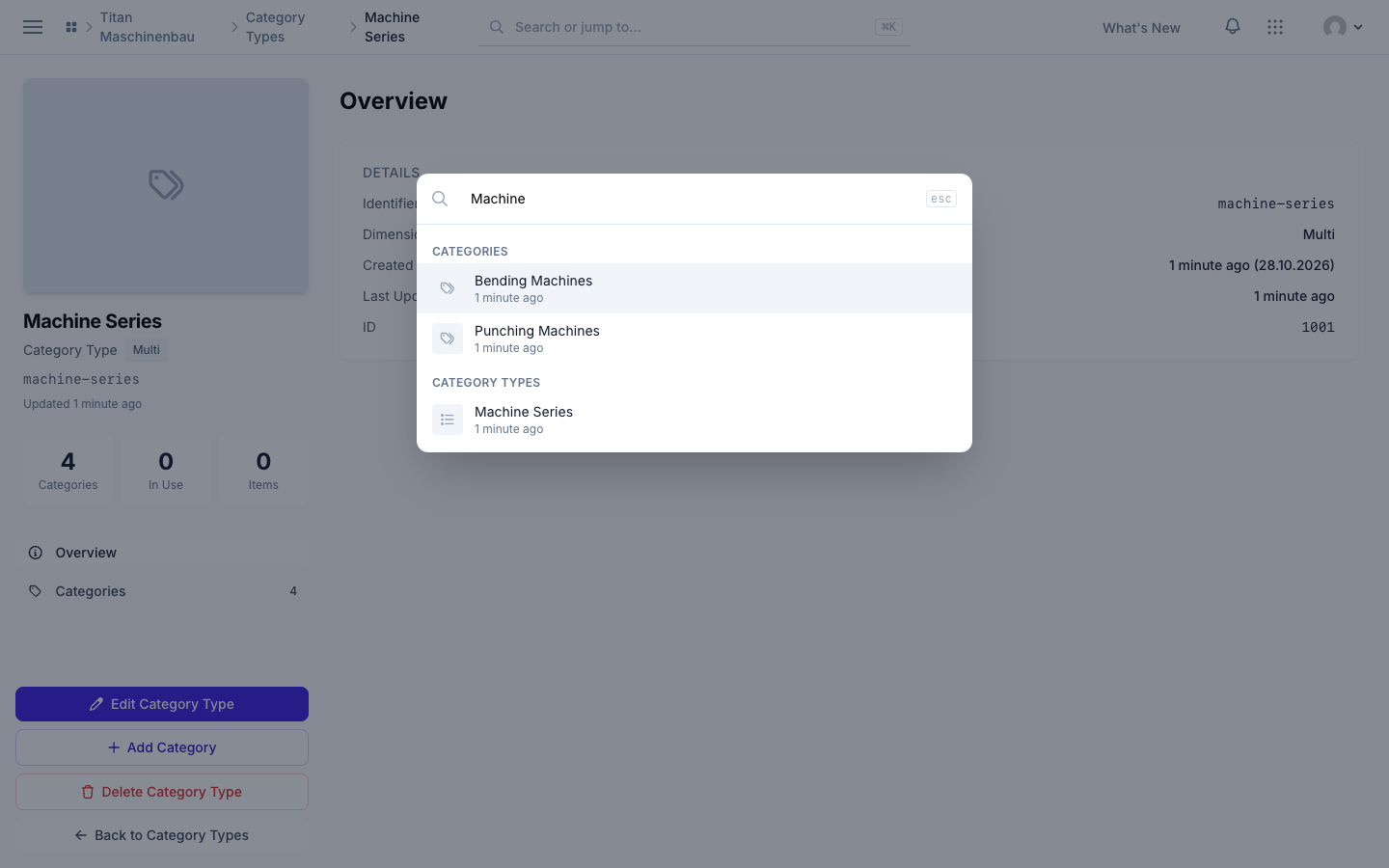
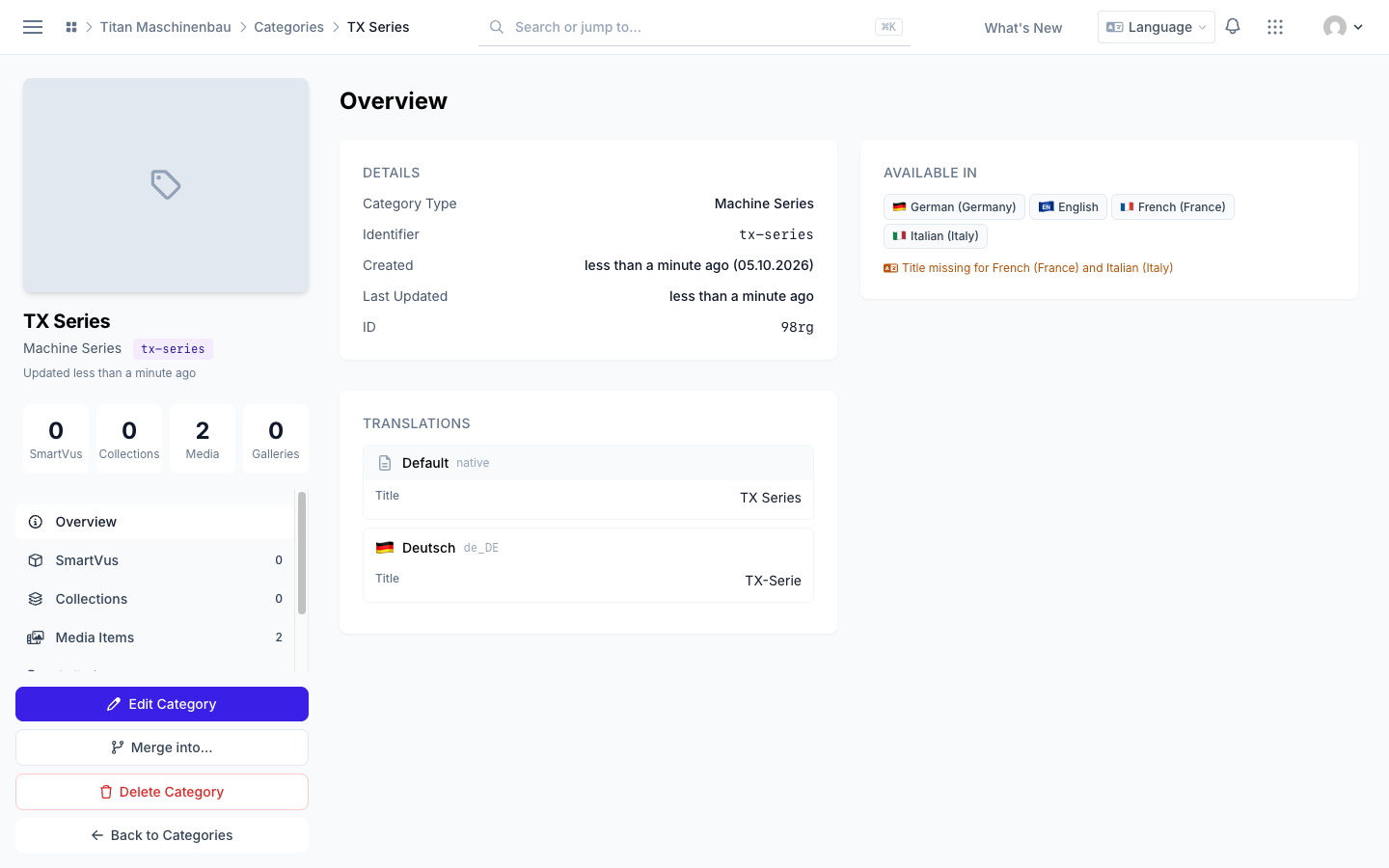
Category types one click away. A category page links its category type. On the category type page, Add Category sits in the sidebar and above the list, and the new category starts with that type selected. The search (Cmd+K) finds category types, and category results show the category's preview image.
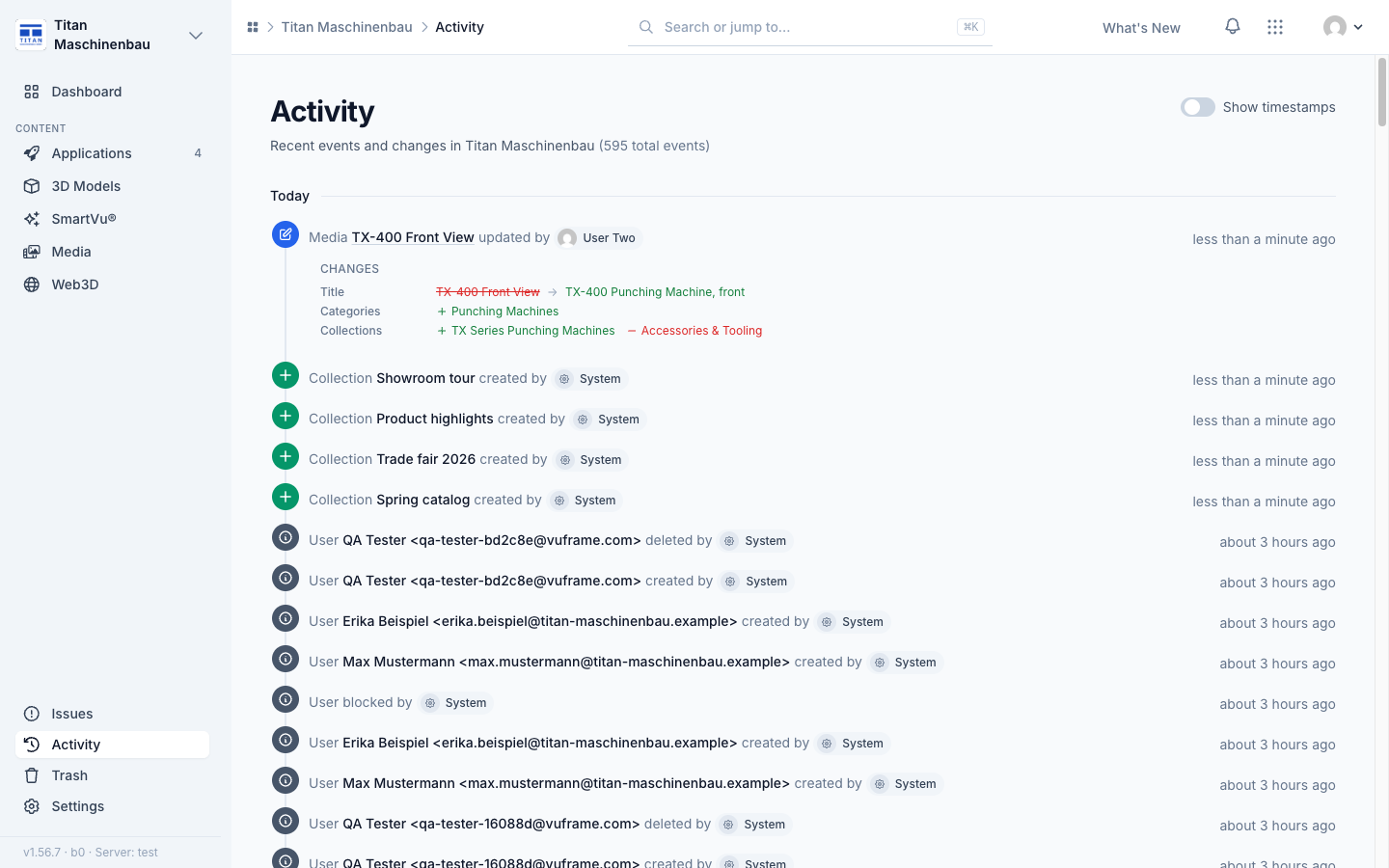
The Activity feed names repairs. When the list of a Publish again issue changes, the feed shows under Repaired which entries were added and removed.
Older SmartVu® videos play again. Videos added to a SmartVu® experience in the legacy Studio up to mid-2025 did not start in your apps. Vuframe® Cloud now publishes the uploaded video file under a new name, so no device keeps the broken file. The affected SmartVu® experiences are published again automatically. Publish and release your apps once to bring the videos to your users.
SmartVu®s with an incomplete build are built again. Some SmartVu®s were published before each build carried the file with their behaviour and sidebar media. Vuframe® Cloud builds them again by itself; the Issues page lists the apps to publish again.
A batch of repairs updates its issue once, so the Activity feed shows one entry instead of one per repair.
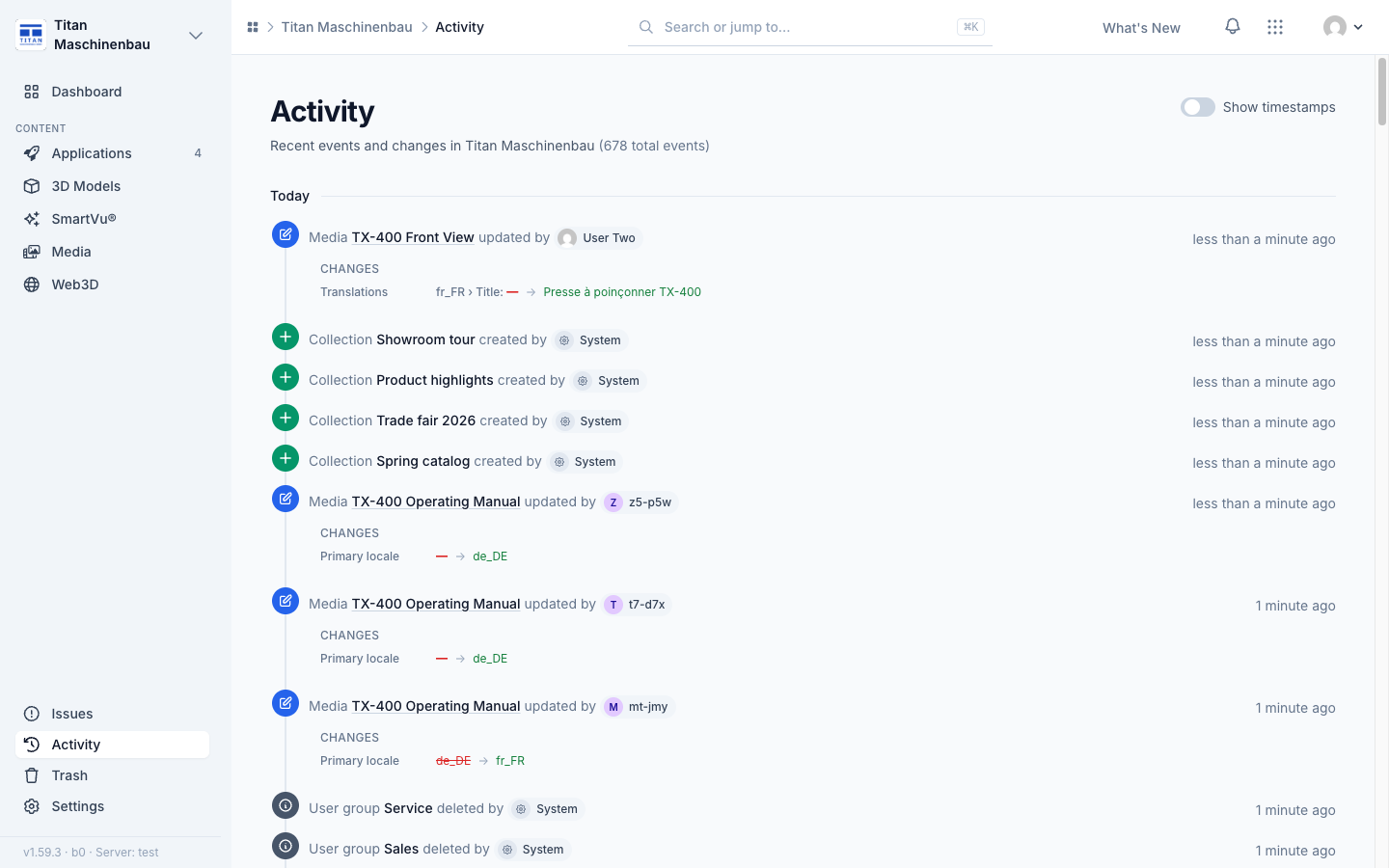
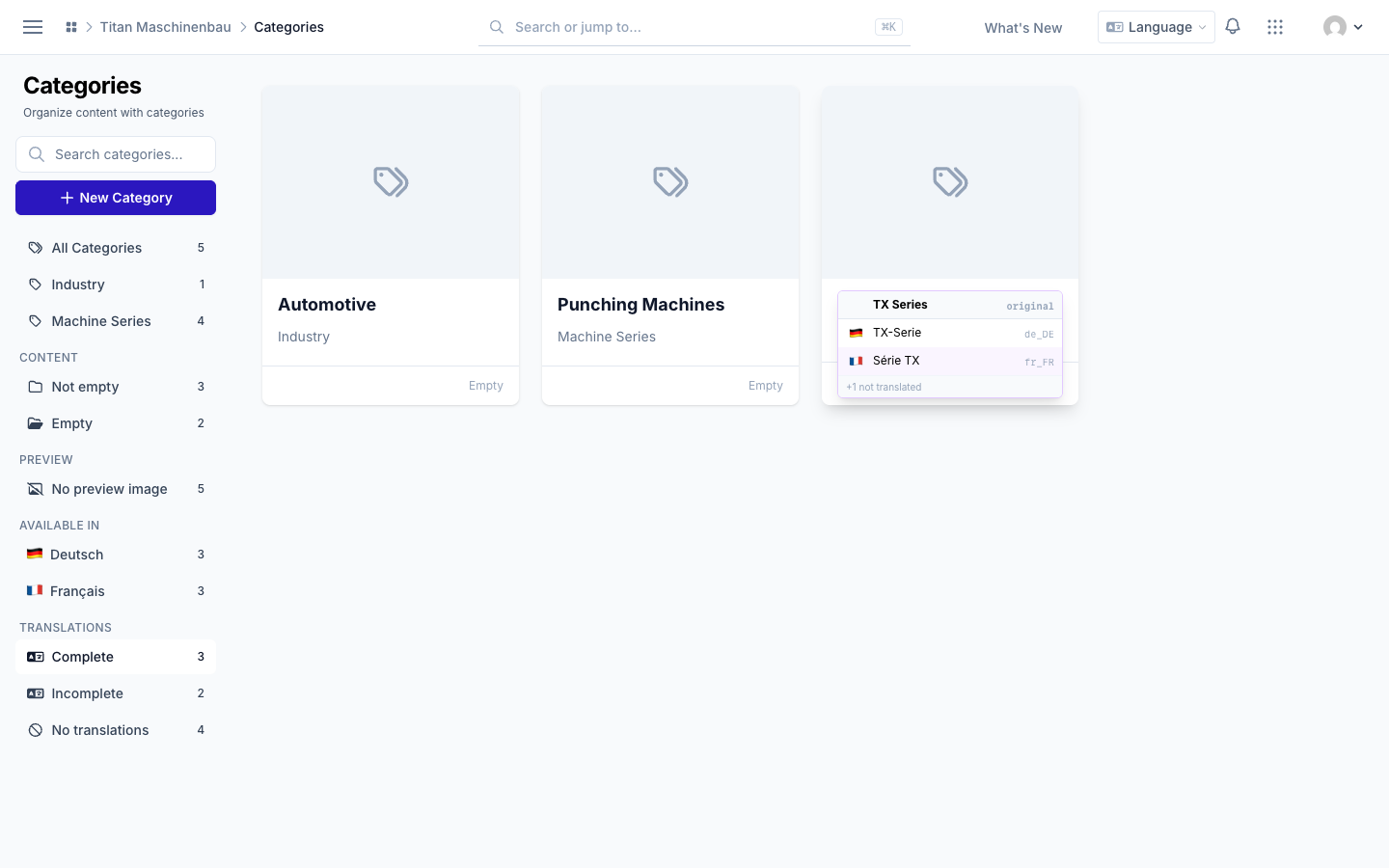
Activity shows changed translations as text: the language, the field and the new text, for example "fr_FR › Title: — → Presse à poinçonner TX-400". An update right after a record was created lists only what it added. The Catalog overview lines up again on wide screens.
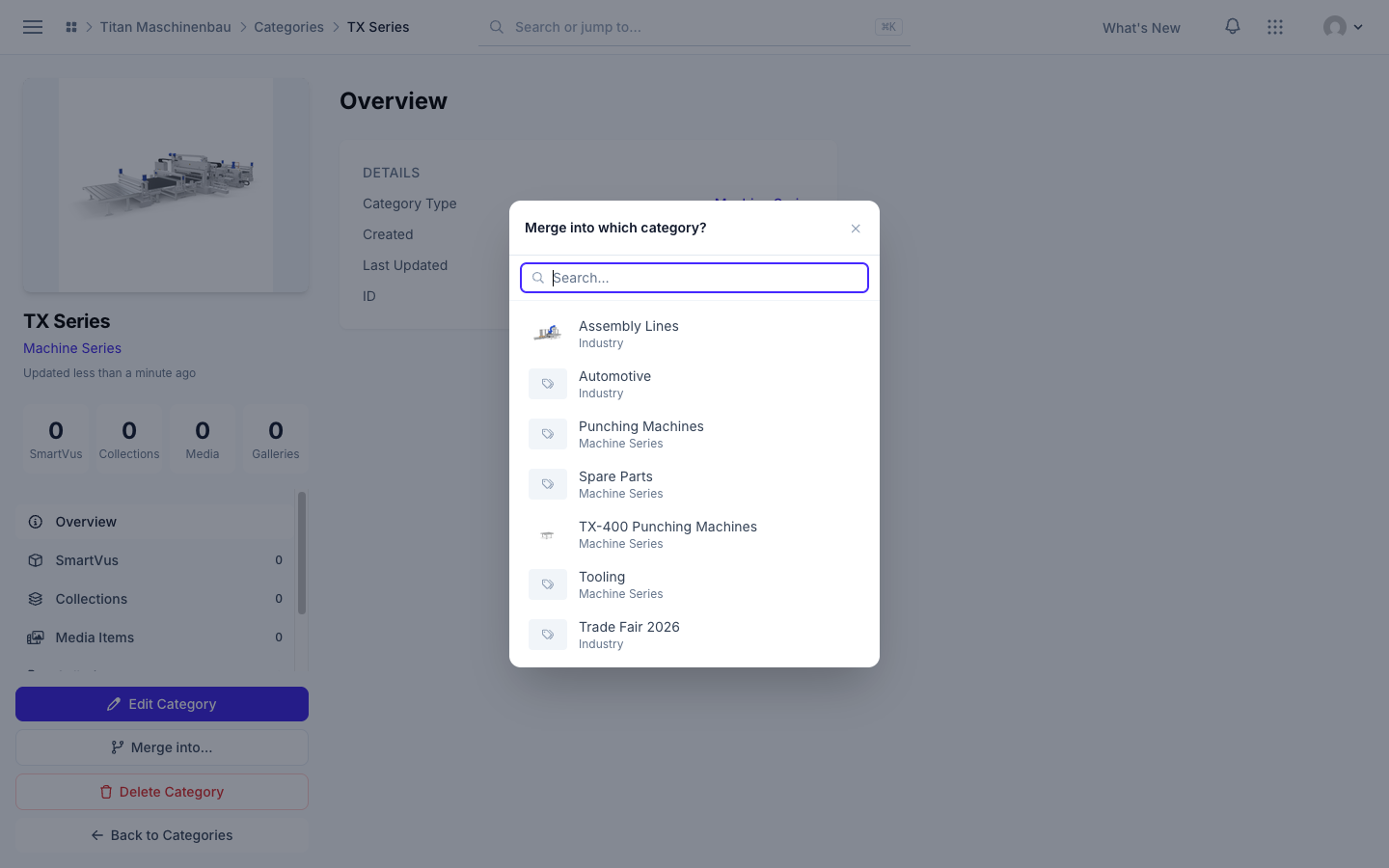
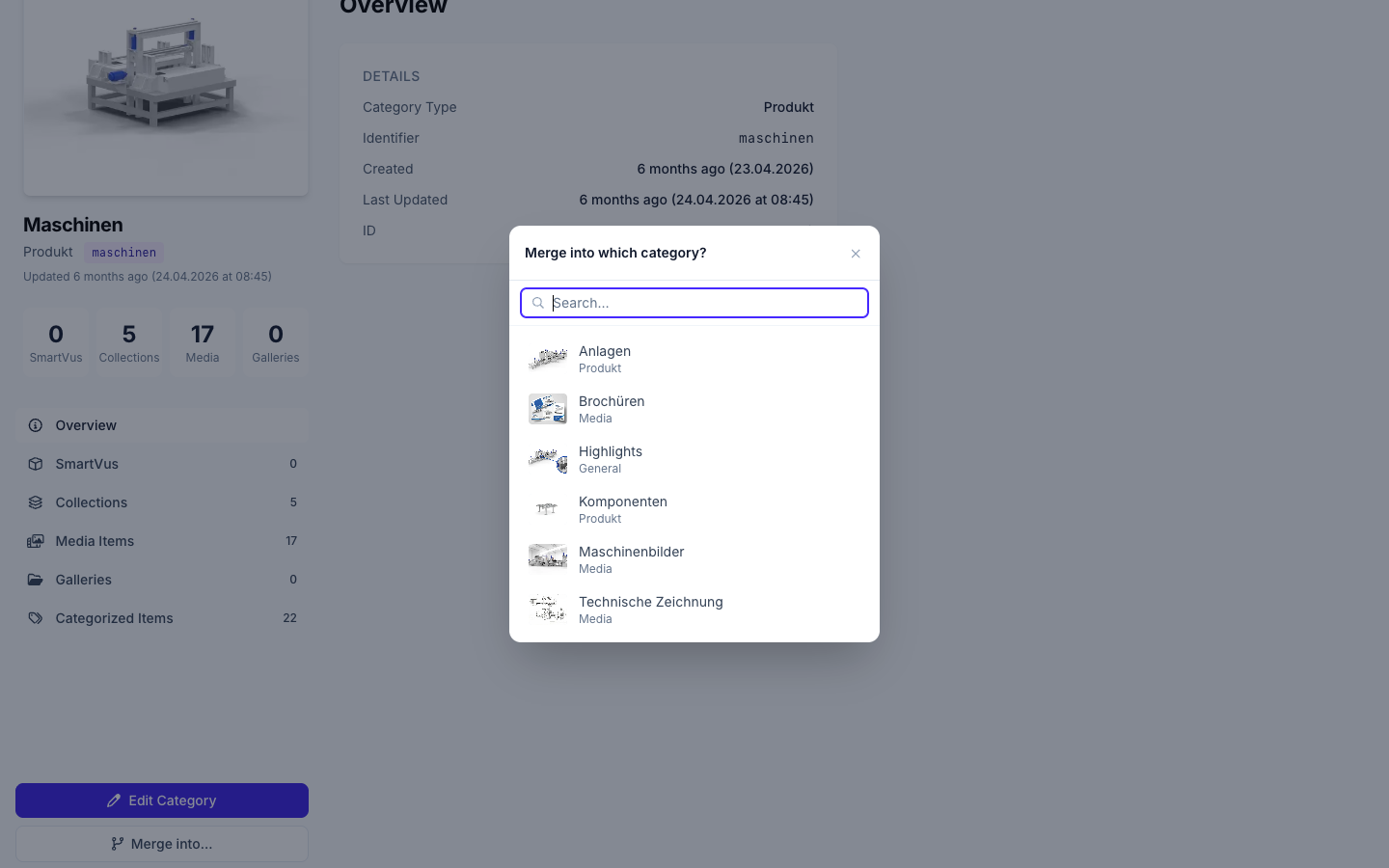
Merge into… opens on top of the page again, so you can pick the category to merge into.
Vuframe® Cloud v1.56.28 lets you organize a media file from its own page and shows in the Activity feed exactly what changed. Damaged videos are caught before they reach your apps, and published files are smaller and carry no hidden upload data.
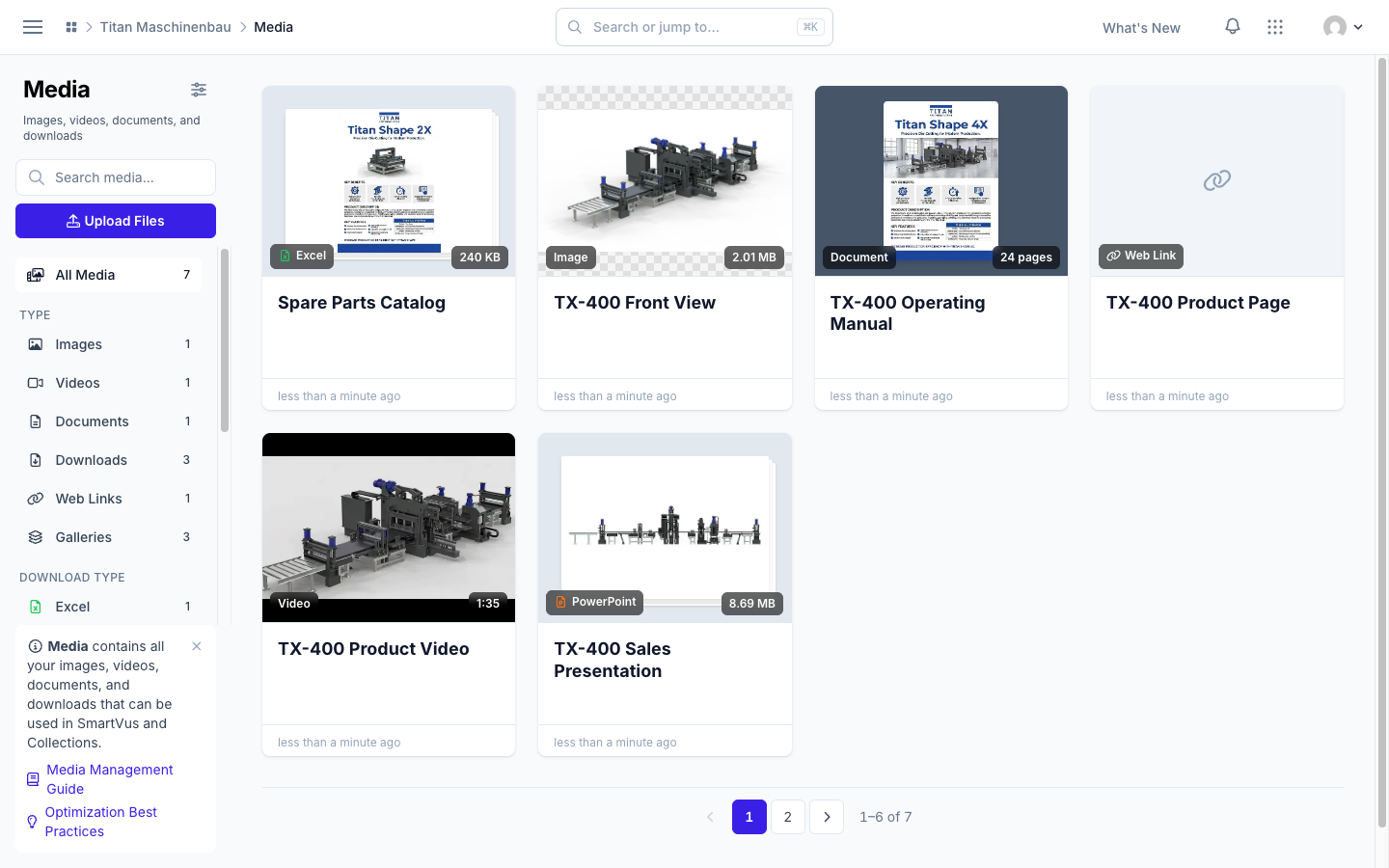
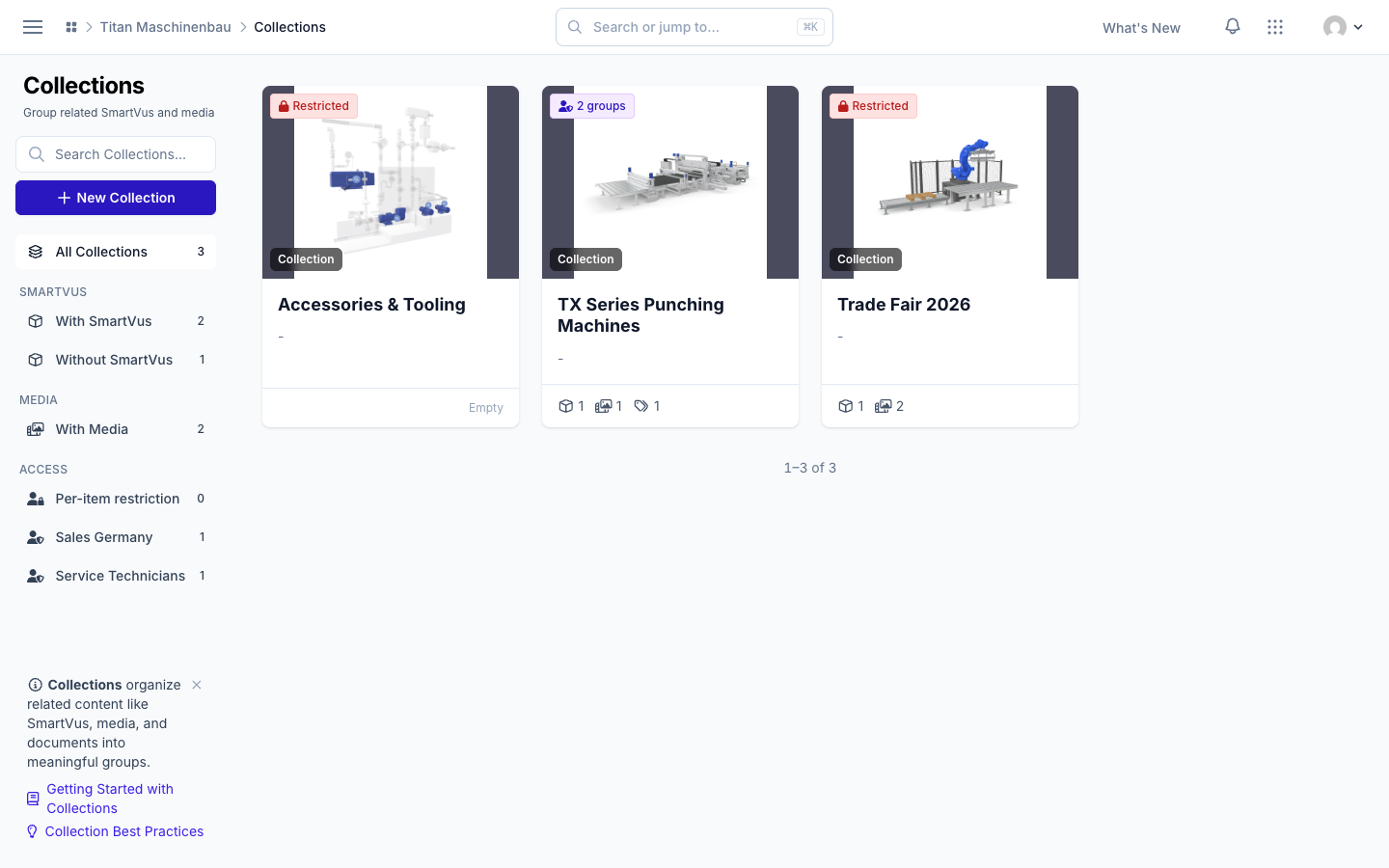
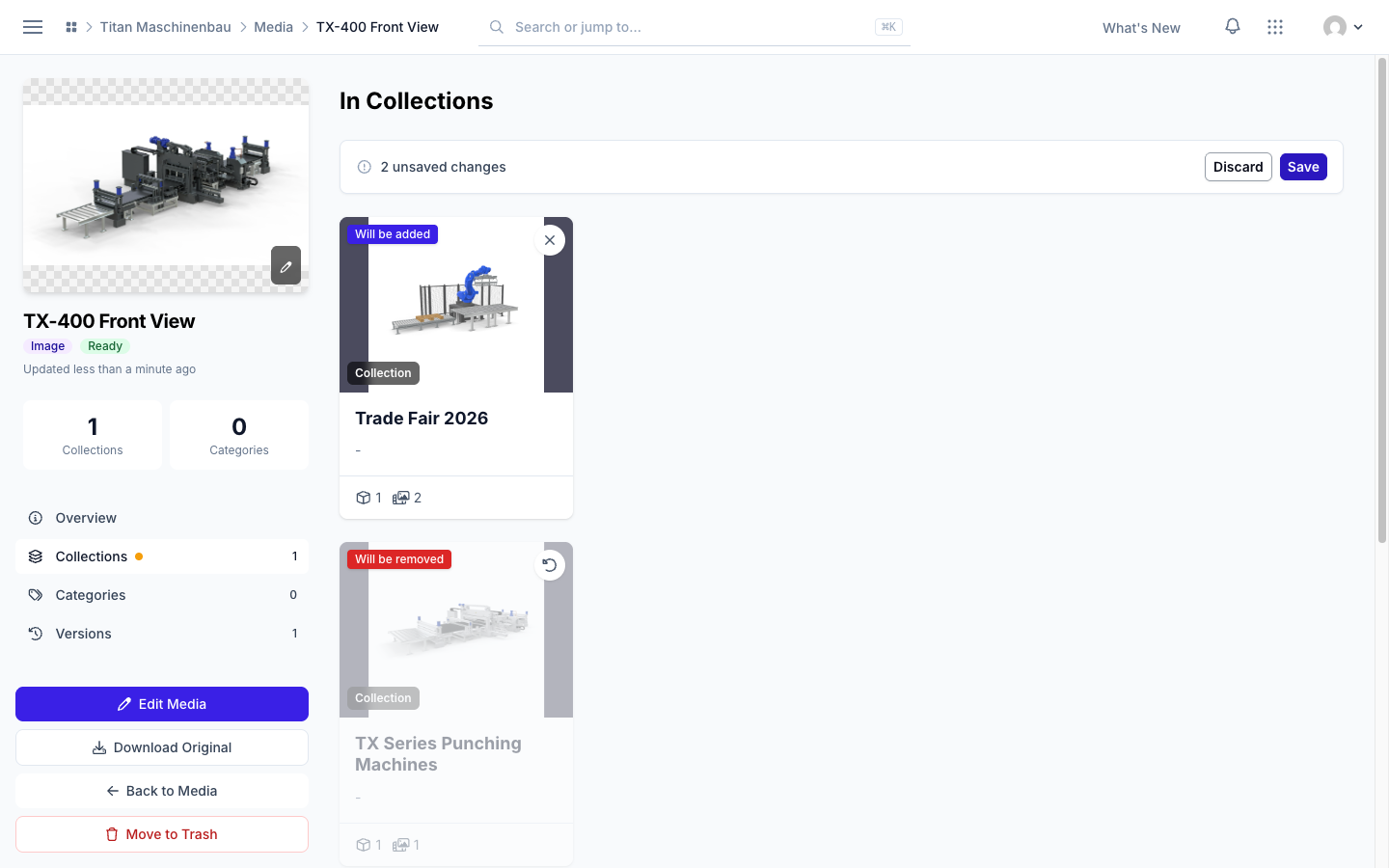
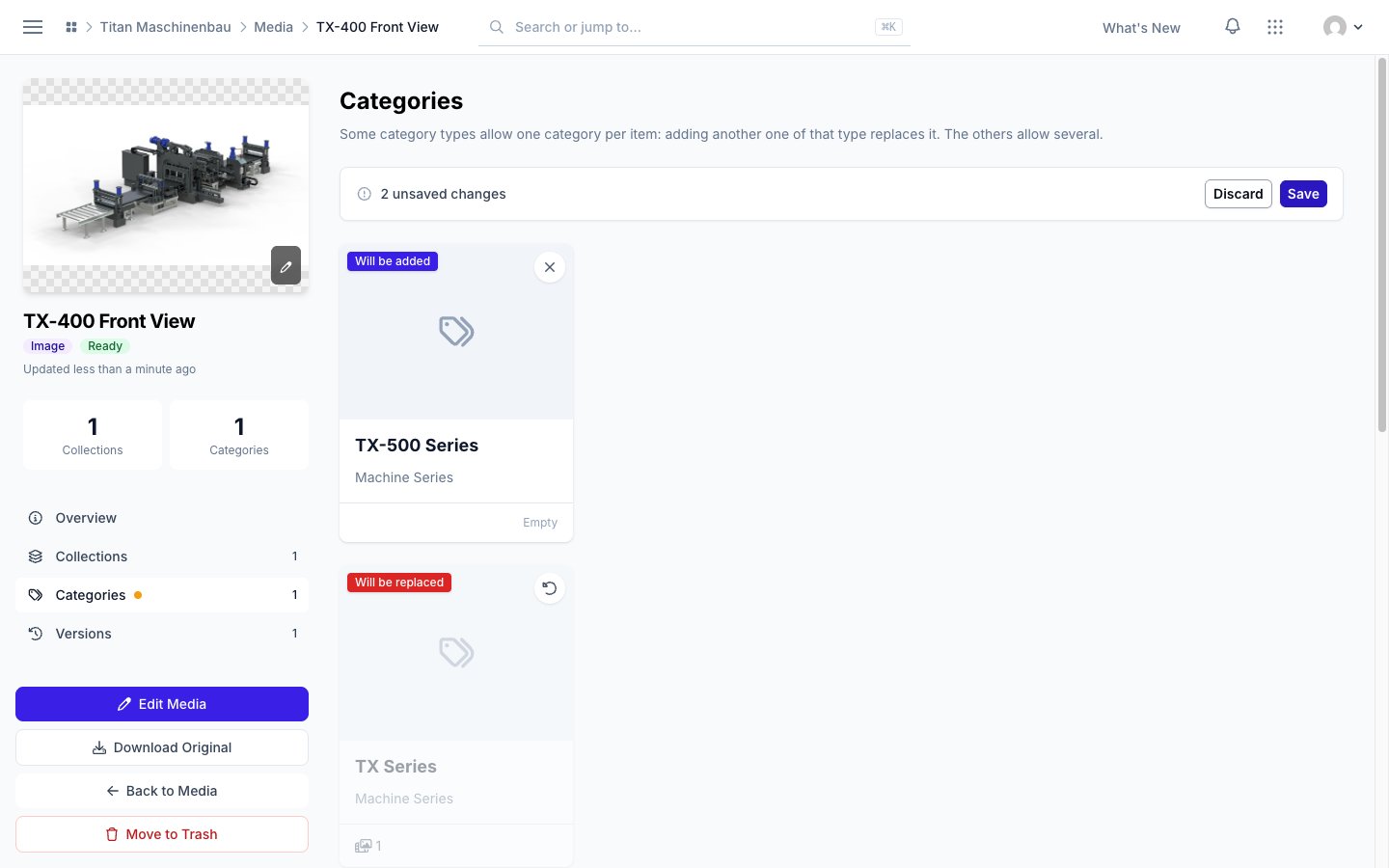
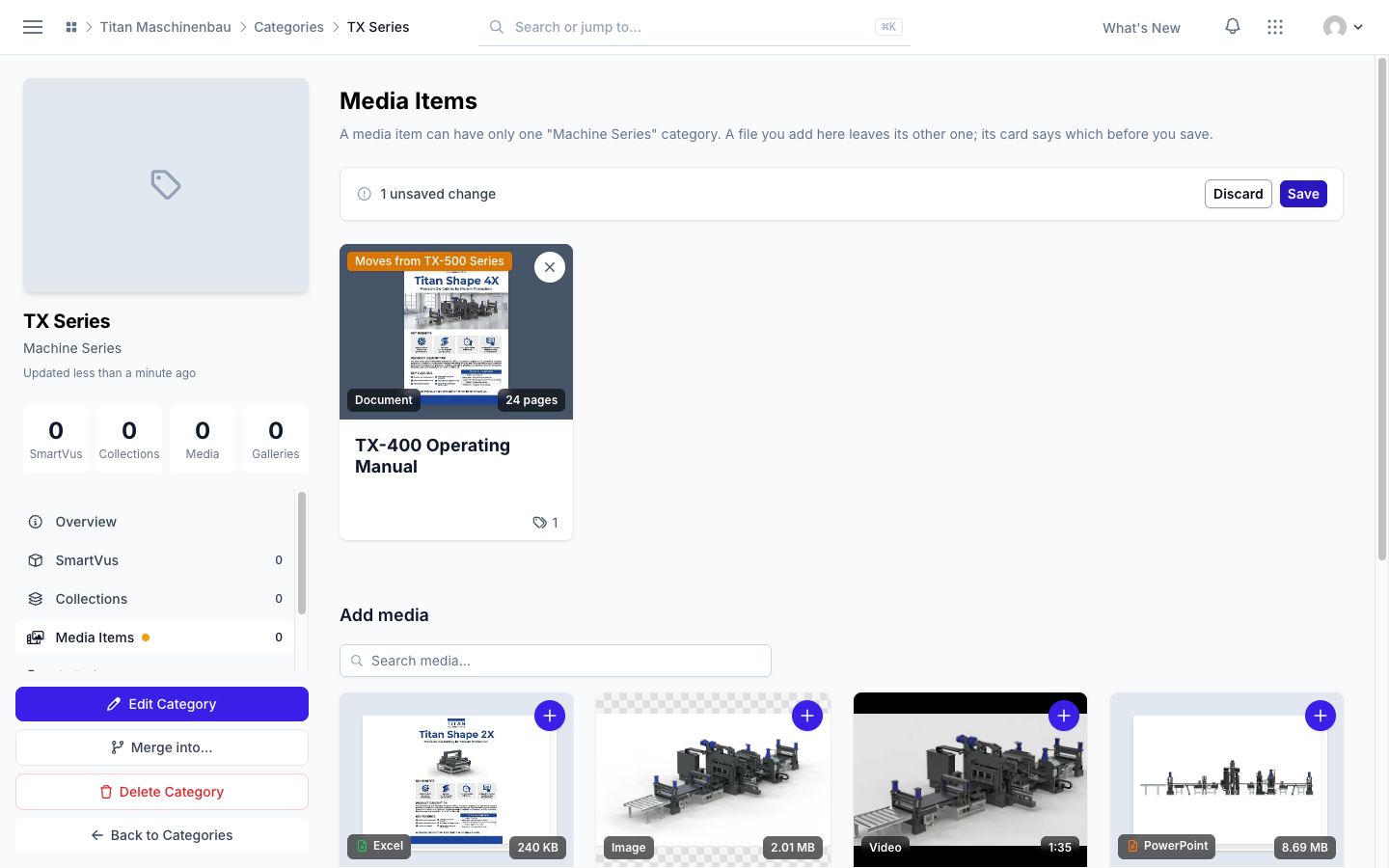
Organize media from both sides. On a media file's page, the Collections and Categories sections list what the file is in and what you can add, with a search field. The Media Items sections of categories, collections and galleries work the same way. Category types say whether an item can have one or any of their categories.
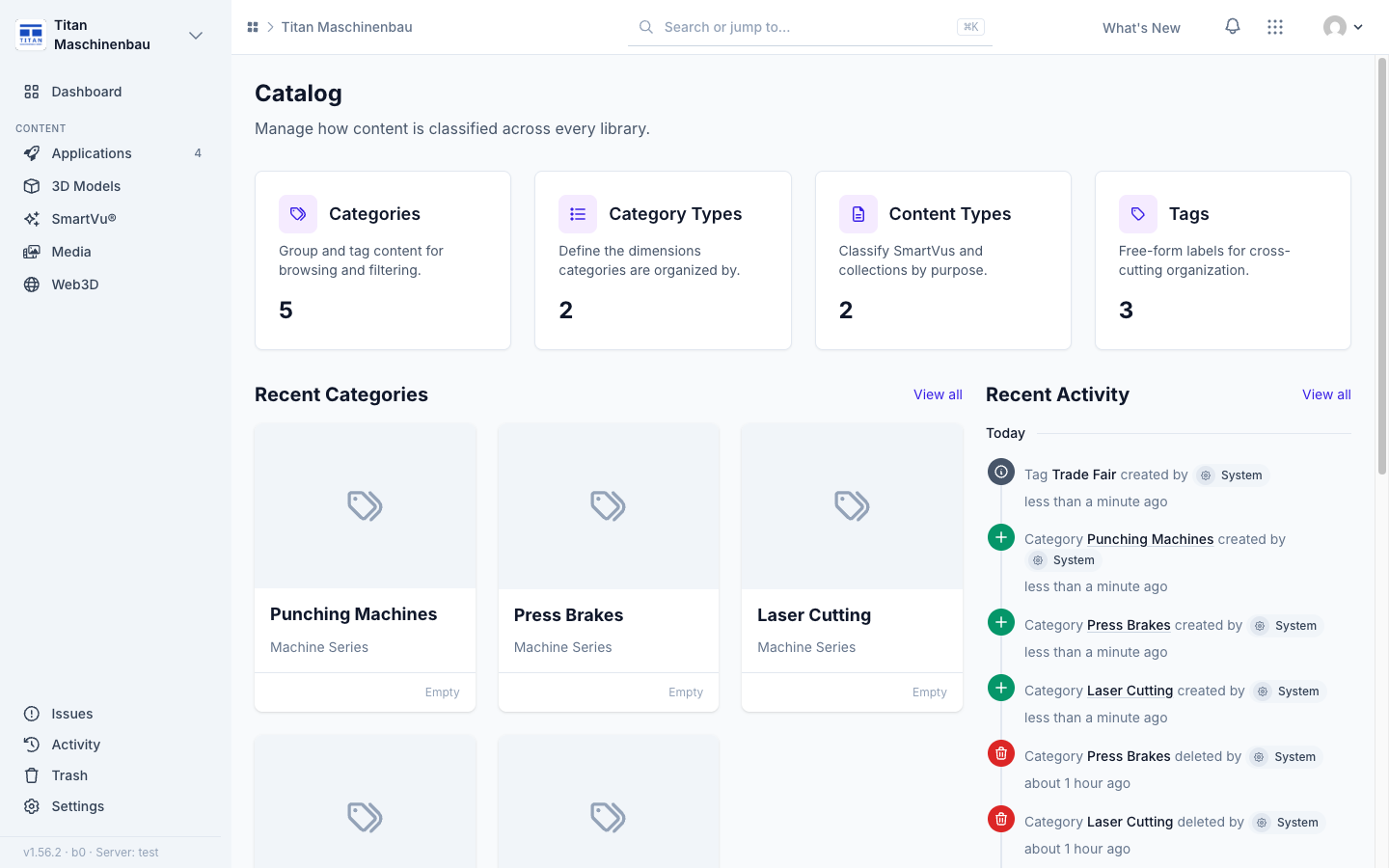
Catalog overview. The Catalog page shows Recent Categories and Recent Activity for categories, category types, content types and tags.
The Activity feed shows what changed: the old and the new value of each field, and which categories, collections, tags or user groups were added or removed.
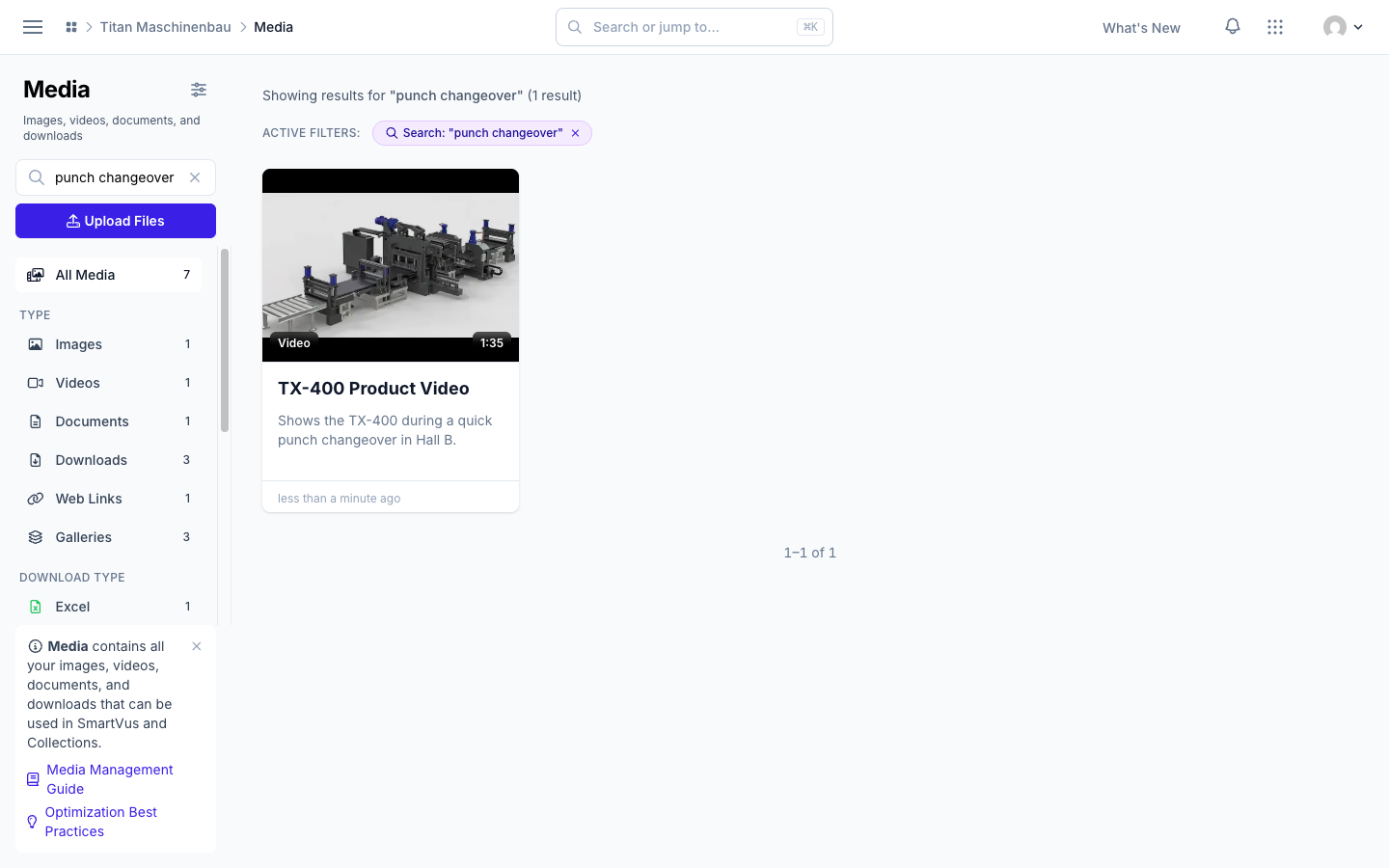
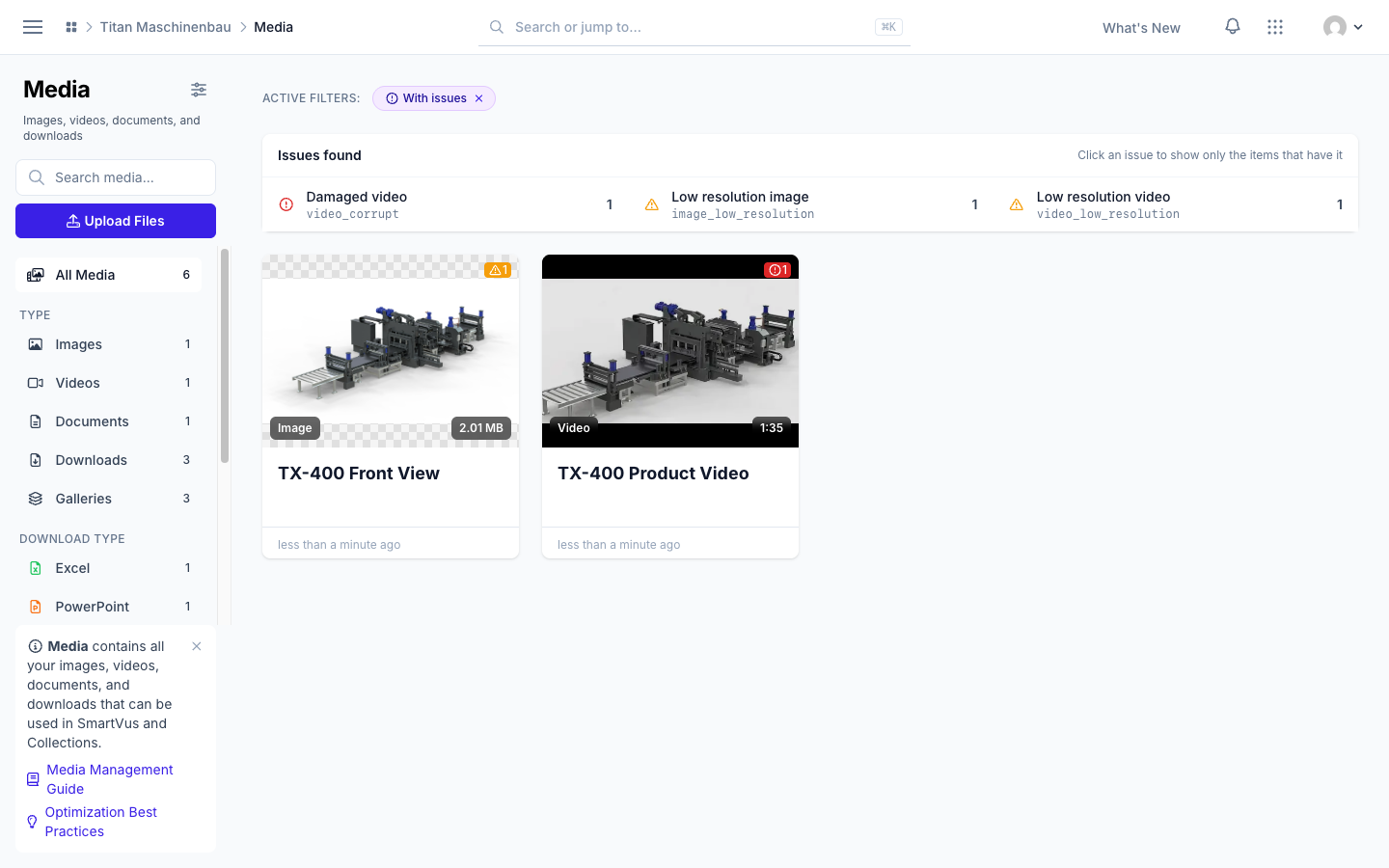
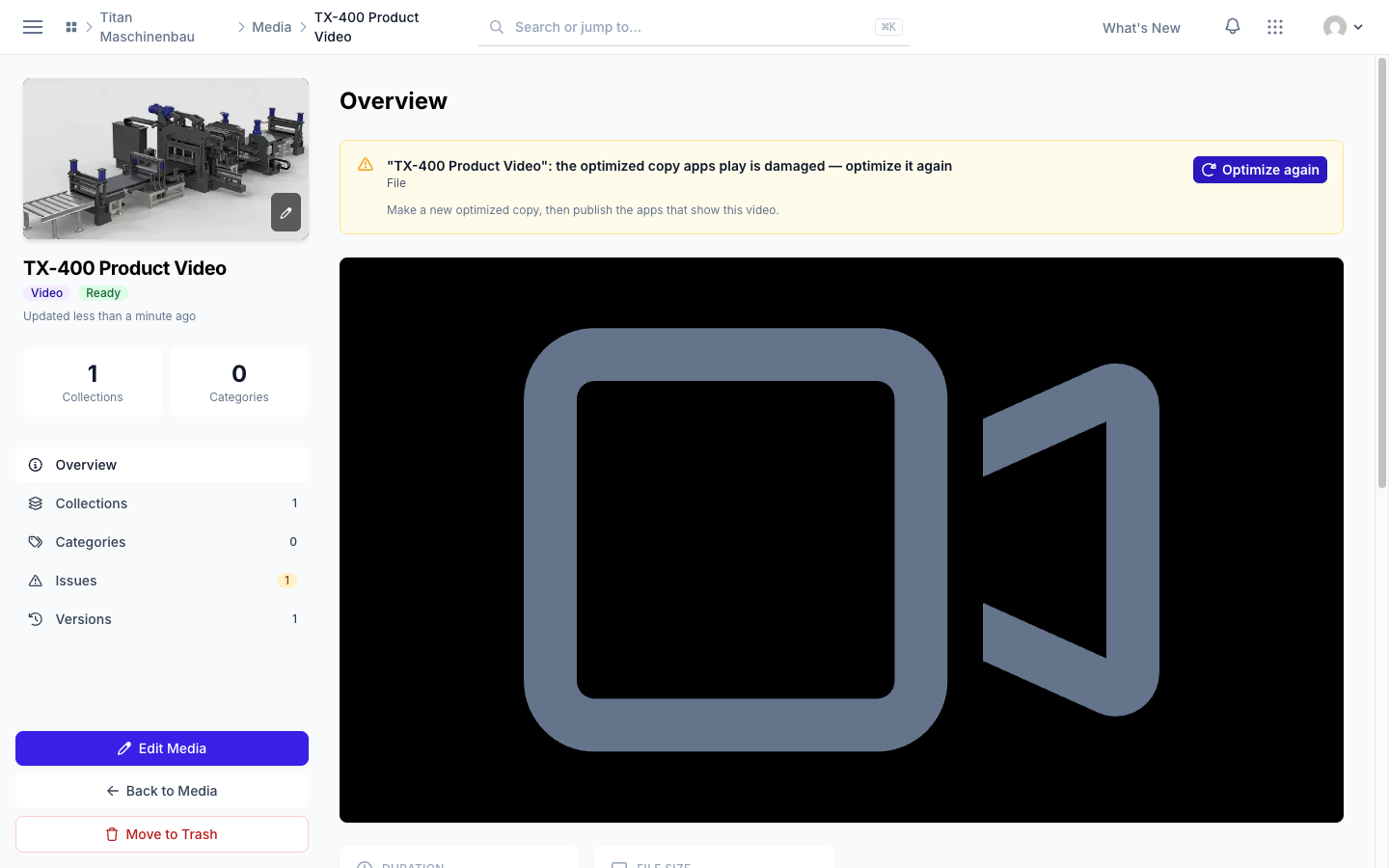
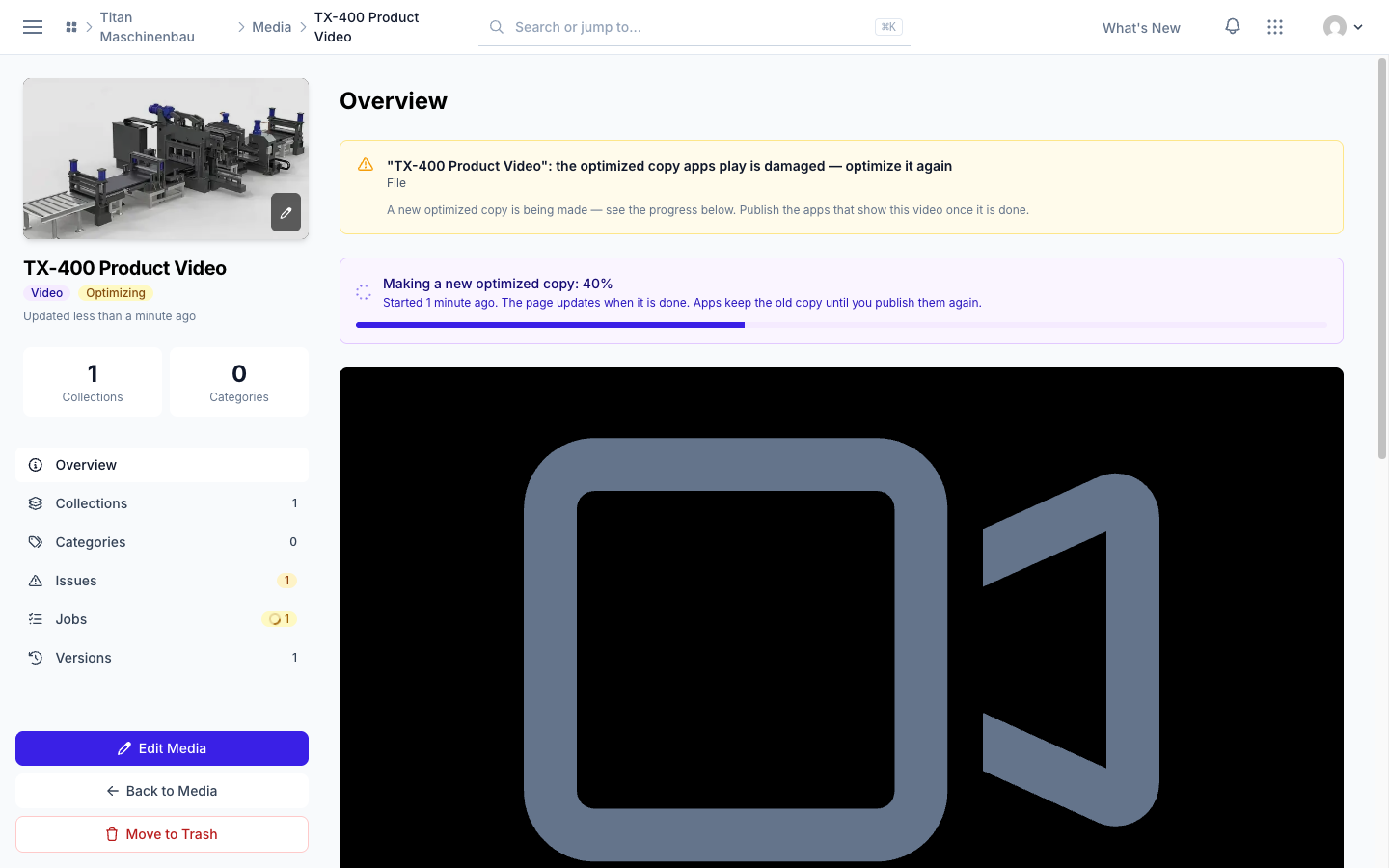
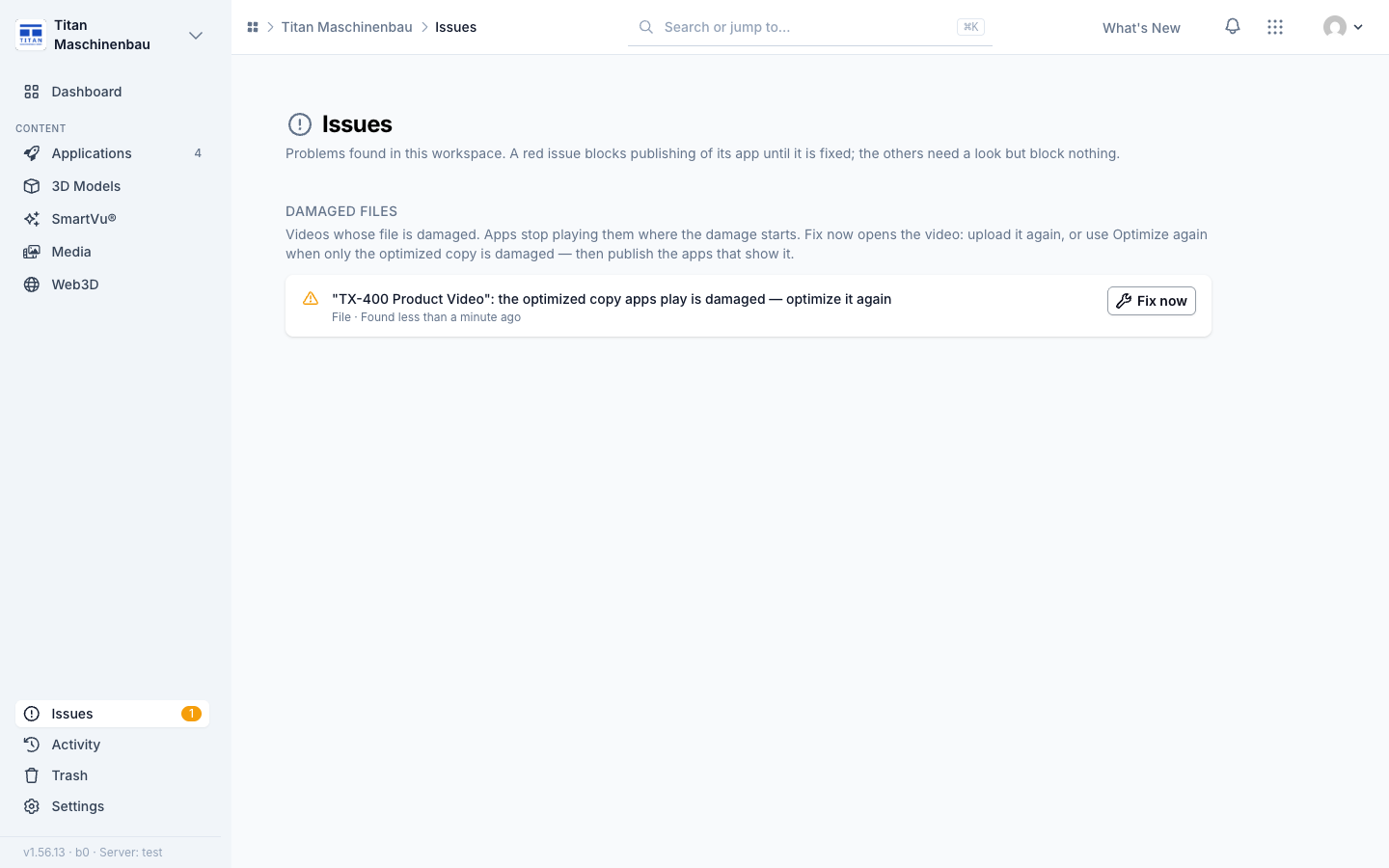
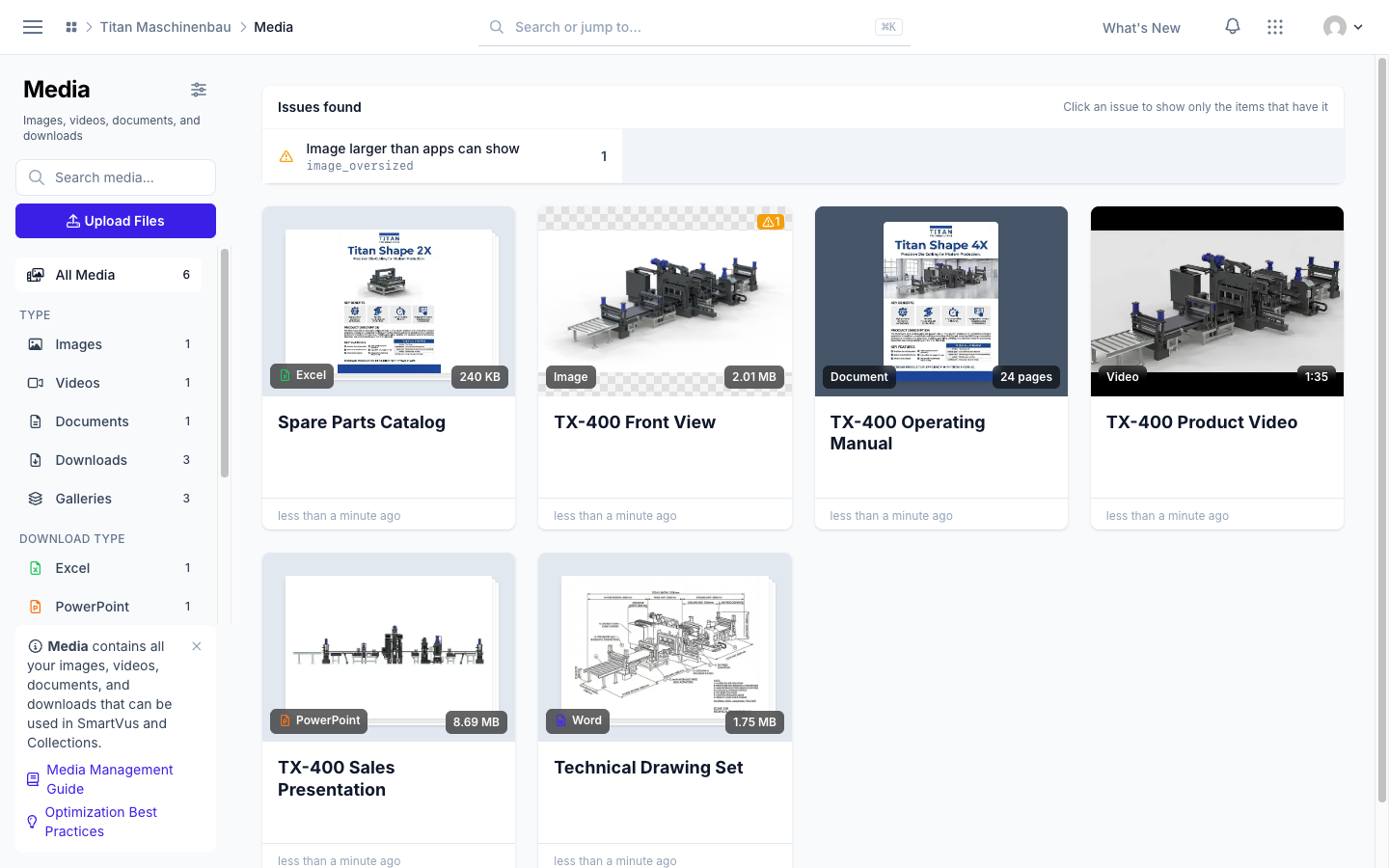
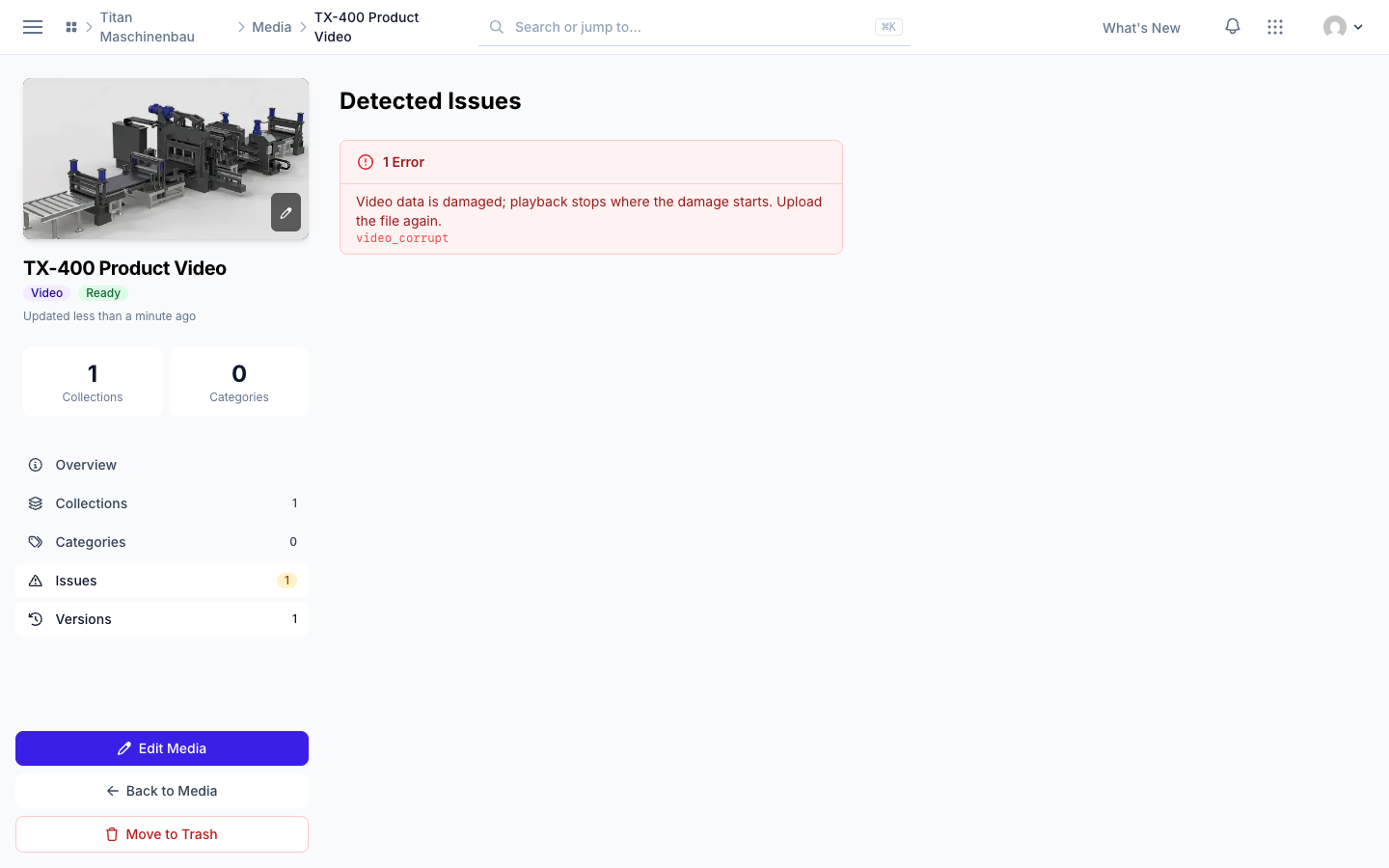
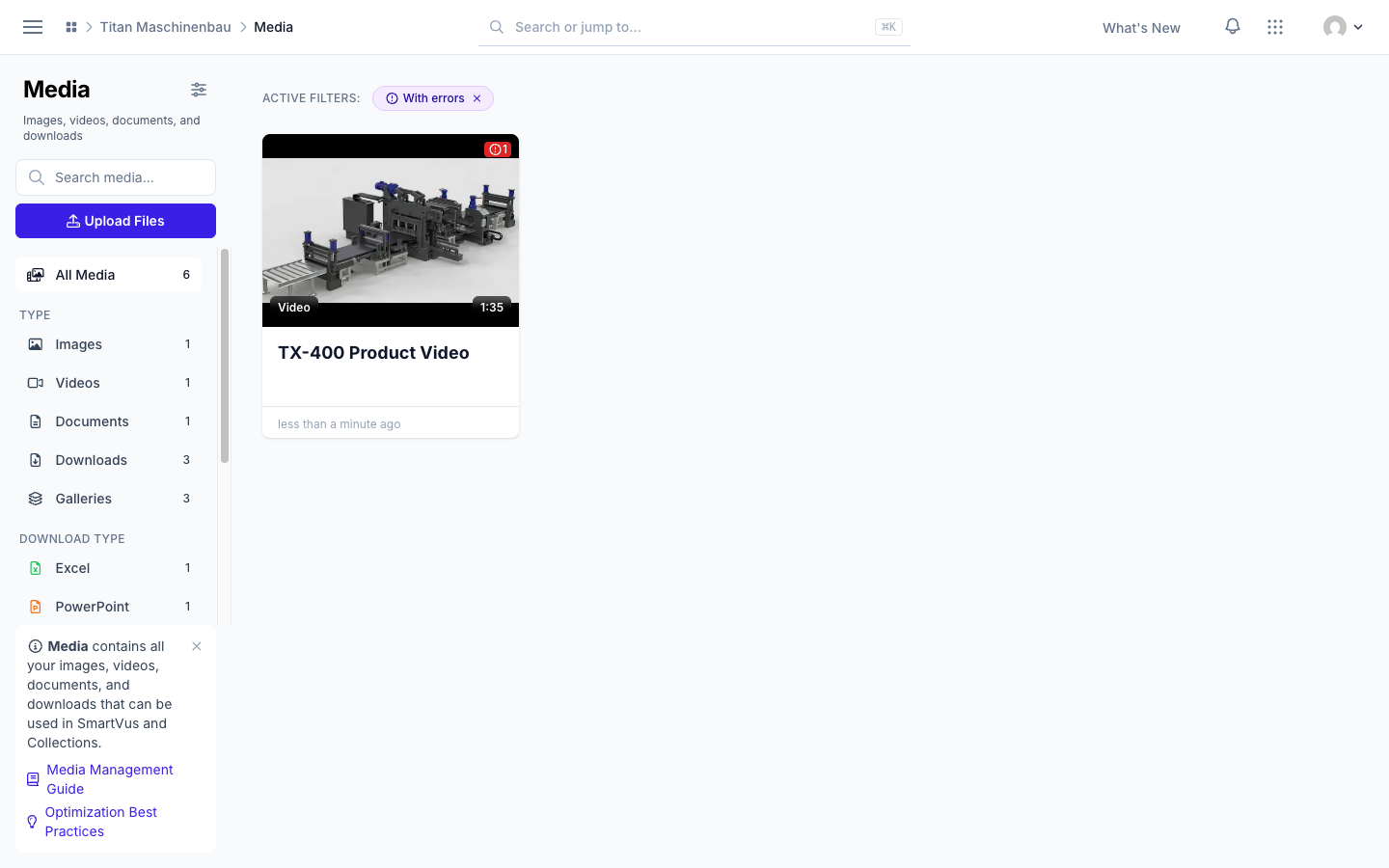
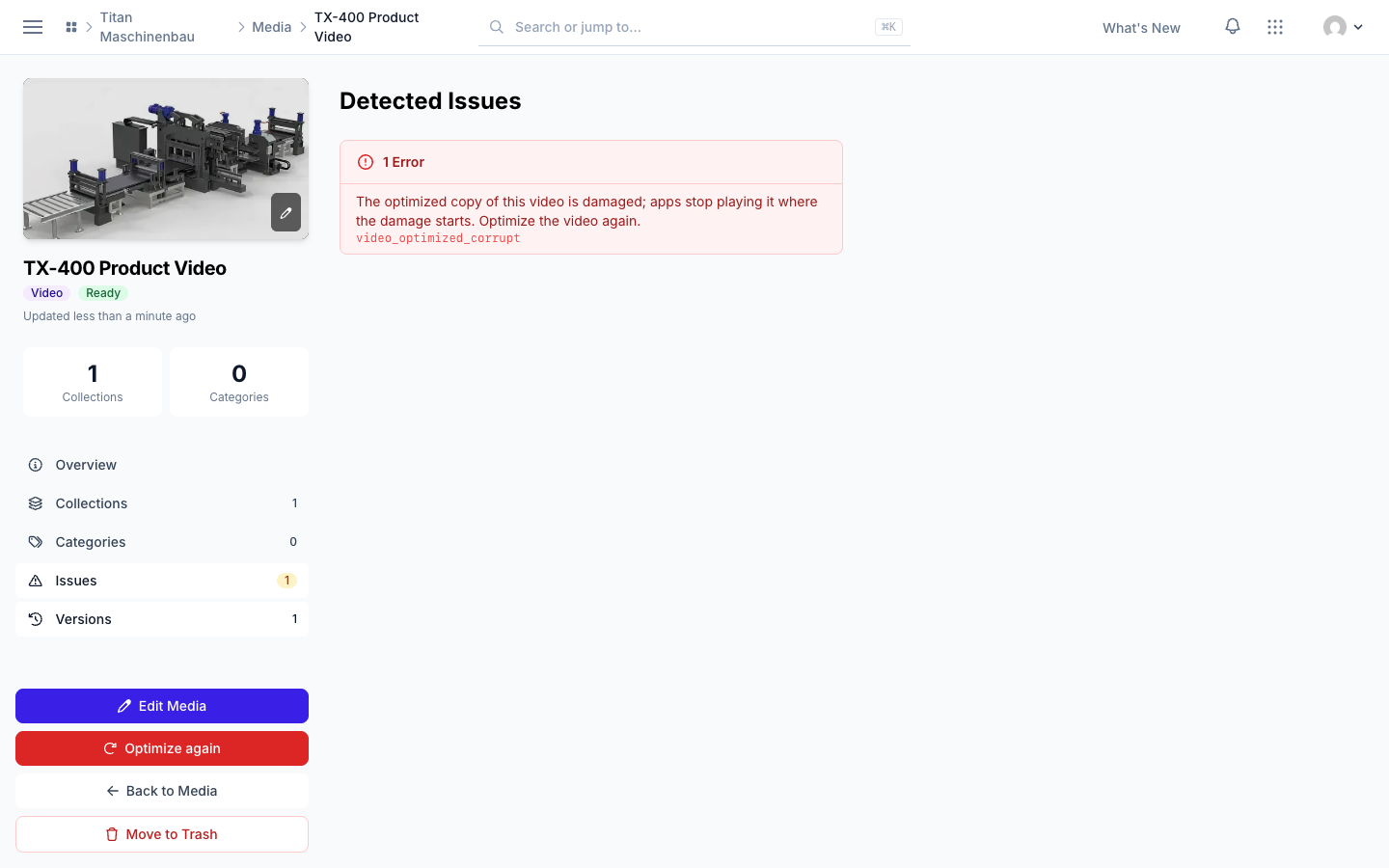
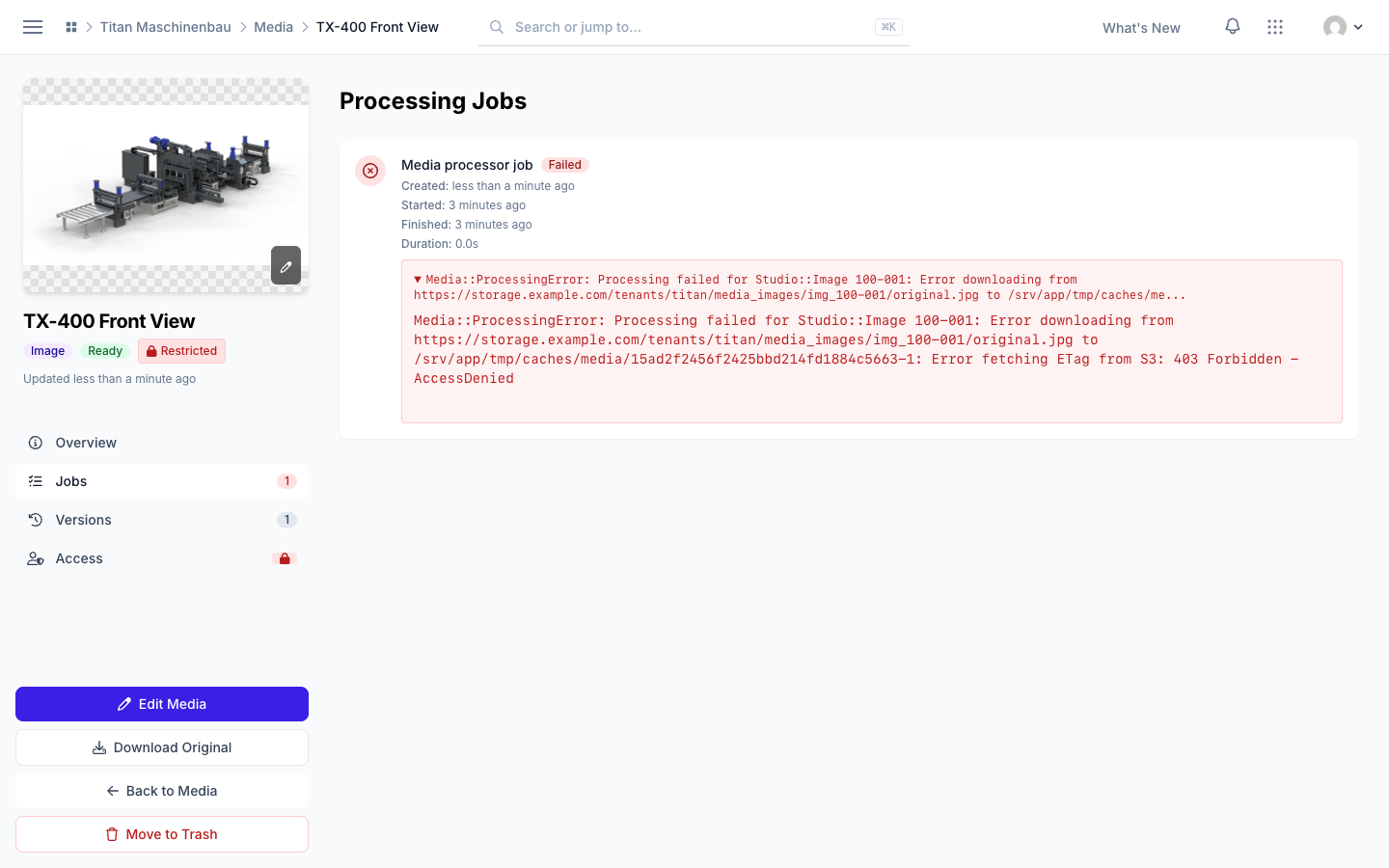
Damaged videos show under Issues. A video with a damaged file is listed under "Damaged files" on the Issues page; Fix now starts a new optimized copy right away, and the video page shows its progress. With With issues or With errors on, the media library lists the kinds of issues with their counts.
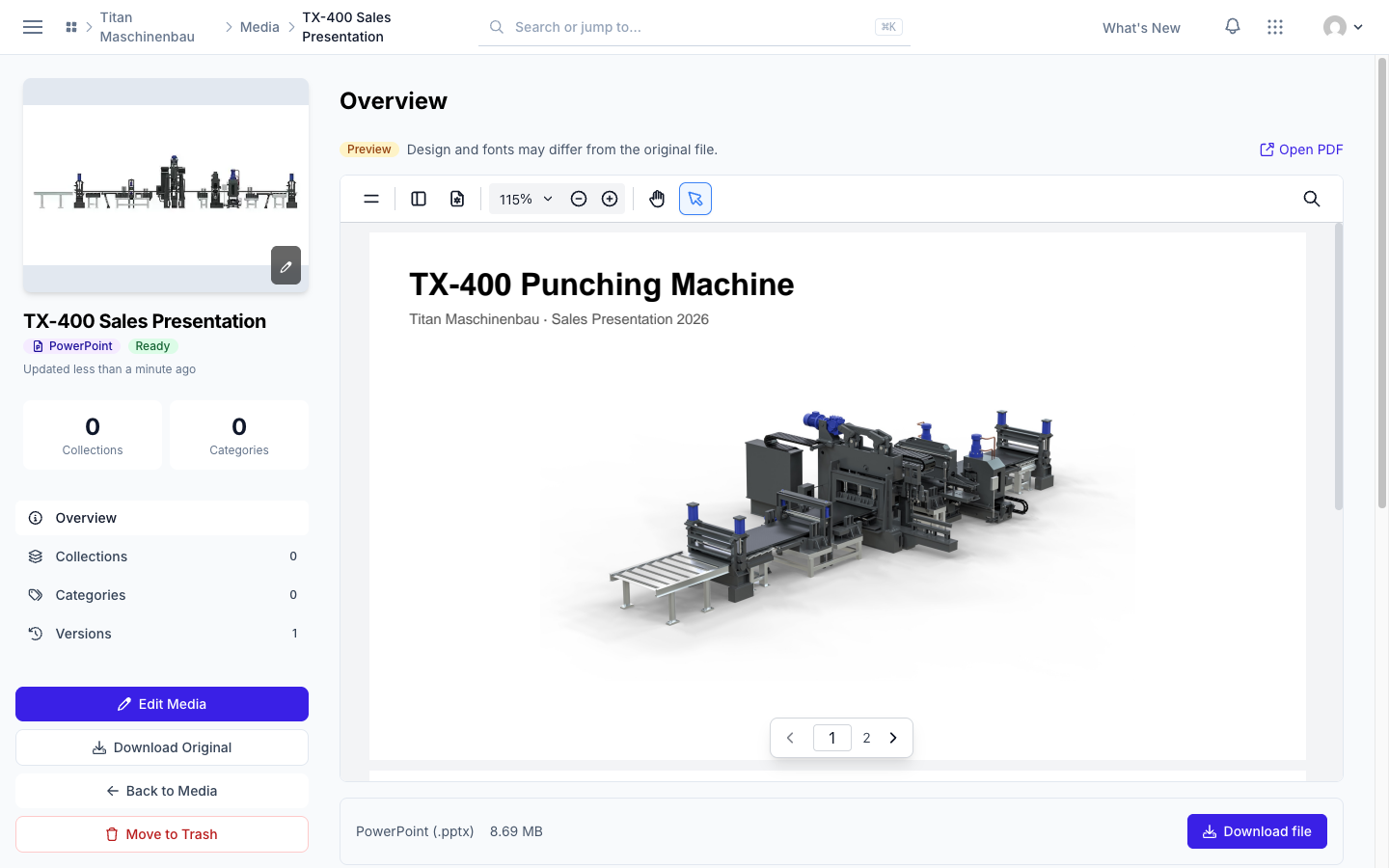
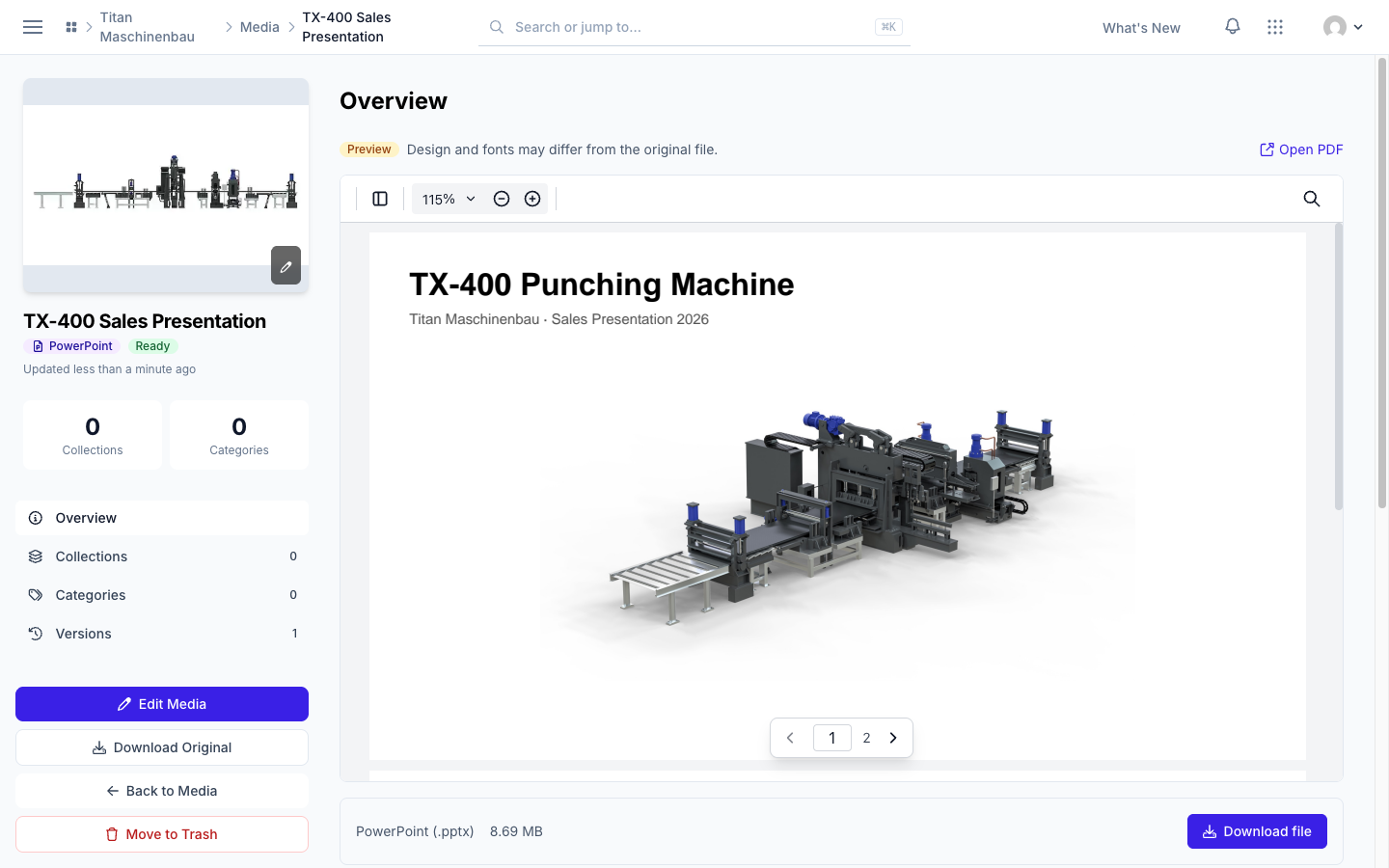
Office files show their PDF preview on their media page, and the badge says "PowerPoint", "Excel" or "Word".
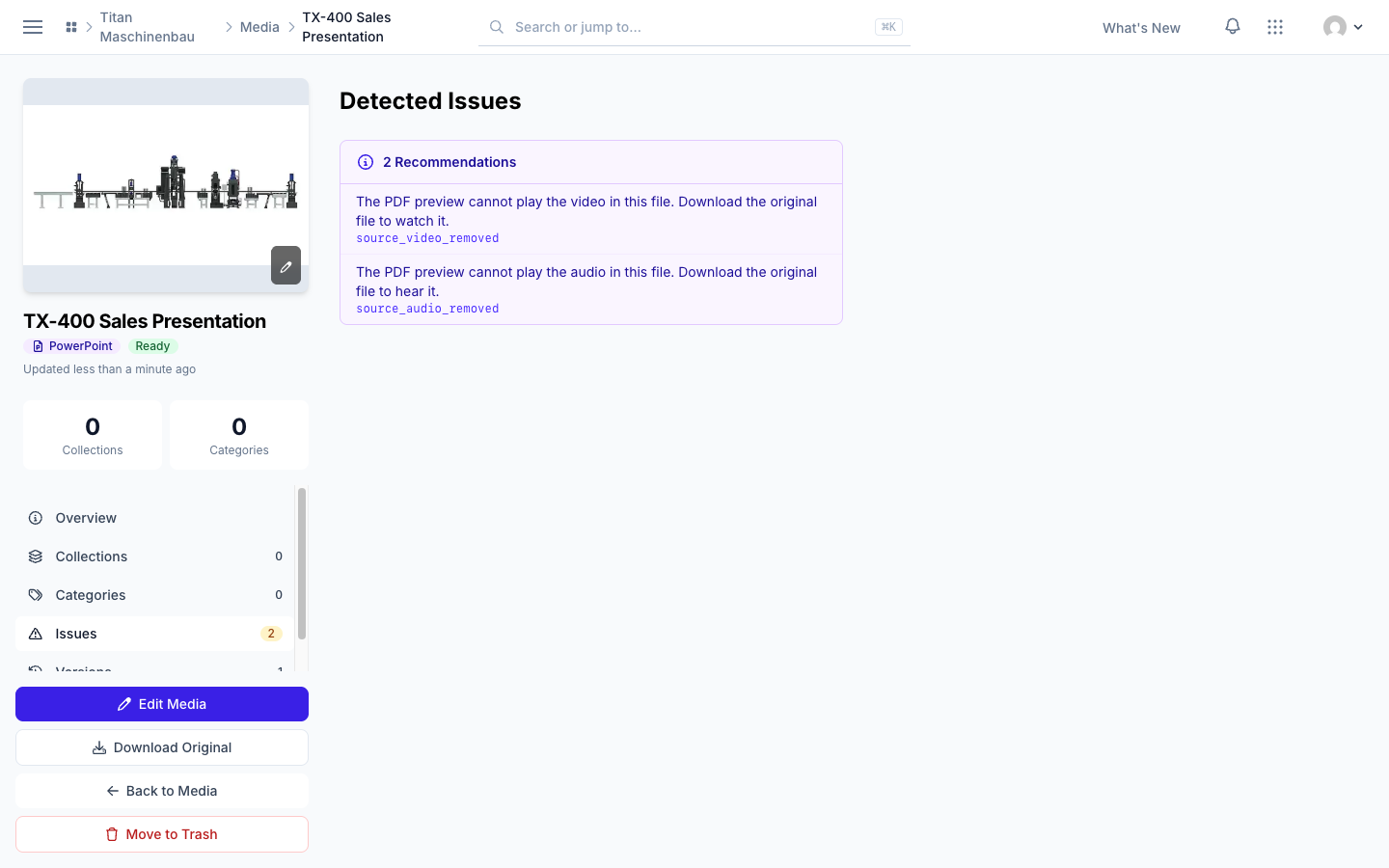
Smaller PDF previews. Previews of presentations leave out video and audio; the media page says when a presentation holds them. Fewer font warnings: Calibri Light and Arial Narrow get a free font with the same letter widths.
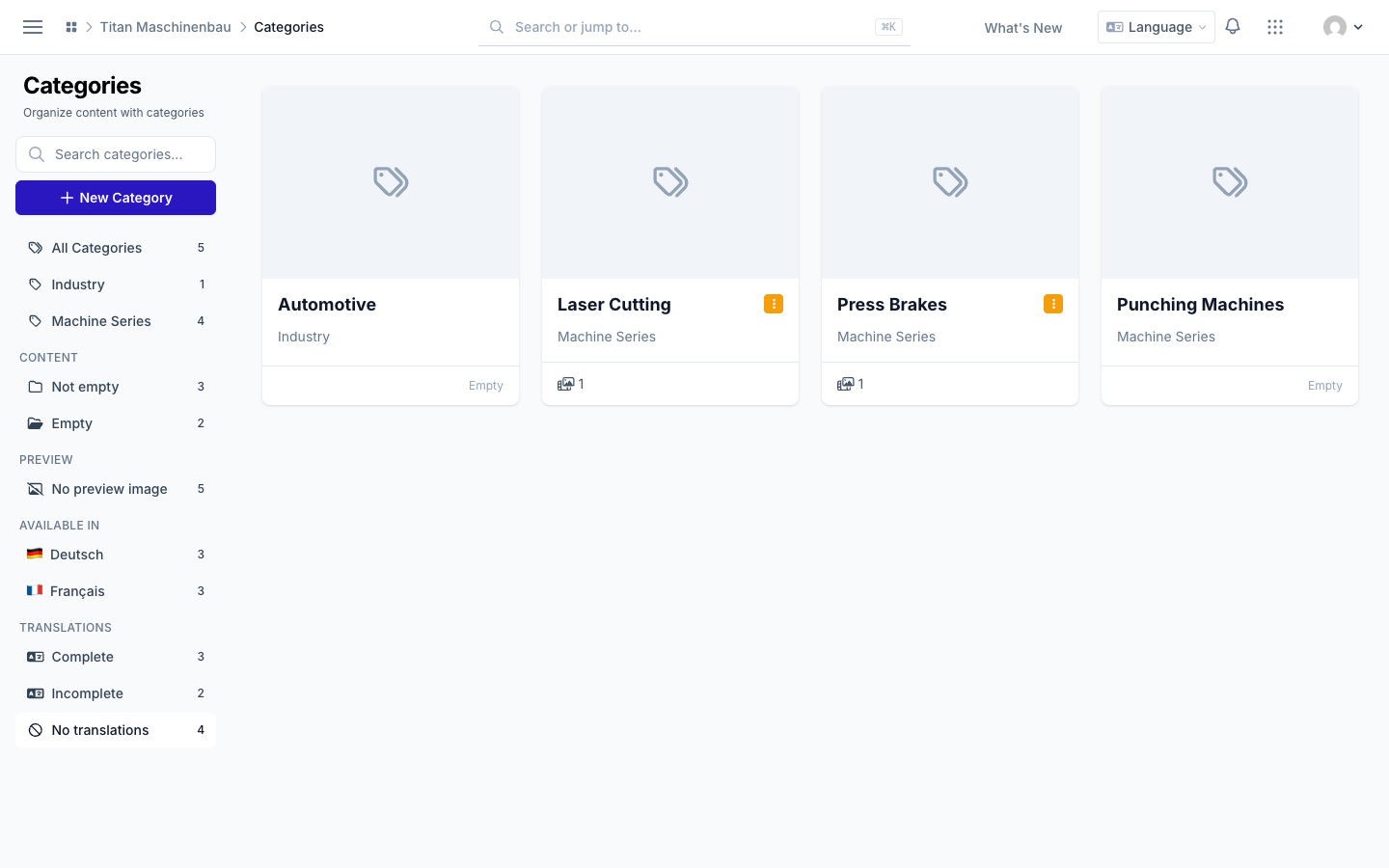
Find categories without translations with the new No translations filter.
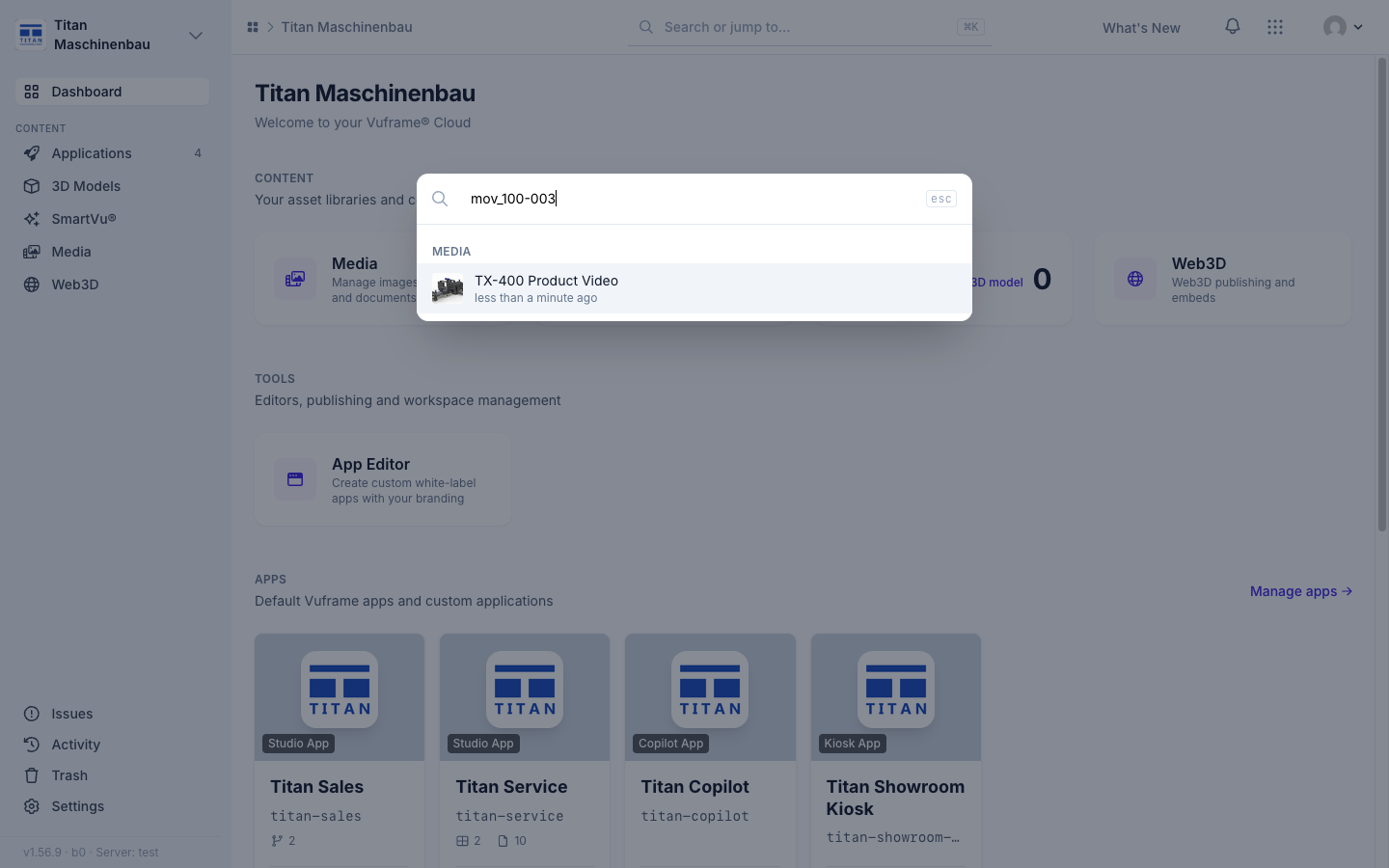
Cmd+K finds items by ID, for example 1wb-08q or mov_1wb-08q.
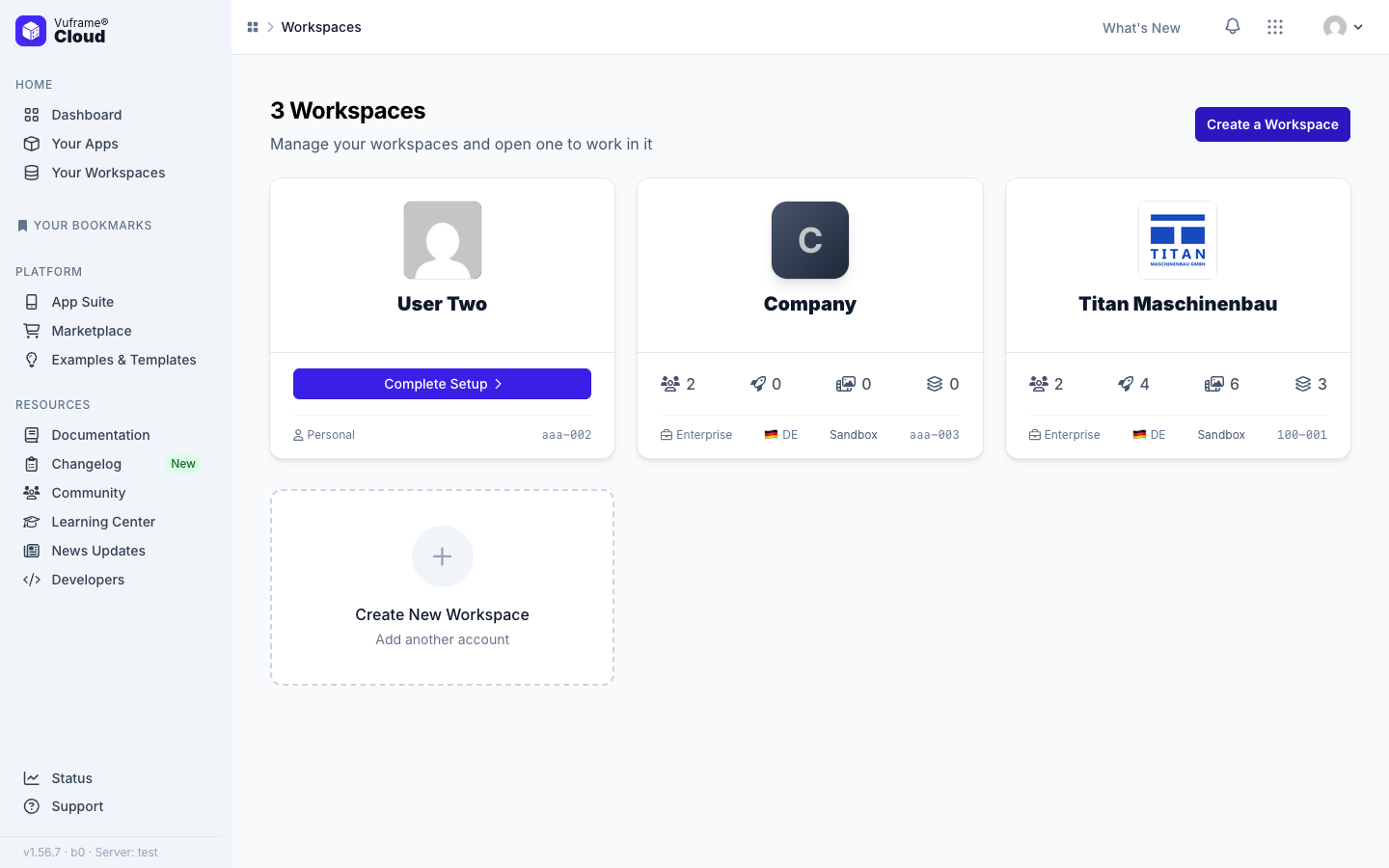
Click a workspace card to open it on the Workspaces page.
Very large images get a scaled copy of 8,192 pixels for your apps and are marked Image larger than apps can show.
Video copies are never larger than the original. When your upload is already a good web video, your apps get the upload itself.
Published files carry no hidden upload data such as GPS positions, device names or authors. Files are only re-encoded when that makes them smaller or browsers need it. Publish your apps again to get the cleaned files.
Damaged videos are caught before they are published. Vuframe® Cloud reads every part of a video and checks the stored copy; a damaged copy is made again.
PDF previews load again, in a simpler viewer.
Videos play to the end in apps. An optimized copy that is shorter than the video is never used.
Optimize again works the first time, and failed optimizations run again on their own.
Apps in workspaces without user groups open again. Publish the affected apps once more.
Imports respect your sorting. A category you delete stays deleted, and a link you removed stays removed, also when the source still lists it.
A rename shows in every language.
Duplicate categories are reported only within one category type.
Vuframe® Cloud v1.55.0 lets you create and fill galleries yourself, makes a PDF of every Office file for your apps and links iOS apps to their App Store page.
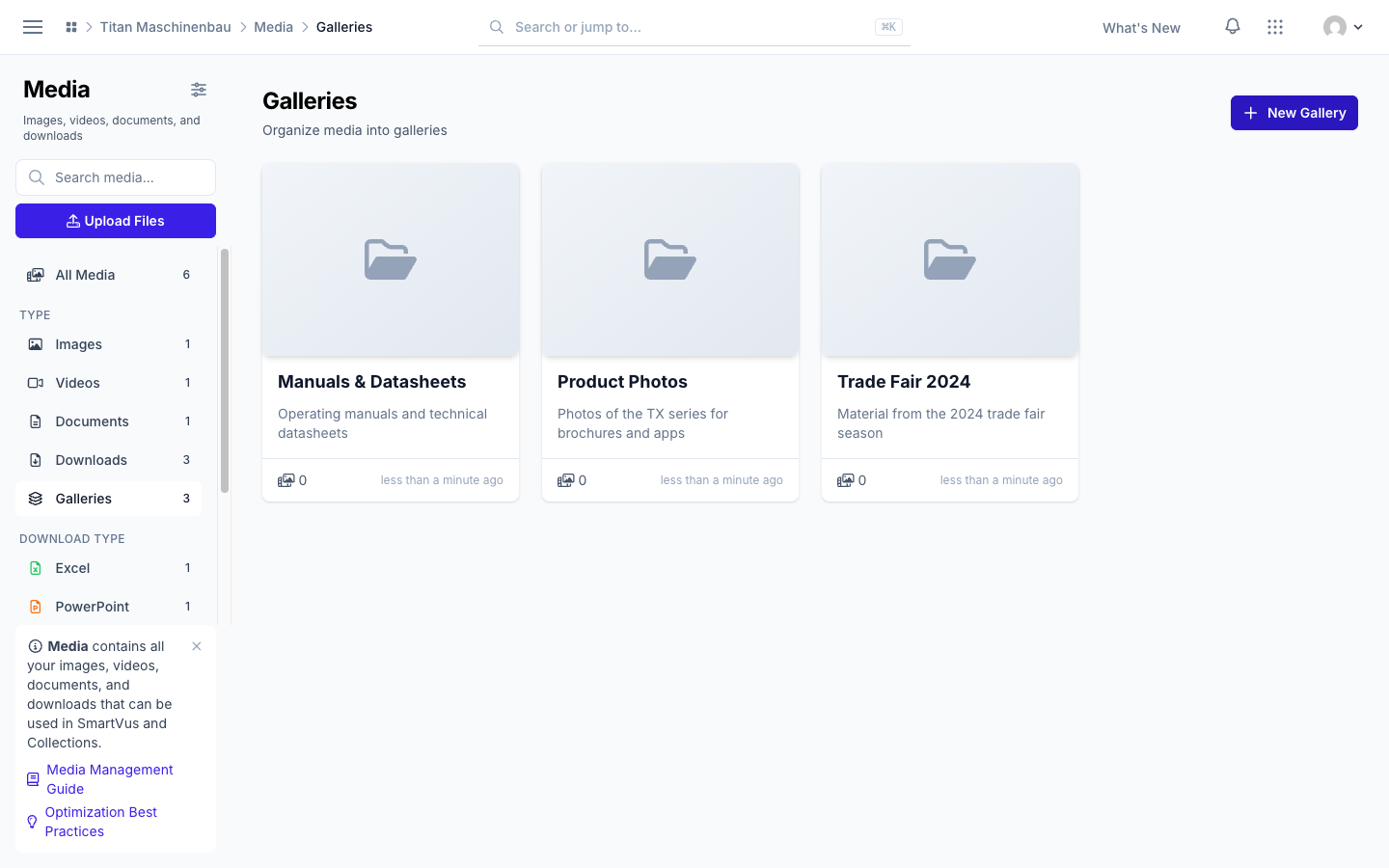
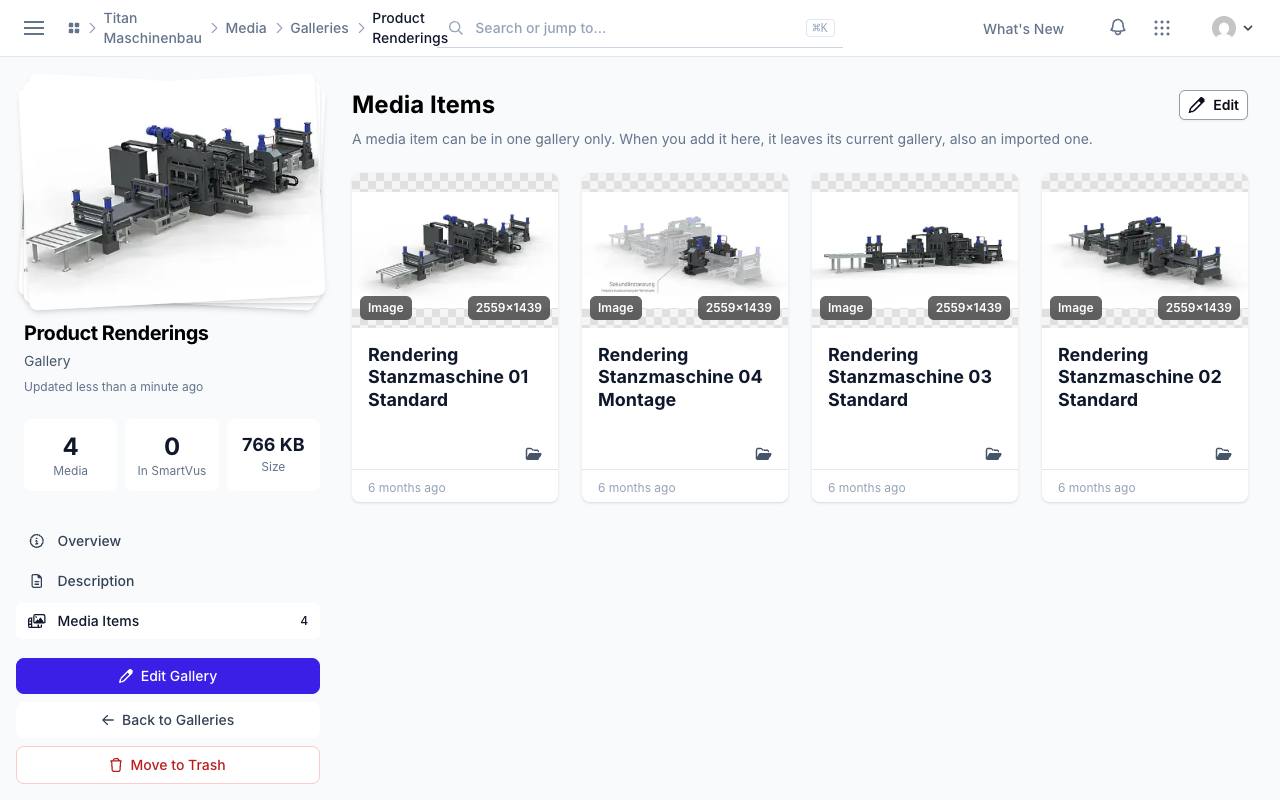
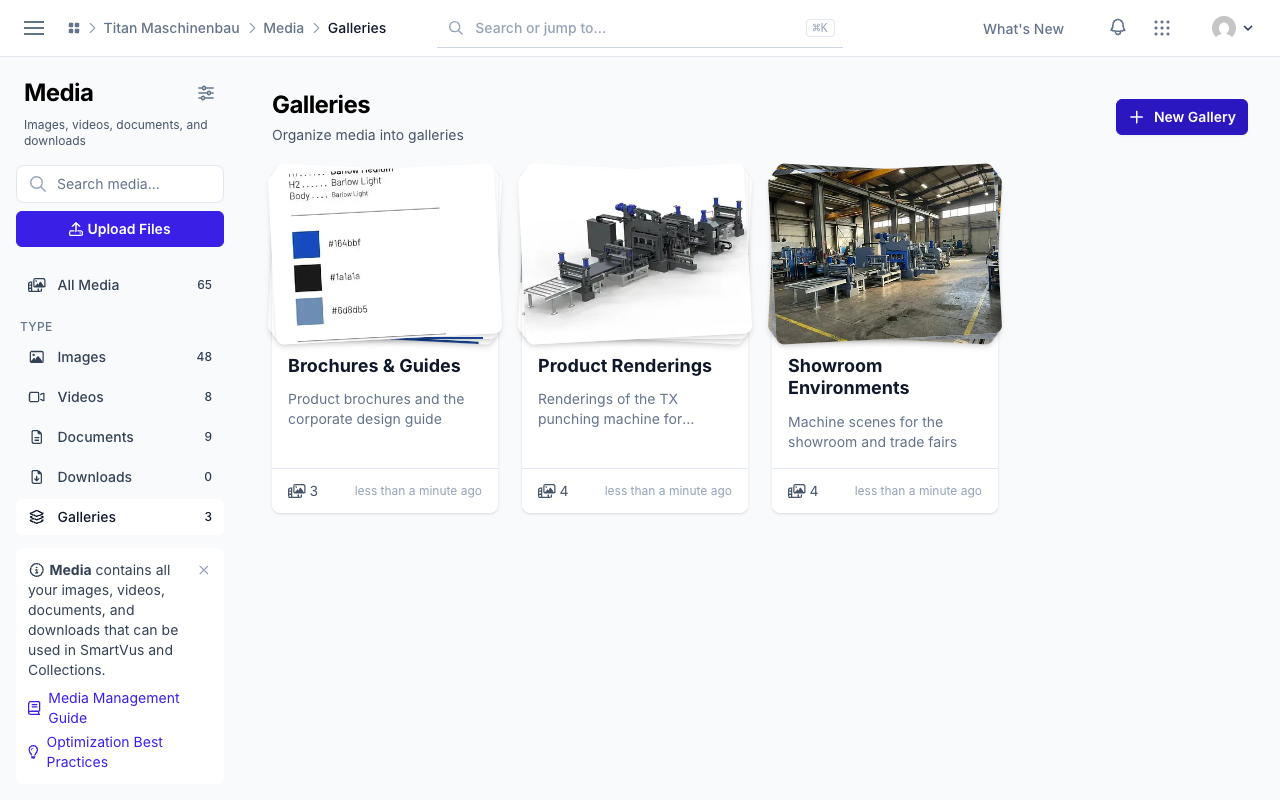
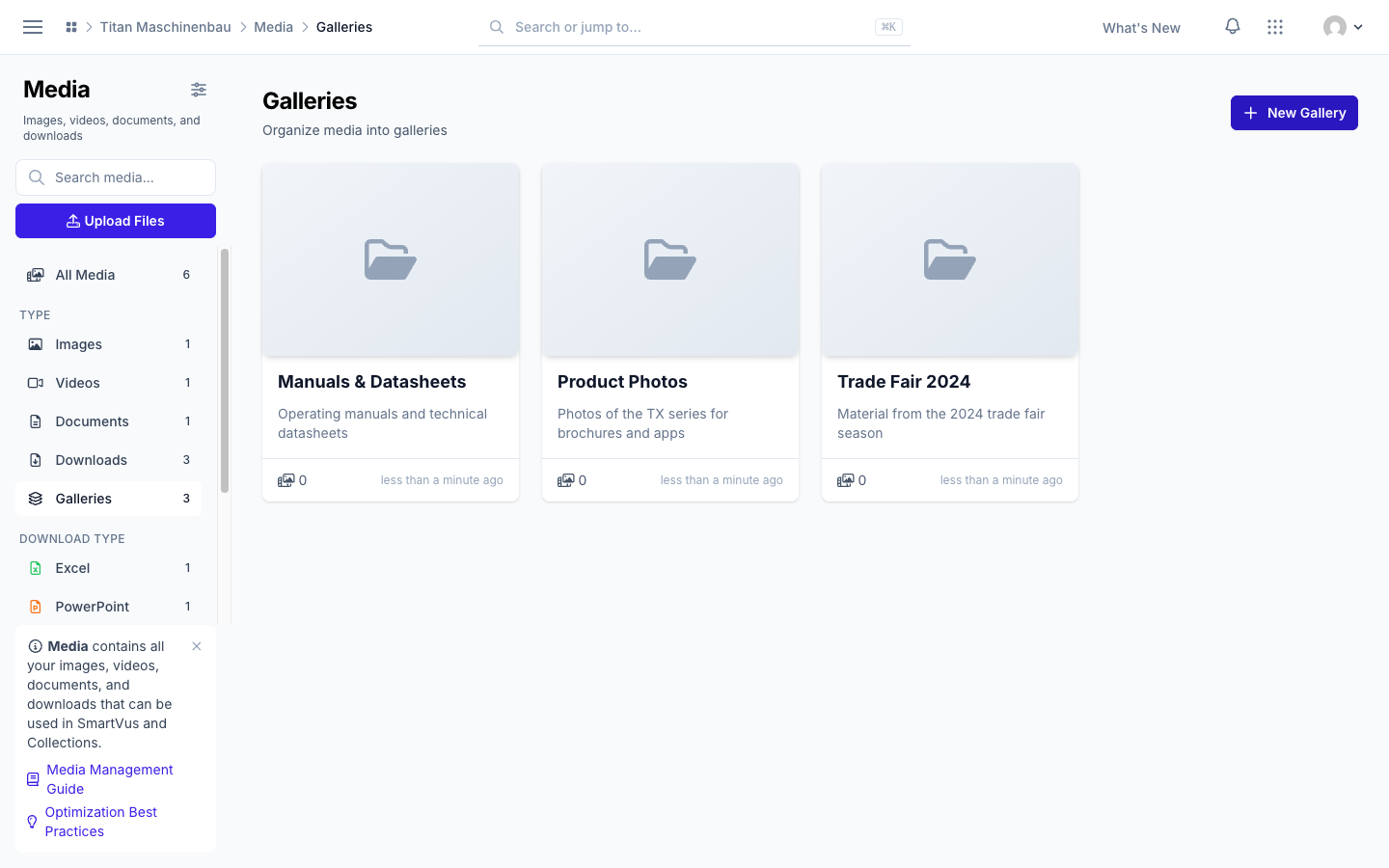
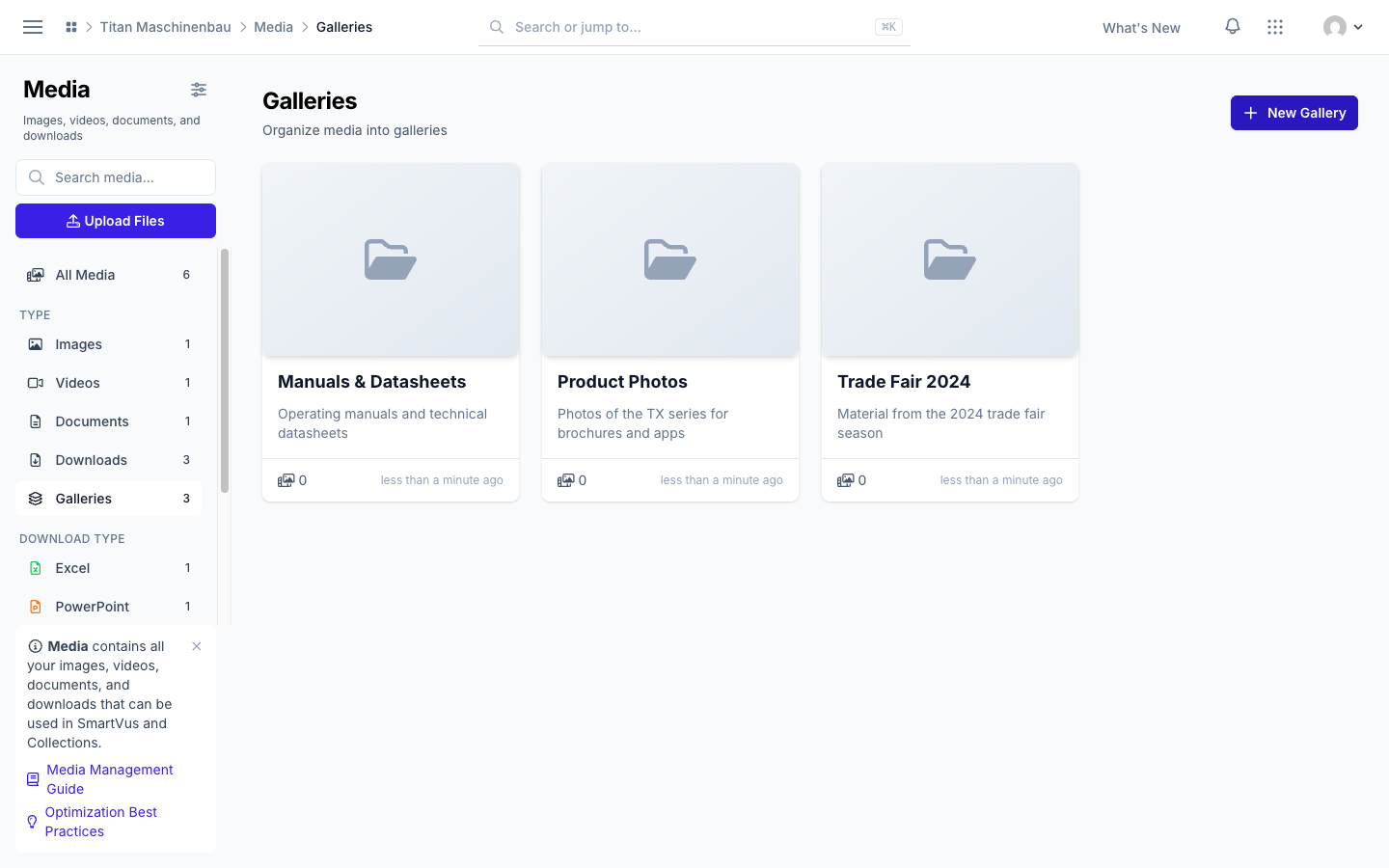
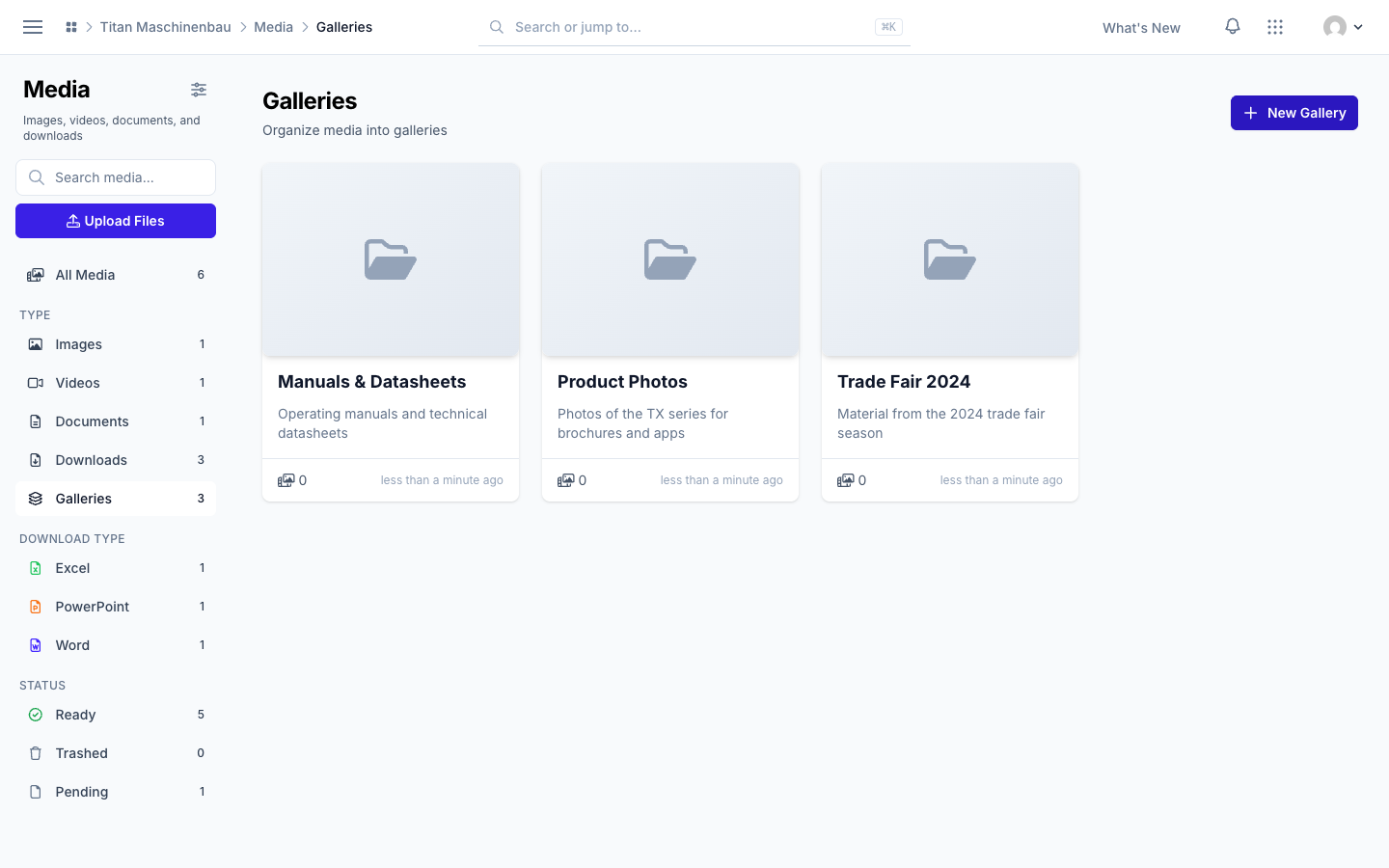
Create, fill and trash galleries. Click New Gallery on the Galleries page. Open a gallery, go to Media Items and click Edit to add media. A gallery you no longer need goes to the trash with Move to Trash; its media stay in your library.
PDF previews for Office files. Vuframe® Cloud makes a PDF of every Word, Excel and PowerPoint file and publishes it with your apps, so apps can show the file also when they cannot open the Office format. Office files without a preview image get one from the first page.
App Store link for iOS apps. When your app is released in the App Store, View Live App opens its App Store page. An app with several live addresses shows a menu to choose from.
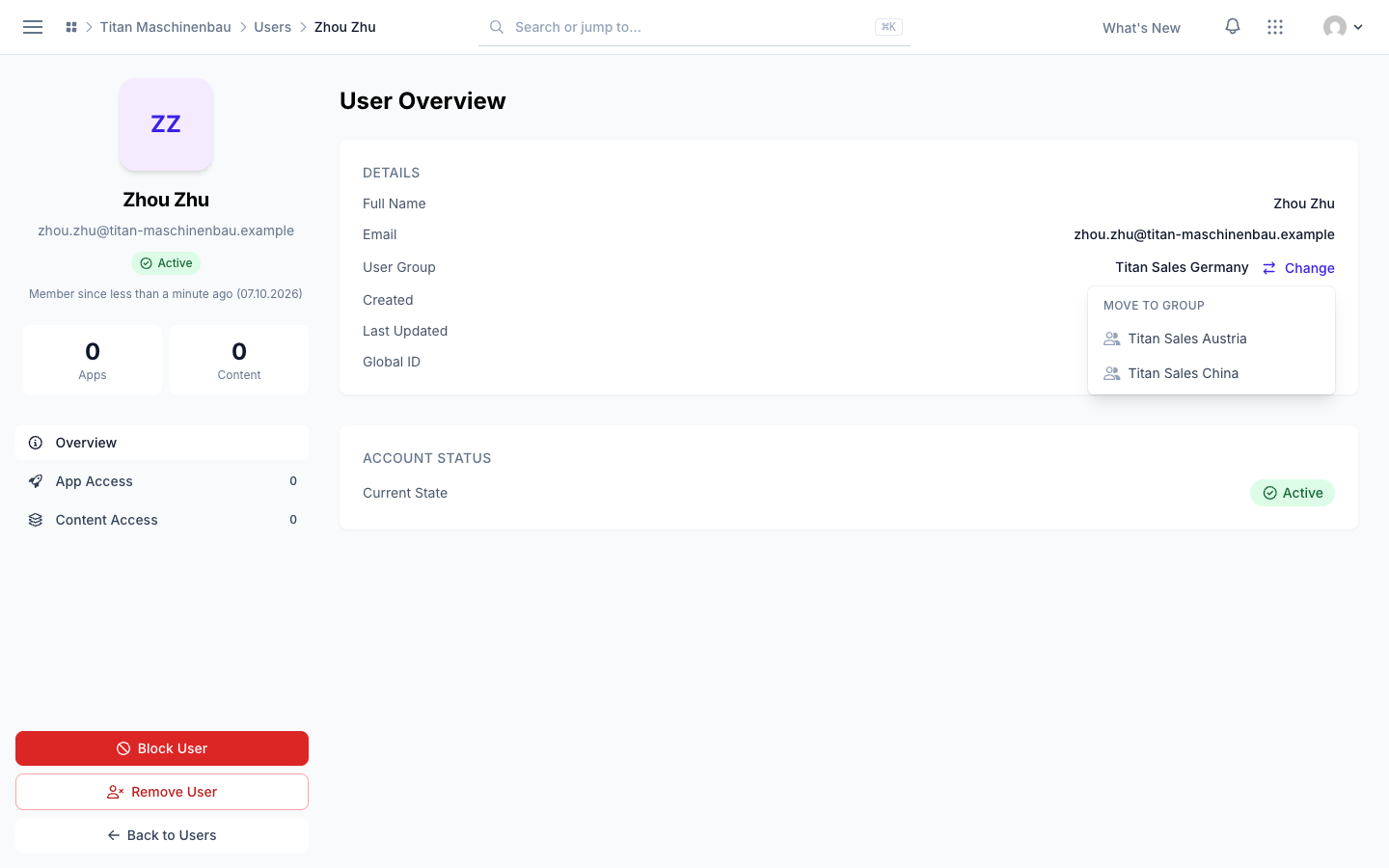
Move a user to another user group. On the user's page, click Change next to User Group and select the new group. The user sees the content of the new group from the next login. The list shows only the groups you can assign. Workspace admins can also click Add Users on a group's page; these users leave their current group.
Galleries show a stack of previews of their newest media, and the stack fans out when you point at it.
The Galleries page has the same sidebar as All Media, with search, upload and all filters.
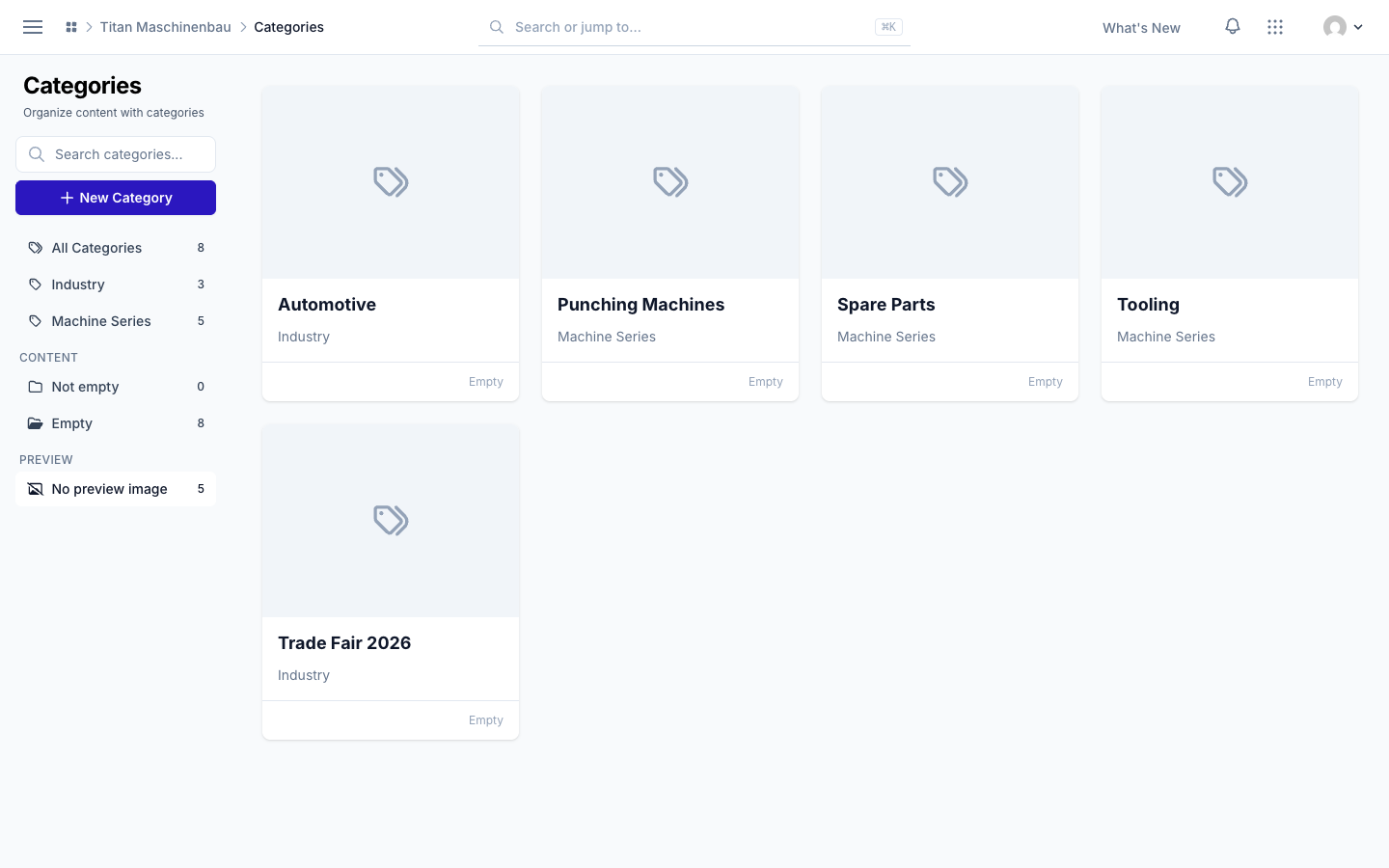
Find categories without a preview image with the new No preview image filter. Merge into… shows each category with its preview and category type.
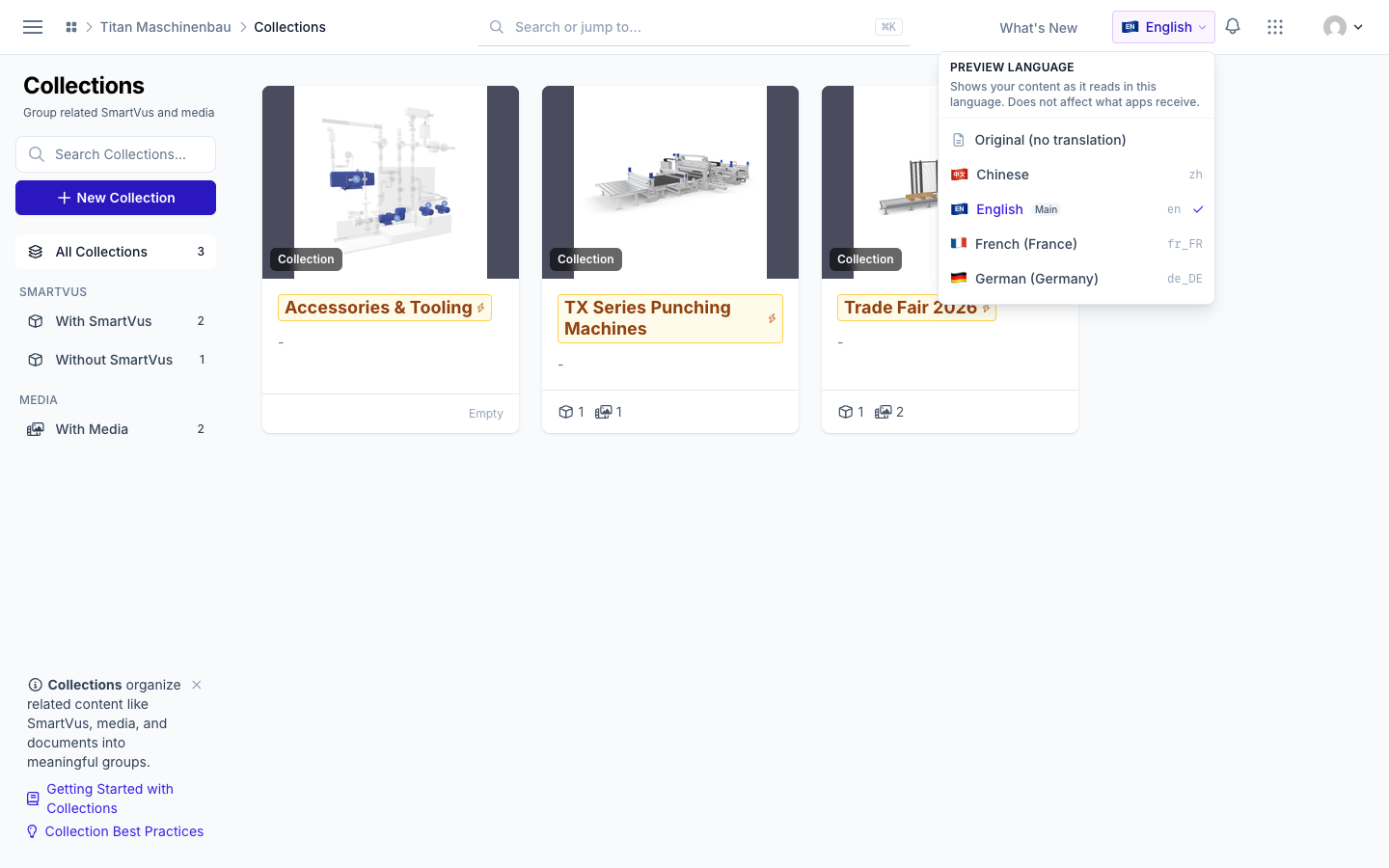
EN and 中文 badges everywhere, also in the Preview language picker. The first entry is now Original (no translation), and your main language carries a Main tag.
Sidebar tips can be hidden with the × in their corner.
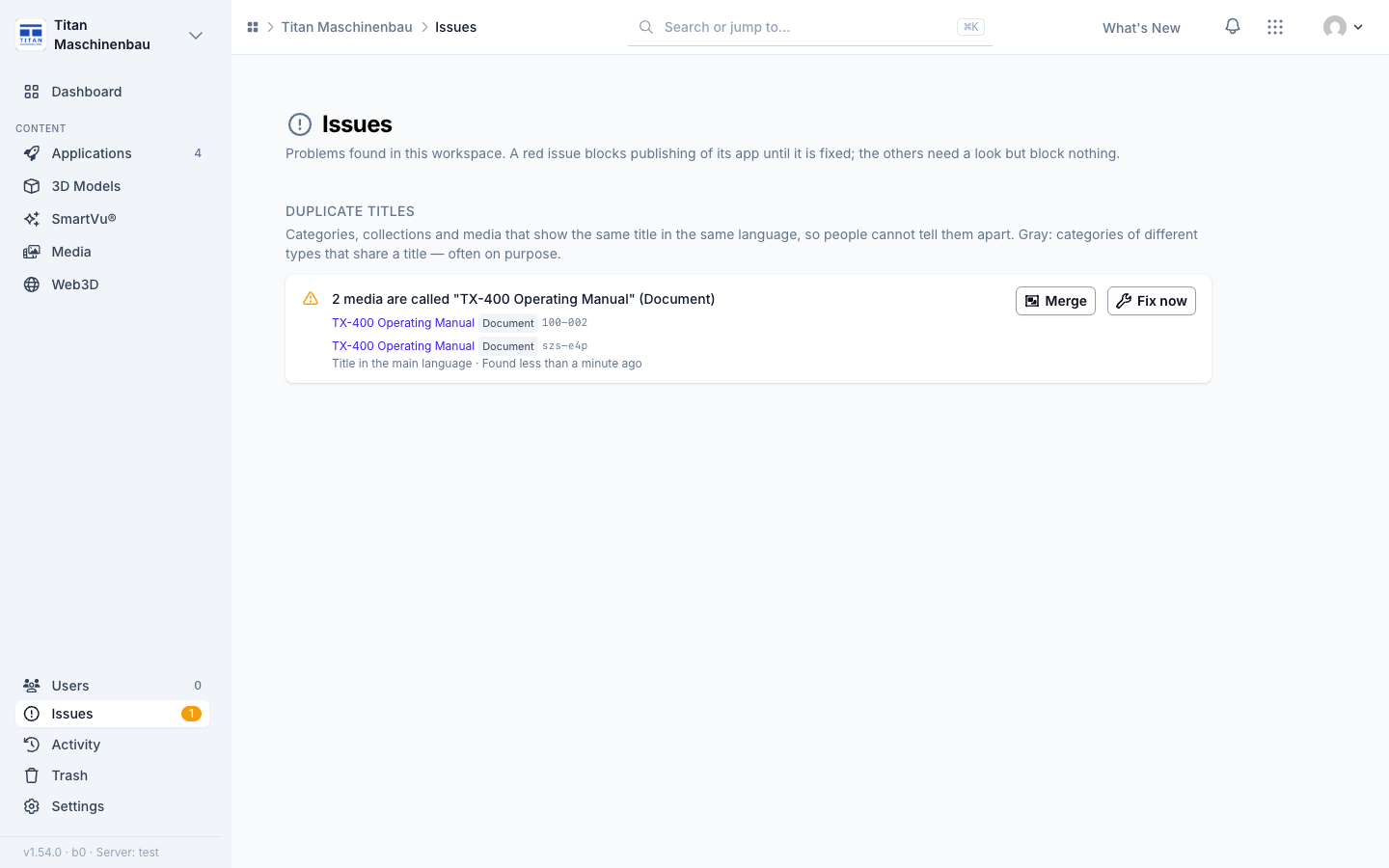
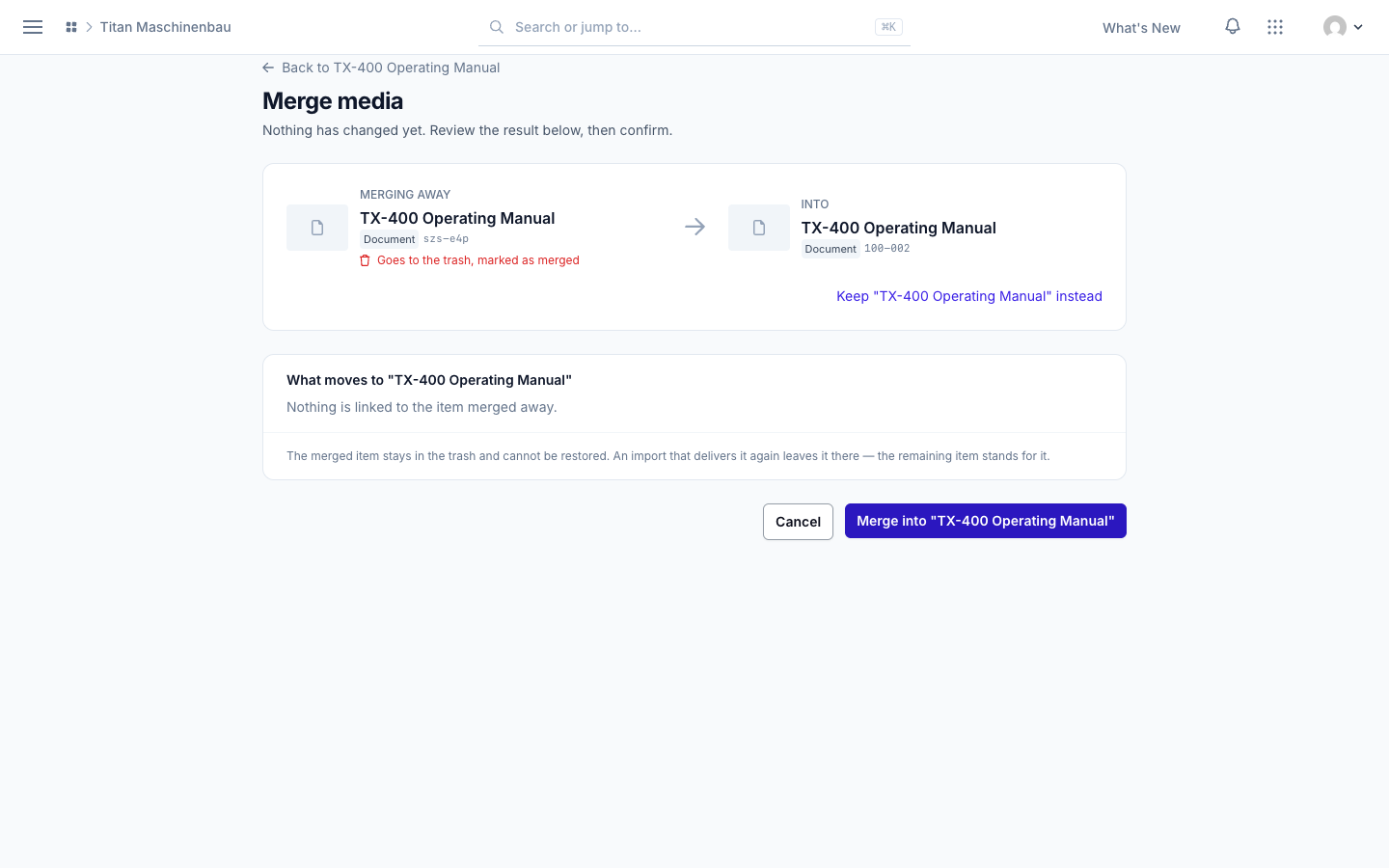
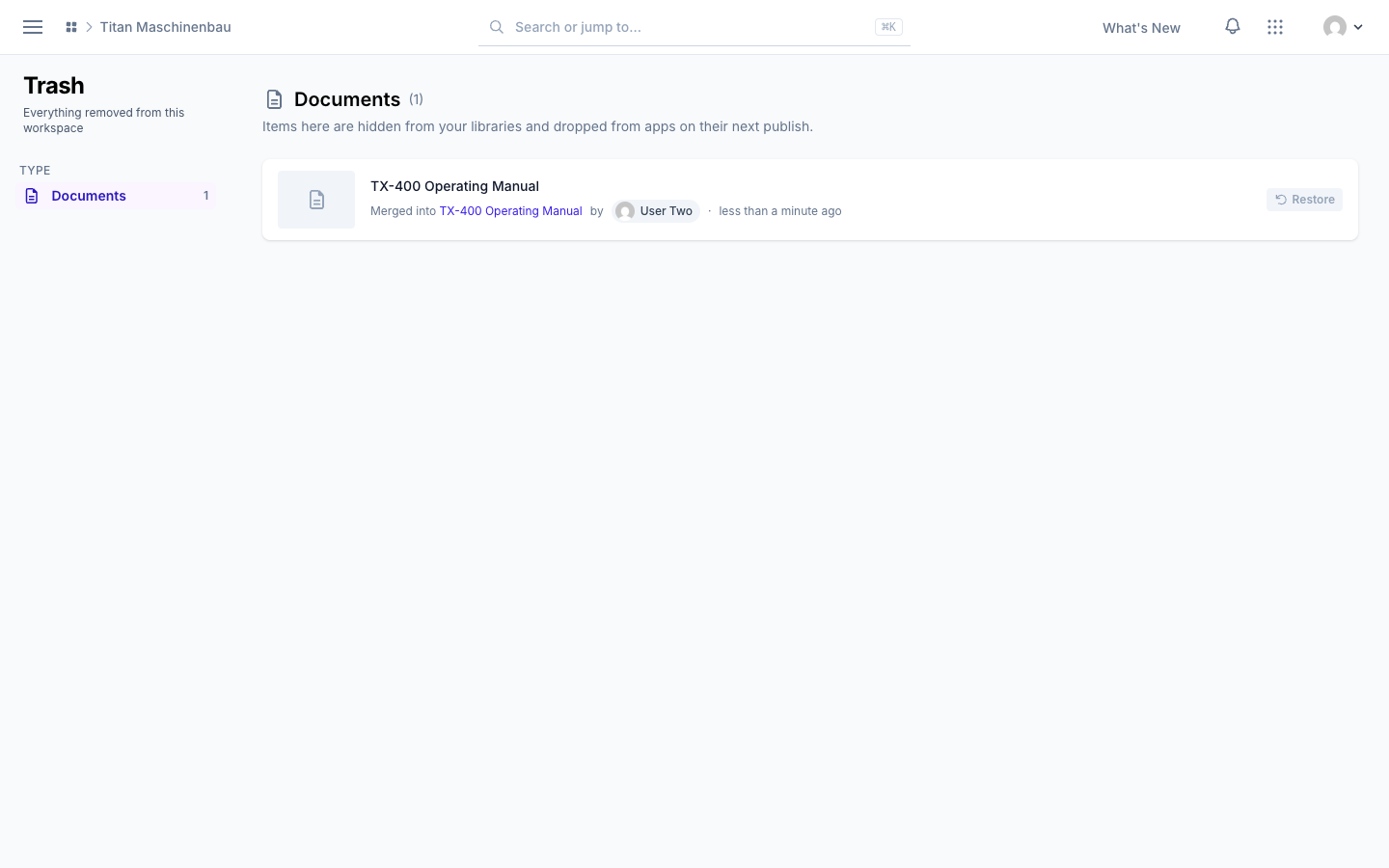
Merge identical media items. When two media items are copies of the same file, the Issues page offers Merge. A preview shows everything that moves to the item that remains: categories, tags, collections, SmartVu® links, group access and hotspots. App pages that showed the merged copy show the remaining item. The merged copy goes to the Trash, marked Merged into. Admins and editors can merge.
Imports keep your renames. An import updates a title, description or translation only while it still holds the value the import wrote. Your own changes stay.
A merge resolves its duplicate at once, so the page you land on no longer shows it.
A preview that fails to load is tried again and then shows a neutral file icon instead of the browser's broken-image symbol.
Vuframe® Cloud v1.53.4 finds duplicate titles, adds Fix now to every issue and shows a preview for each version of a media item. E-mails now name your workspace and show its logo.
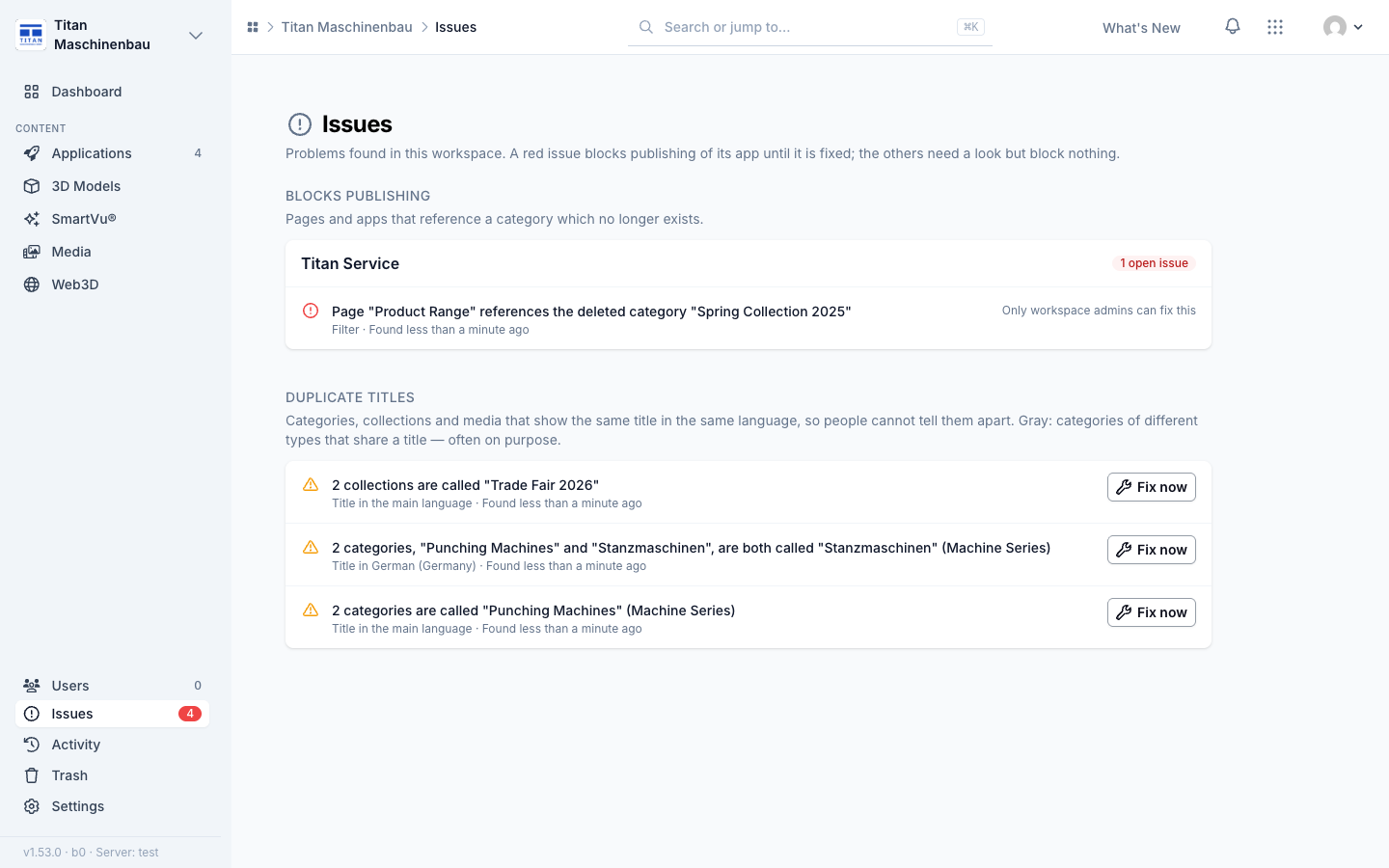
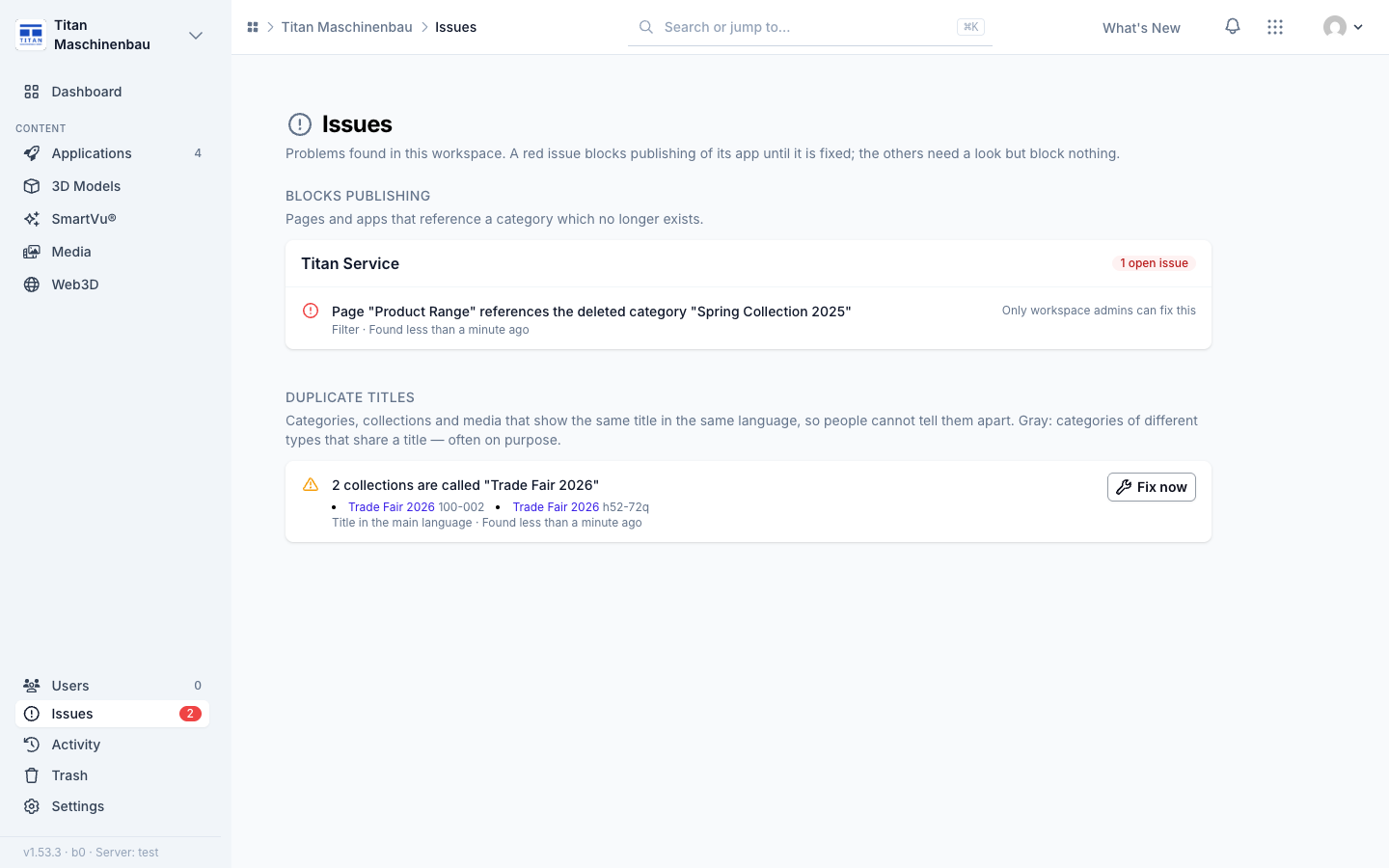
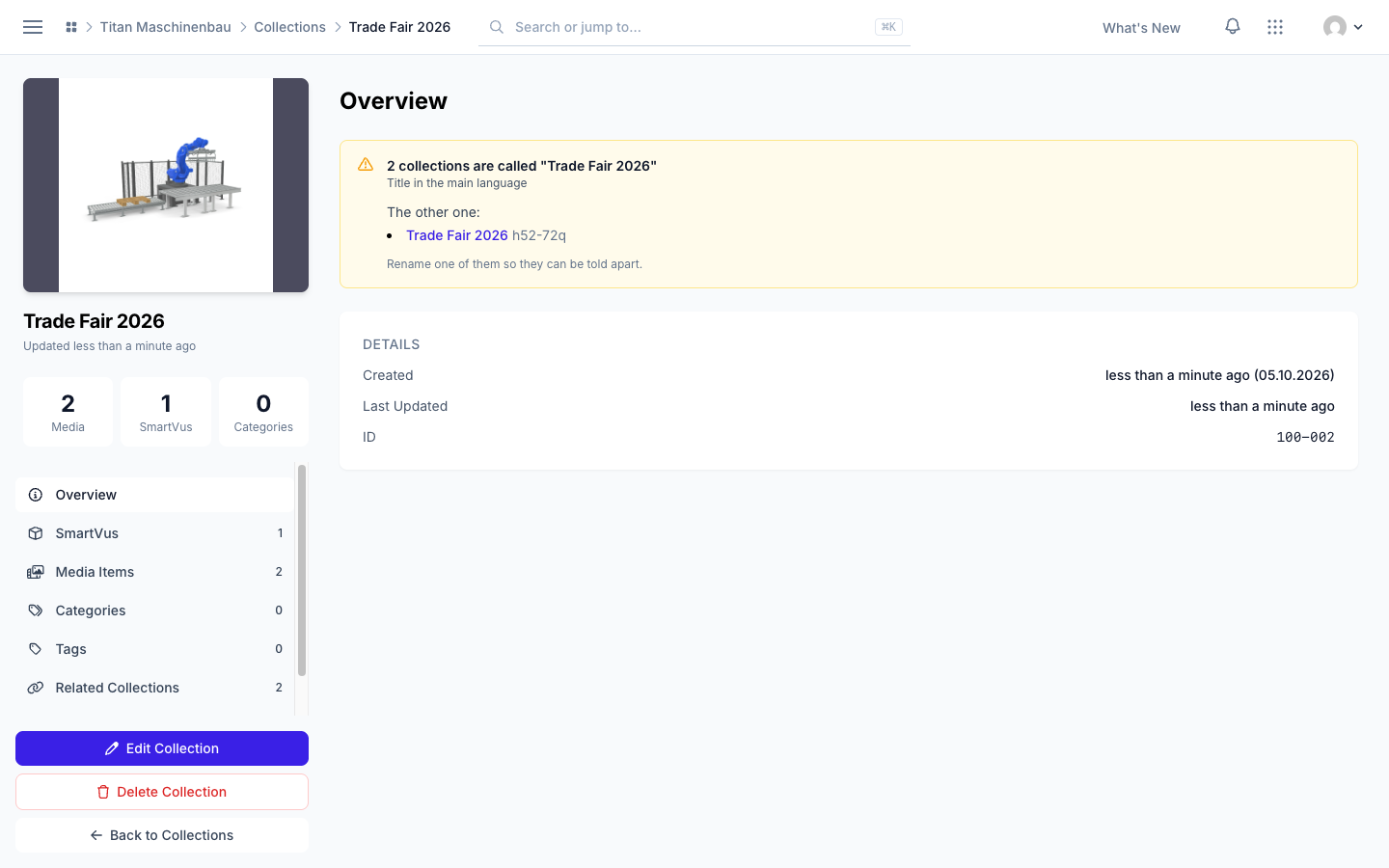
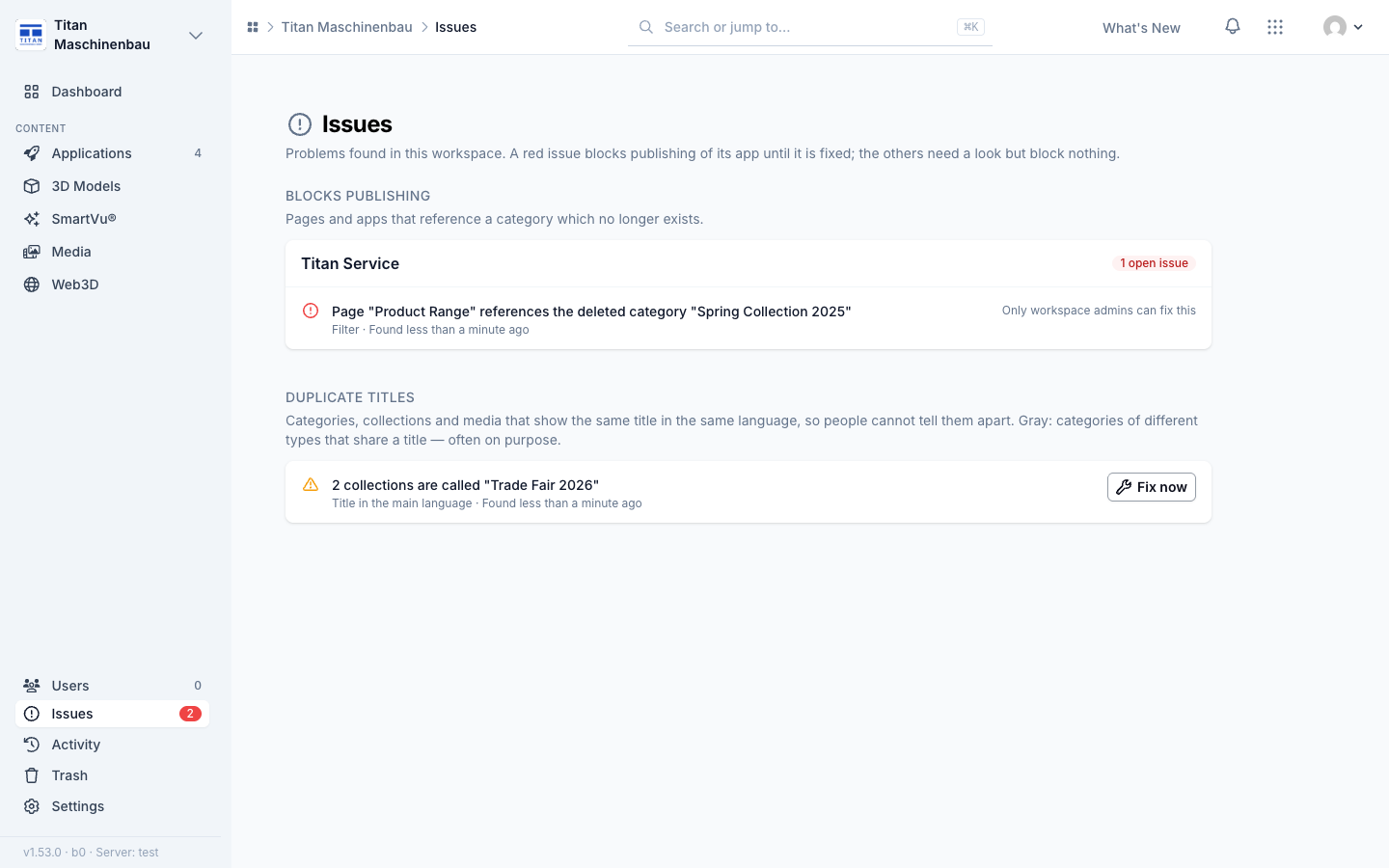
Duplicate titles. The Issues page lists categories, collections and media that show the same title in the same language — translations included. Duplicates never block publishing. Each item in a duplicate shows the issue on its own page and links the other one.
Fix now. Every open issue has a Fix now button on the Issues page, on the home page and on the app page. It opens what needs the change.
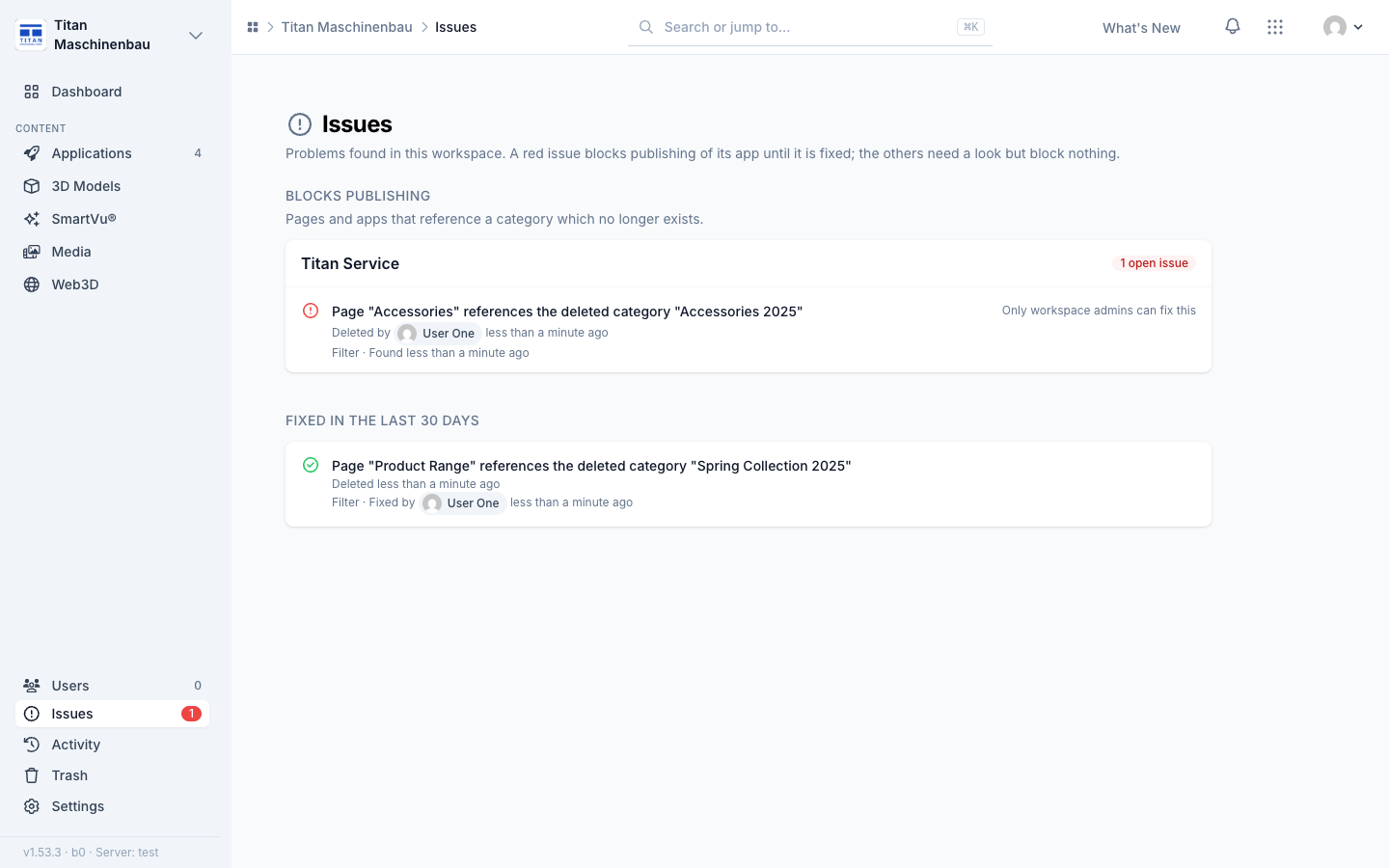
Who deleted and who fixed. An issue about a missing category says who deleted it or which category it was merged into. Under Fixed in the last 30 days, every issue names who fixed it.
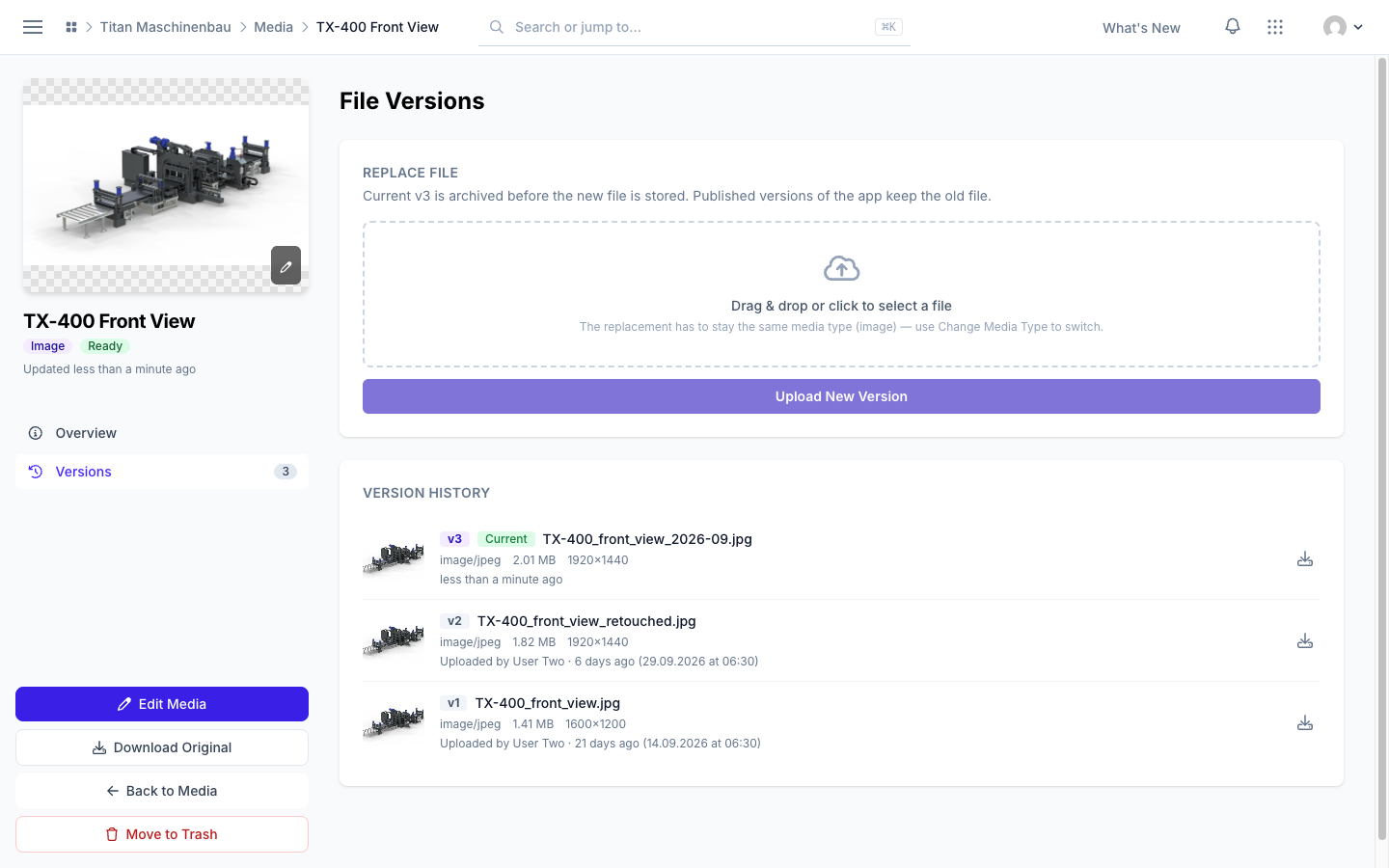
Media version history with previews. Each version in File Versions shows a preview, the original file name, size, dimensions, who uploaded it and when, with a download button.
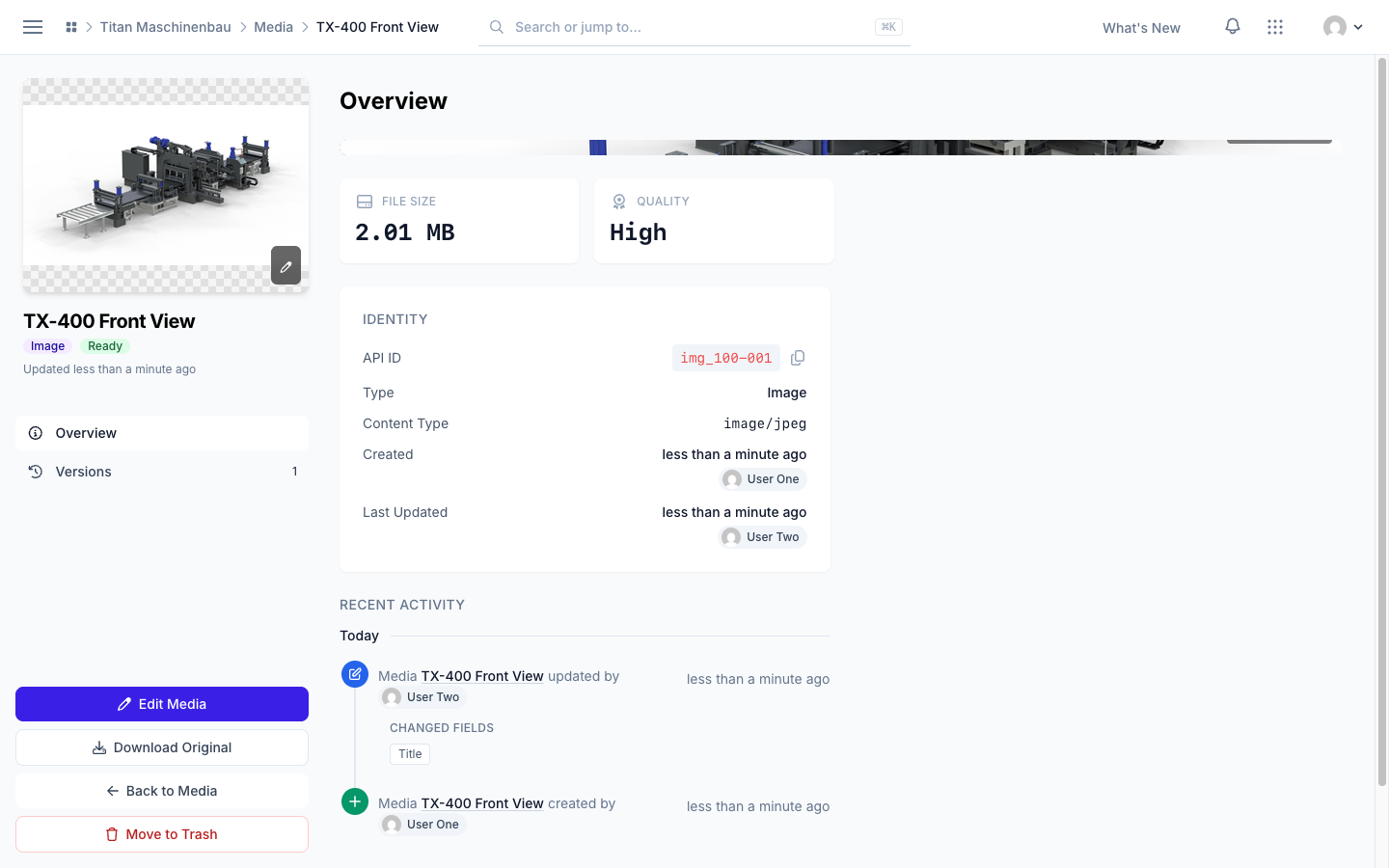
Who is behind a media item. The Identity card names who created and who last changed the file, and Recent Activity below lists what happened to it.
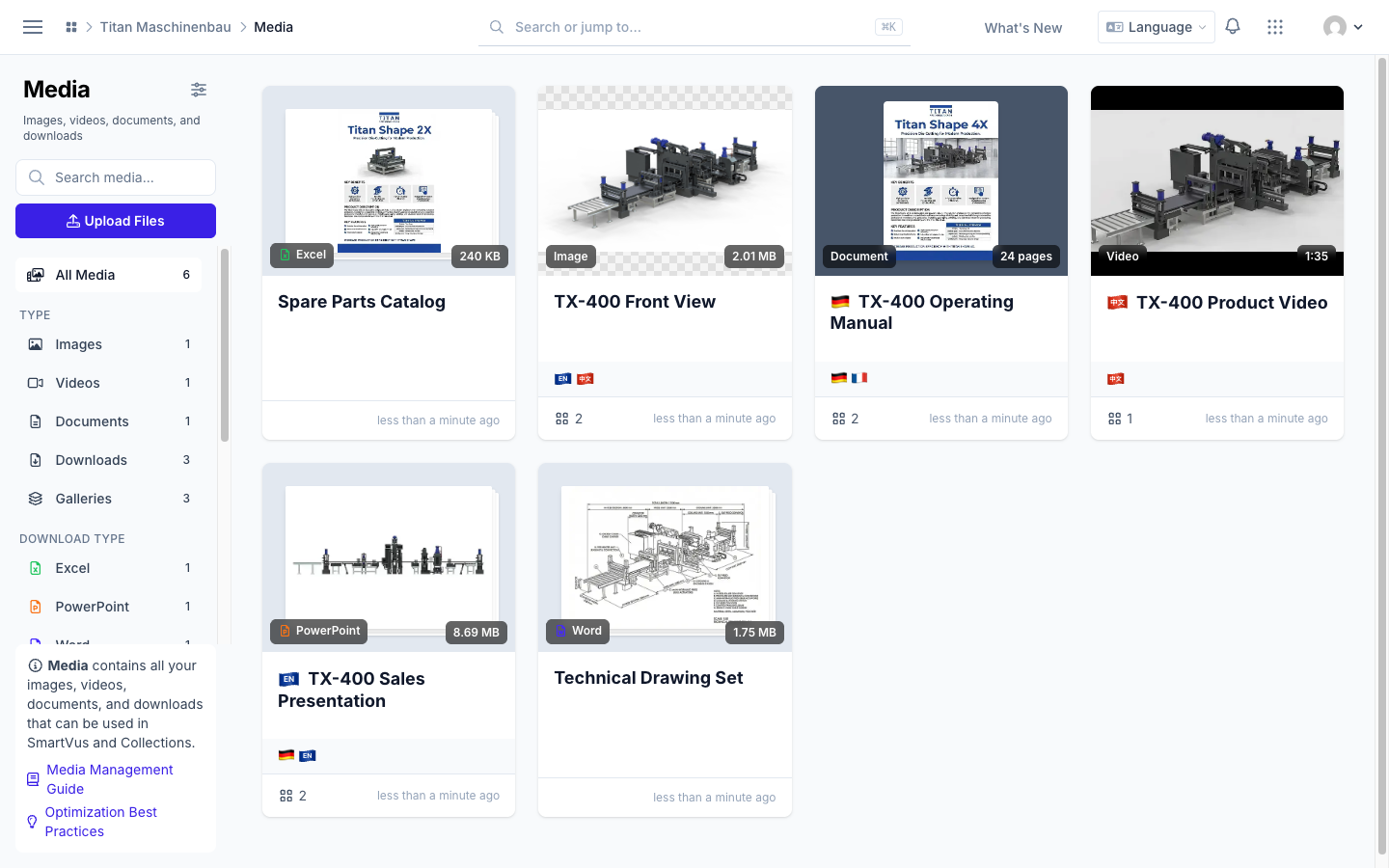
Media cards in one row. Languages on the left; gallery, categories, tags and the number of user groups on the right. The trash button is no longer covered.
English and Chinese have their own flag: an EN and a 中文 badge.
Category page in two columns. The Overview shows details, languages and translations side by side, and "Title missing for …" names only the languages that really have no title.
E-mails name your workspace. The issue e-mail names the workspace in its subject, and every e-mail shows your workspace logo at the top. The Vuframe® Cloud logo in the footer is smaller, and the login-code e-mail has the same footer as all others.